Tables and Cards
This article provides information on the fields of each table and pop-up card, along with their descriptions.
Tables
Balances
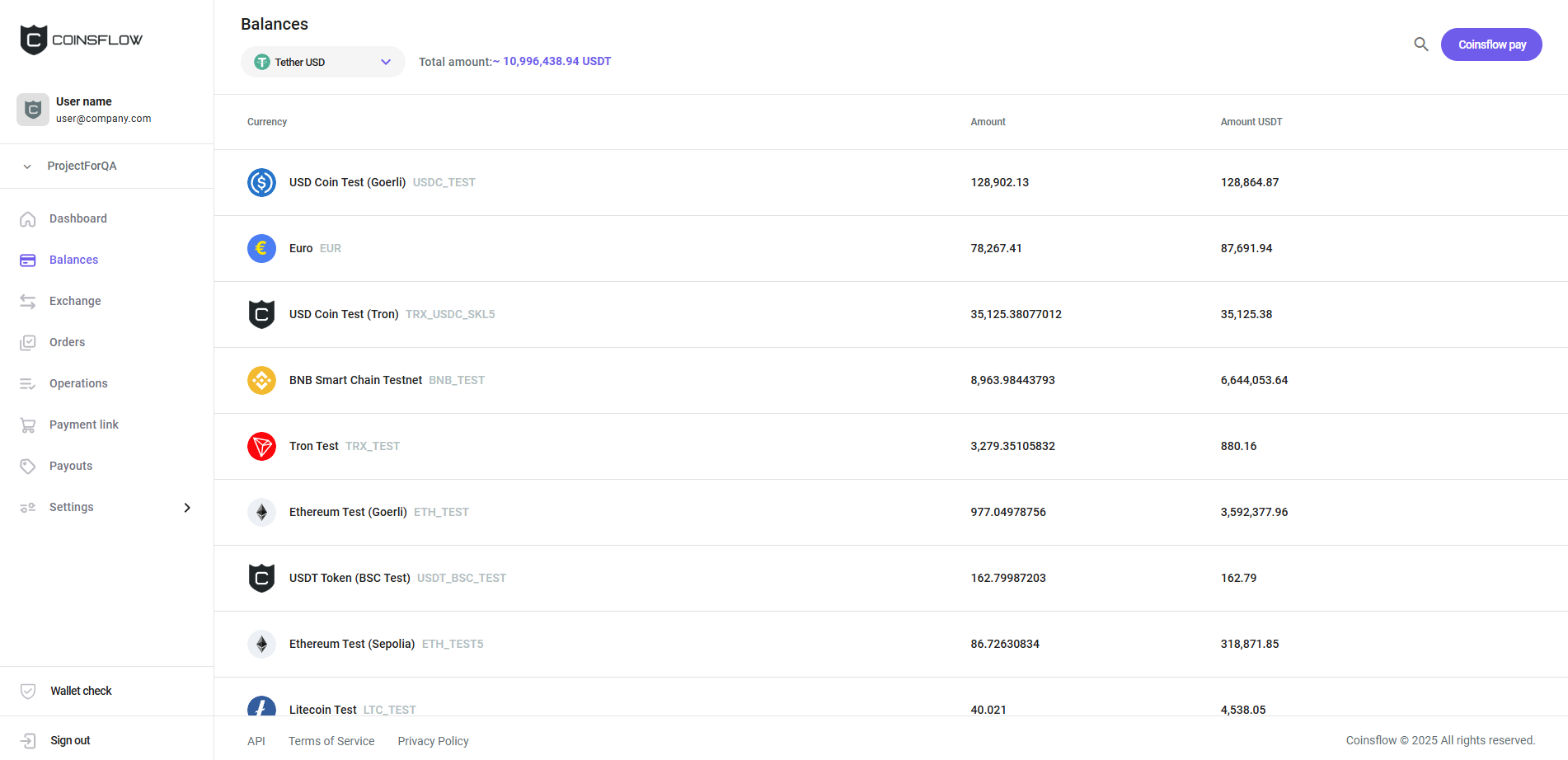
The "Balances" table is displayed on the "Balances" page and displays the following columns:
| Name | Description |
|---|---|
| Currency | Displays the currency (crypto or fiat) that the row refers to. |
| Amount | Displays the amount available on the currency. |
| Amount USDT | Displays the amount of USDT available (converting from the crypto's available assets). |
Exchange history
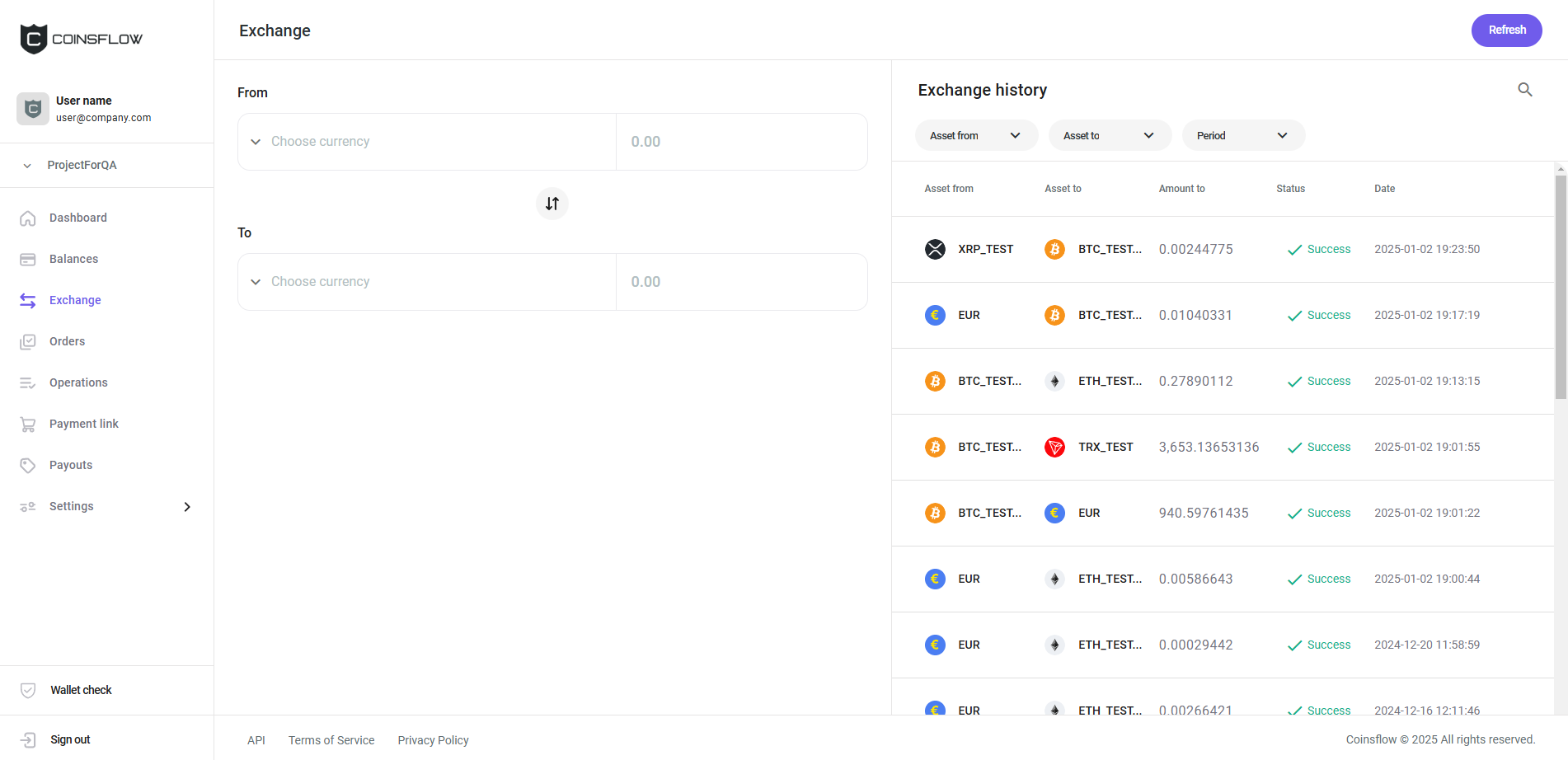
The "Exchange history" table is displayed on the "Exchanges" page and displays the following columns:
| Name | Description |
|---|---|
| Asset from | Displays the selected crypto currency to exchange assets from. |
| Asset to | Displays the selected crypto currency to exchange assets to. |
| Amount to | Displays the amount received on the exchange process. |
| Status | Displays the current status of the exchange operation. |
| Date | Displays the data and time the exchange operation was created. |
Orders
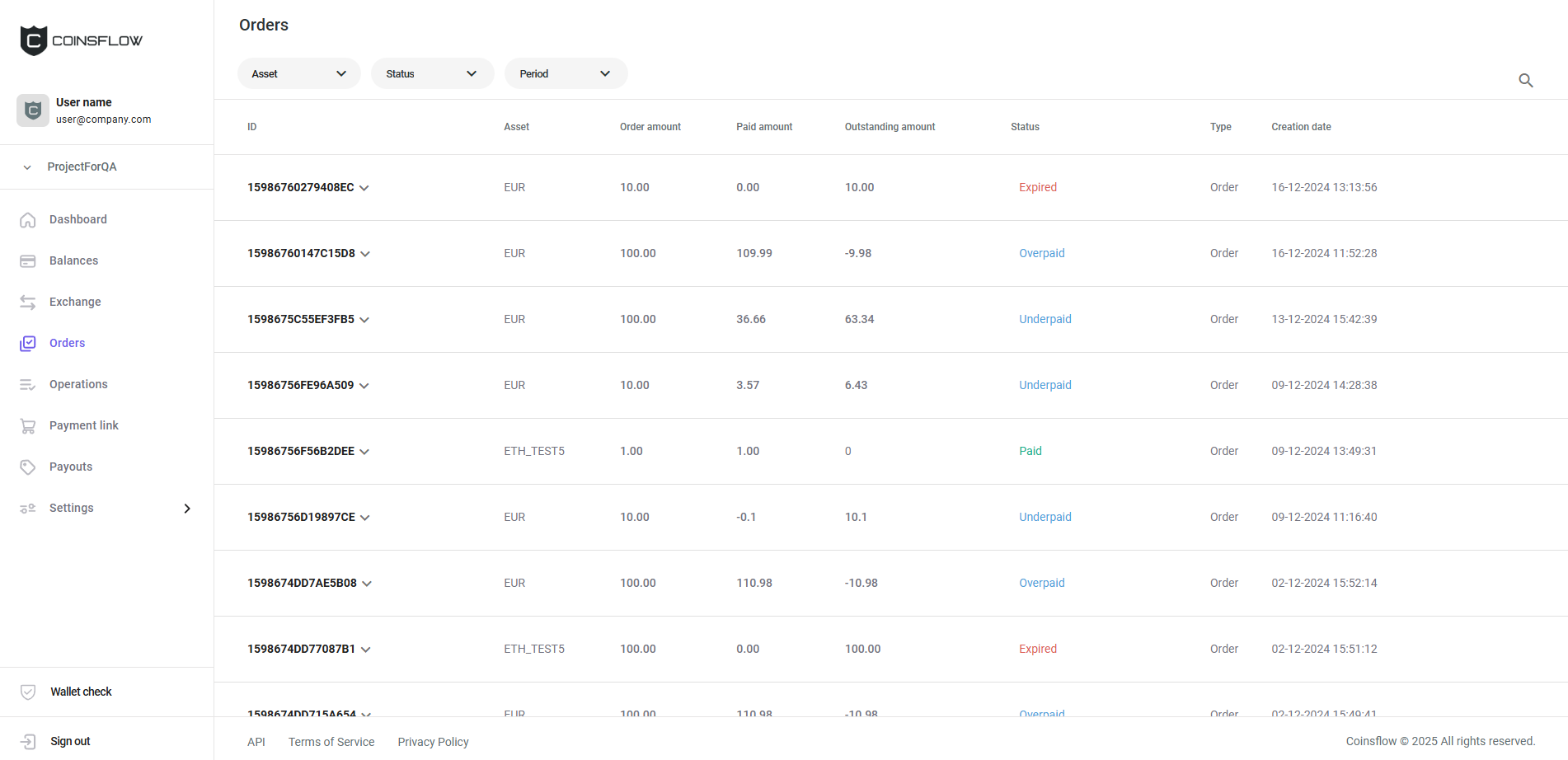
The "Orders" table is displayed on the "Orders" page and displays the following columns:
| Name | Description |
|---|---|
| ID | Displays the unique code that identifies the order on the platform. |
| Asset | Displays the selected crypto currency used to execute the operation. |
| Order amount | Displays the amount of the "Asset" requested on the operation. |
| Paid amount | Displays the amount of the "Asset" used on the operation. |
| Outstanding amount | Displays the amount of the "Asset" expected to achieve the "Order amount" requested on the operation. |
| Status | Displays the current status of the operation from Created, Pending, Processing, Paid, Underpaid, Overpaid, Expired, Failed, Refunded, Partially_refunded, Refunding, |
| Deactivated. | |
| Type | Displays the type of operation (order). |
| Creation Date | Displays the date and time the order was created. |
| Details | Button that allows you to open the order details pop-up card or to get the payment link associated with the order. The details button is hidden and is only visible when the row is hovered. |
Operations
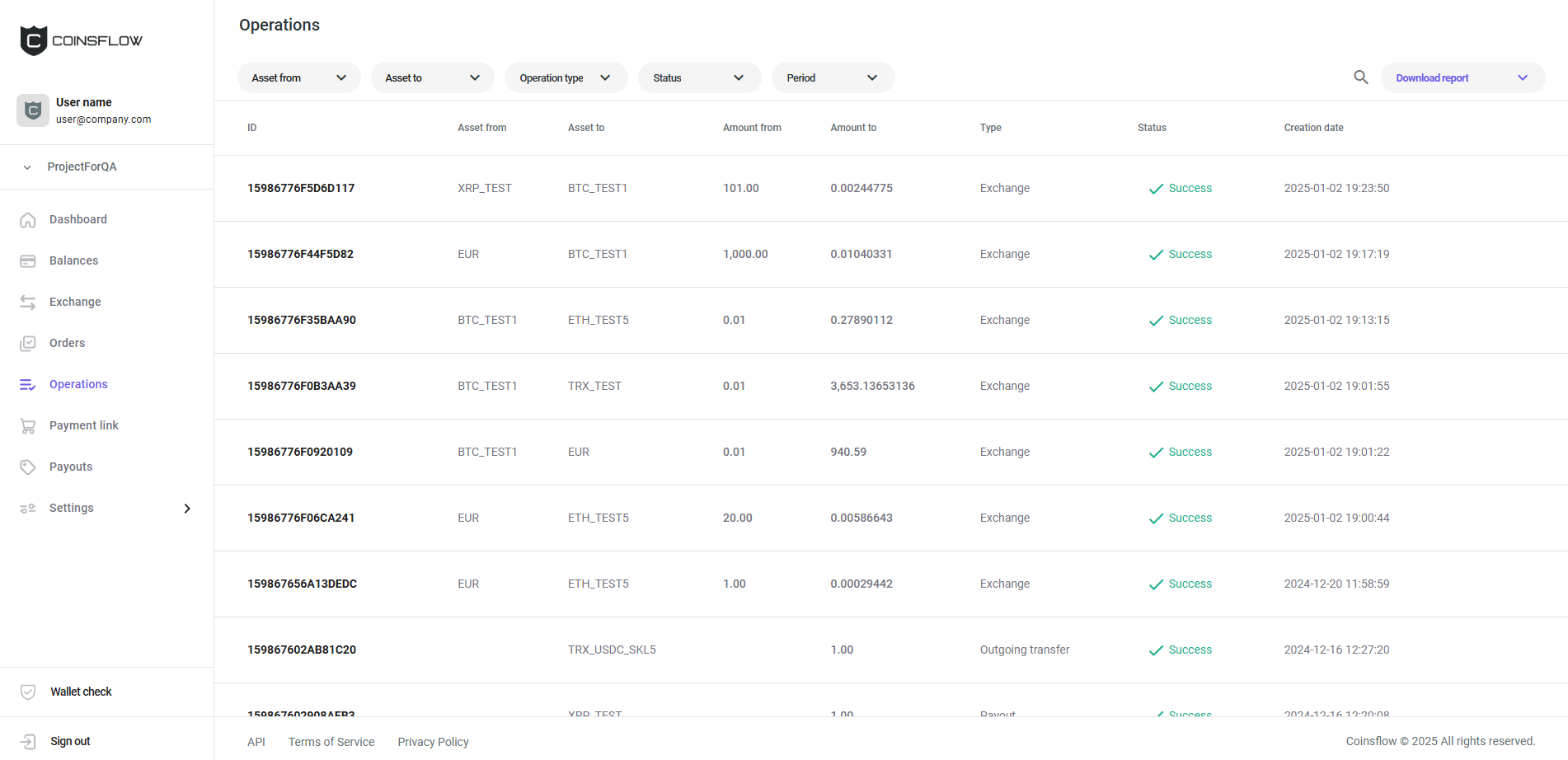
The "Operations" table is displayed on the "Operations" page and displays the following columns:
| Name | Description |
|---|---|
| ID | Displays the unique code that identifies the operation on the platform. |
| Asset from | Displays the selected crypto currency to exchange assets from. |
| Asset to | Displays the selected crypto currency used to execute the operation. |
| Amount from | Displays the amount of the "Asset from" currency used on the operation. |
| Amount to | Displays the amount of the "Asset to" currency used on the operation. |
| Type | Displays the type of operation from Deposit, Top up, Payout, Exchange, Settlement, and Order. |
| Status | Displays the current state of the operation. |
| Creation date | Displays the date and time the operation was created. |
Payment links
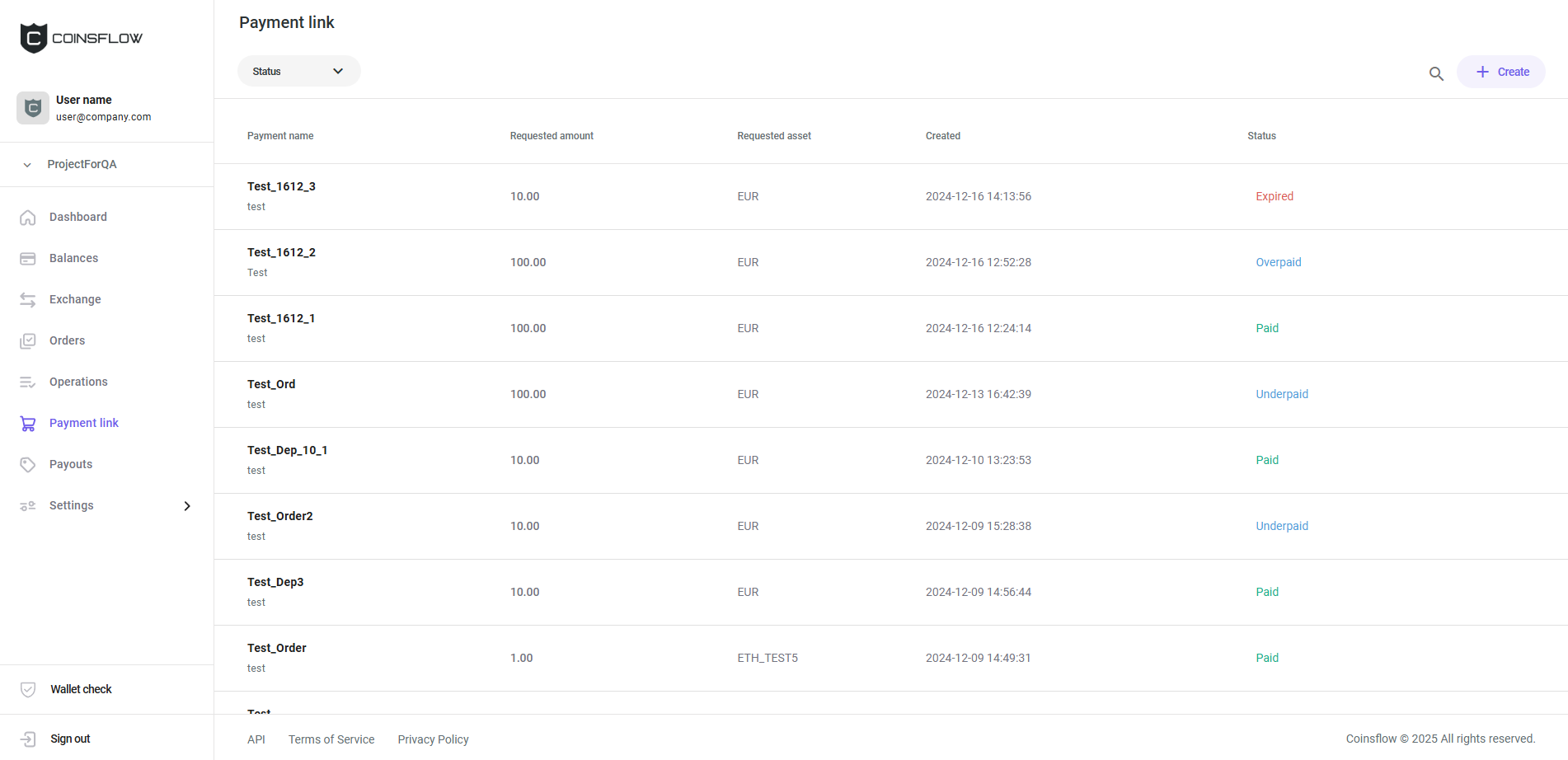
The "Payment links" table is displayed on the "Payment links" page and displays the following columns:
| Name | Description |
|---|---|
| Payment name | Displays the given name to the payment link. |
| Requested amount | Displays the amount requested as payment in the selected asset (requested asset). |
| Requested Asset | Displays the asset in which the requested amount is set as payment. |
| Created | Displays the date and time the payment link was created. |
| Status | Displays the current status of the payment link from Active, Paid, Failed, Expired. |
Payouts
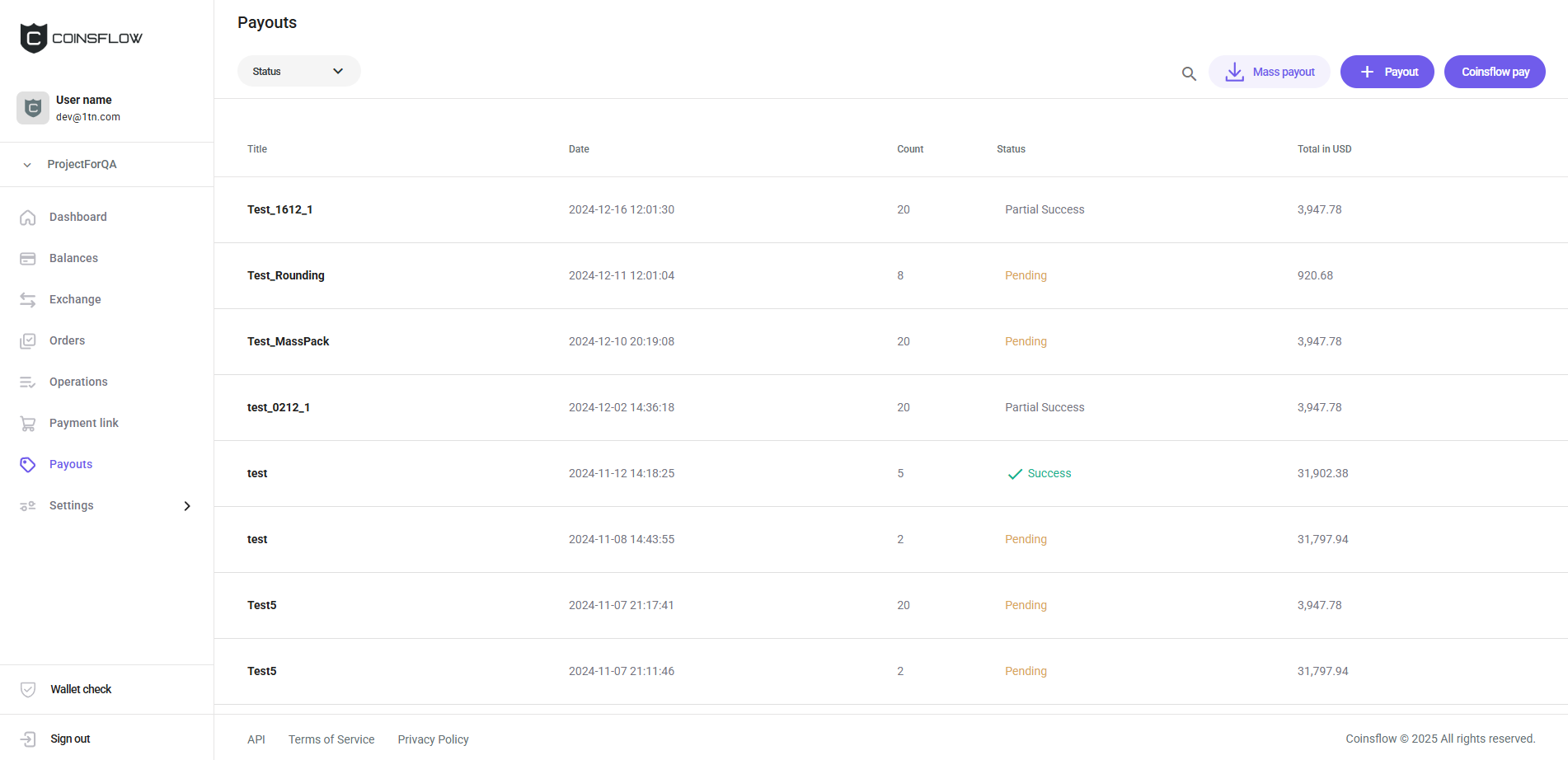
The "Payouts" table is displayed on the "Payouts" page and displays the following columns:
| Name | Description |
|---|---|
| Title | Displays the name given to the payout process as a way of identification on the platform. |
| Date | Displays the date and time the payout process was created. |
| Count | Displays the amount of payouts executed on this payout process (for mass payout purposes). |
| Status | Displays the current status of the payout process from Success, Partial success, Pending, Failed. |
| Total in USD | Displays the amount to be paid in USD. |
Payout list
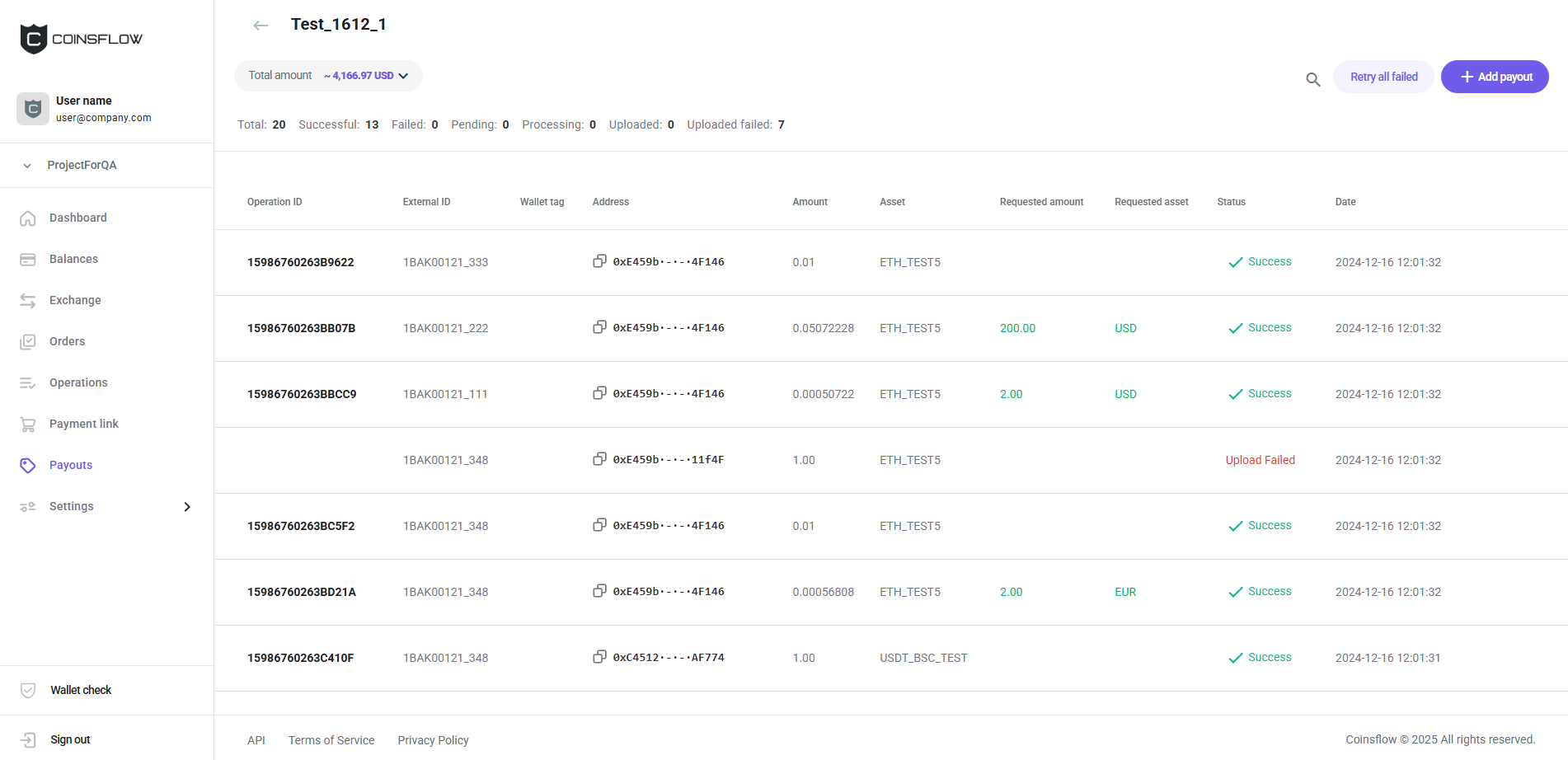
The "Payout list" table displays the payouts from the same payout process (for mass payout purposes) and displays the following columns:
| Name | Description |
|---|---|
| Operation ID | Displays the unique code that identifies the operation on the platform. |
| External ID | Displays the optional tag added to the payout as an internal reference. |
| Wallet Tag | Displays the unique numerical code, required by some blockchains, to pair with the deposit address, as an additional Security measure. |
| Address | Displays the unique code that identifies the address destination of the payout. |
| Amount | Displays the amount of the selected asset processed as payout to the selected address. |
| Asset | Displays the selected asset to process the payout. |
| Amount | Displays the amount used to fulfill the payout. |
| Asset | Displays the asset used to fulfill the payout. |
| Requested amount | Displays the amount requested to fulfill the payout. |
| Requested asset | Displays the asset requested to fulfill the payout. |
| Status | Displays the current status of the payout operation. |
| Date | Displays the date and time the payout status was changed (whether it was successful or not). An "Approve" button is displayed to confirm the payout, while the payout was not authorized. |
Available assets
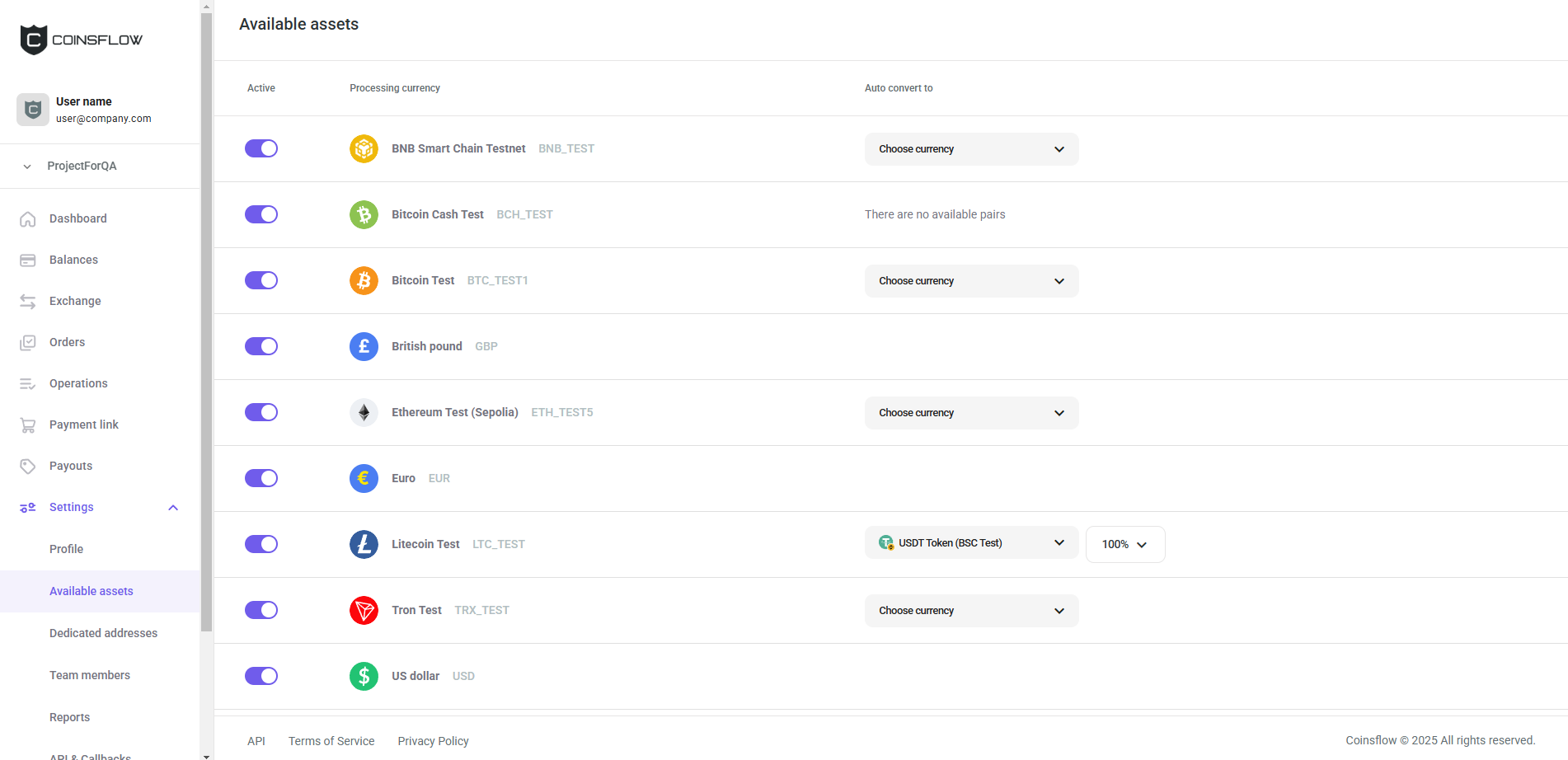
The "Available assets" table is displayed on the "Available assets" page, on the "Settings" sections, and displays the following columns:
| Name | Description |
|---|---|
| Active | Toggle button that indicates if the asset is currently available or not on the platform for your account. |
| Processing currency | Displays the logo, name and short name of the asset. |
| Auto Convert to | Displays the asset to what this asset can be converted. |
| Copy | A button to copy the currency unique code (for API purposes) is displayed when the currency's row is hovered. |
Dedicated Addresses
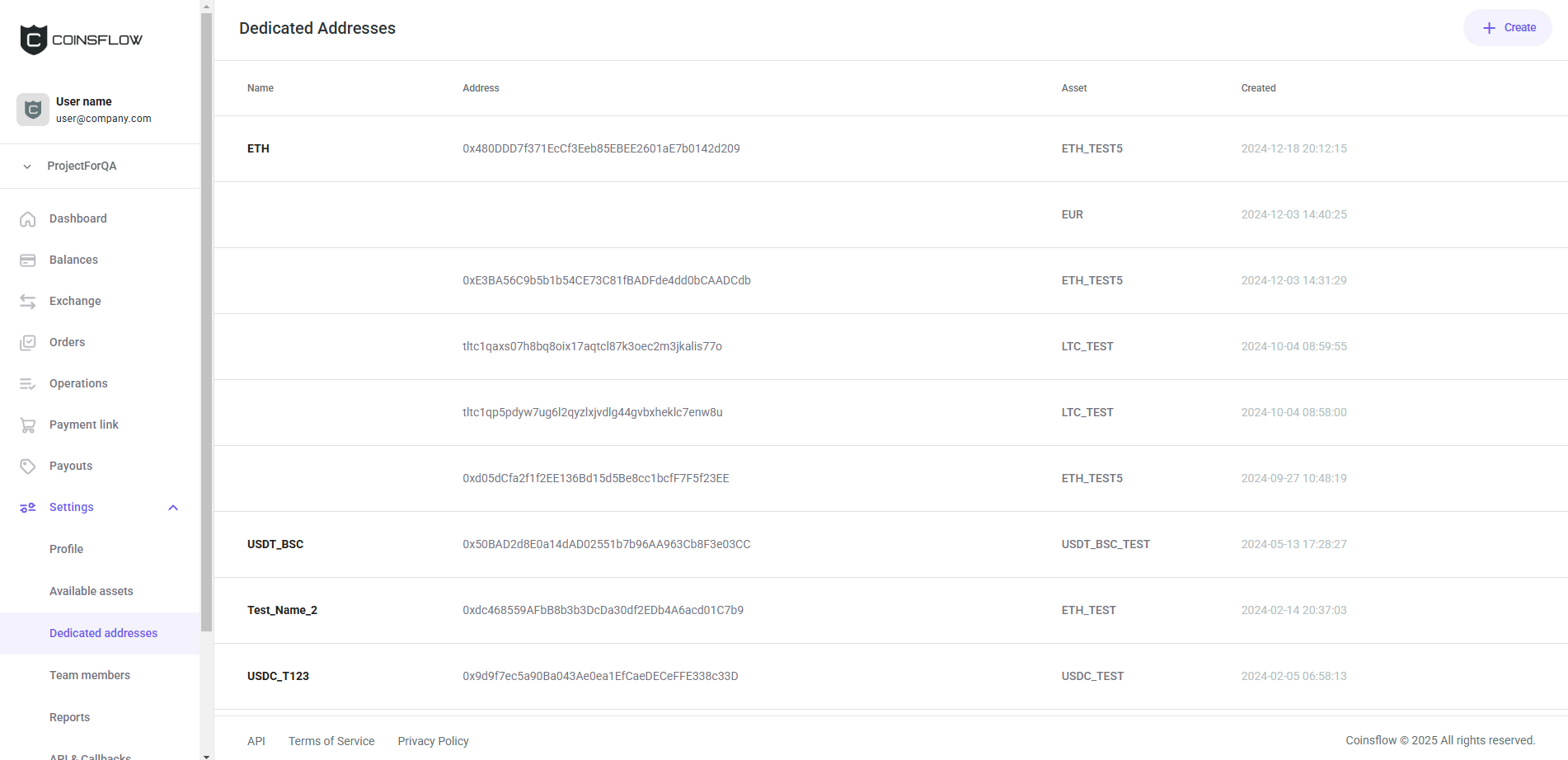
The "Dedicated Addresses" table is displayed on the "Dedicated Addresses" page, on the "Settings" sections, and displays the following columns:
| Name | Description |
|---|---|
| Name | Displays the name that identifies the dedicated address on the platform. |
| Address | Displays the unique code that identifies the address. |
| Asset | Displays the asset that the dedicated address is associated with. |
| Created | Displays the date and time the dedicated address was created. |
| Actions | Displays the "Edit" option on the drop-down menu, that allows you to edit the name of the dedicated address (the button is visible when the row is hovered). |
Address Book
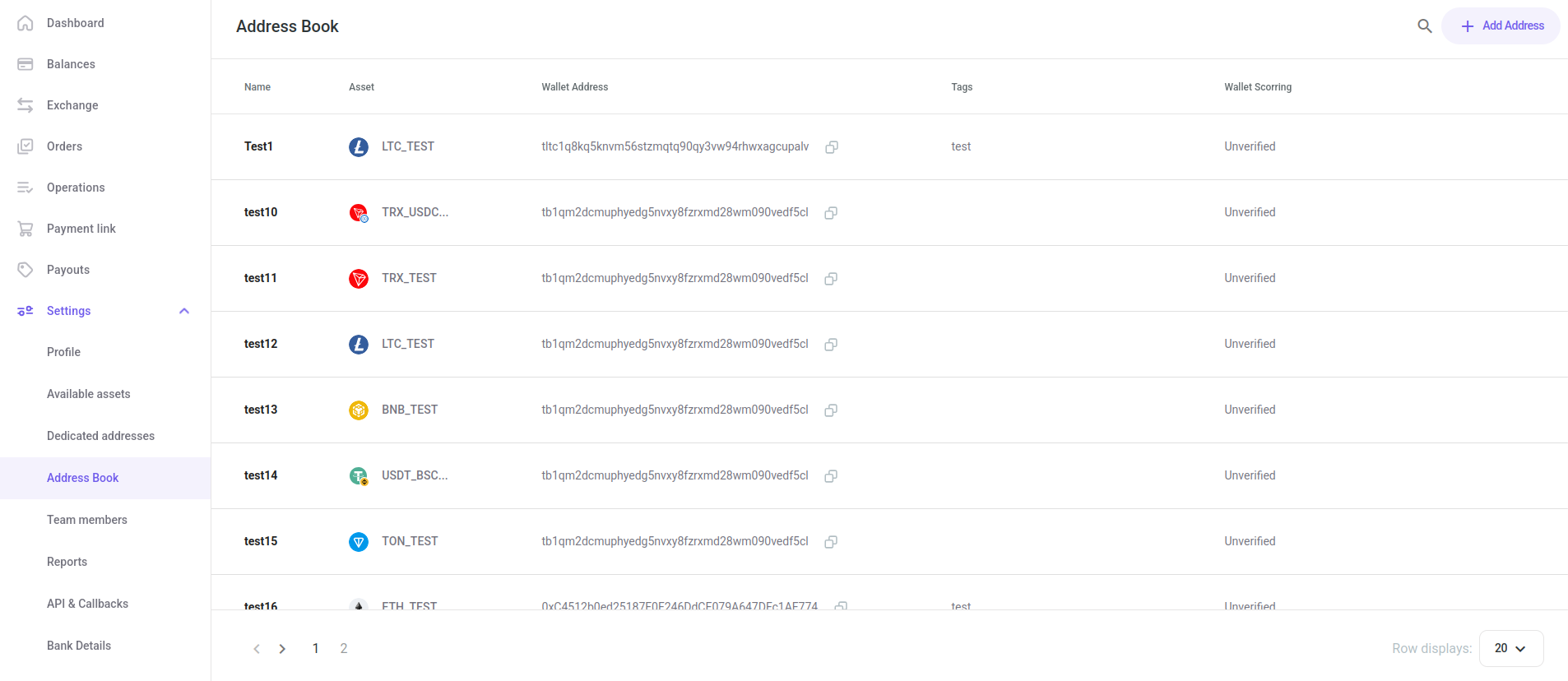
The "Address Book" table is displayed on the "Address Book" page, on the "Settings" sections, and displays the following columns:
| Name | Description |
|---|---|
| Name | Displays the name that identifies the wallet address on the platform. |
| Asset | Displays the asset that the address is associated with. |
| Wallet Address | Displays the unique code that identifies the address. |
| Tags | Displays the user-assigned tags for the wallets. |
| Wallet Scoring | Displays the risk scores of the wallets. |
Team members
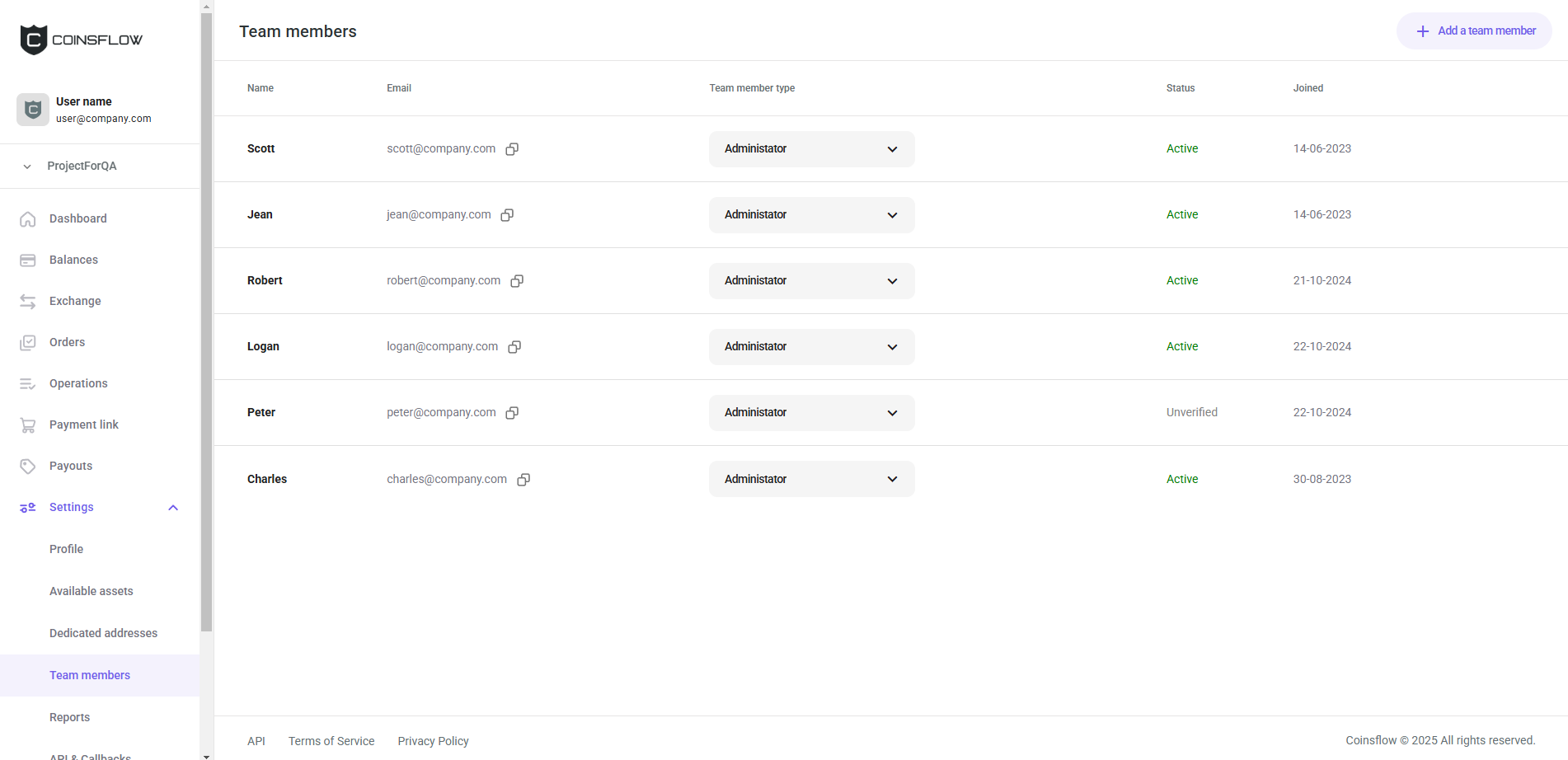
The "Team members" table is displayed on the "Team members" page, on the "Settings" sections, and displays the following columns:
| Name | Description |
|---|---|
| Name | Displays the name that identifies the member on the platform. |
| Displays the email address associated with the member. | |
| Team member type | Displays the role assigned to the member. |
| Status | Displays the current status of the member from Active, Deactivated, and Unverified. |
| Joined | Displays the date the member was created. |
API & Callbacks
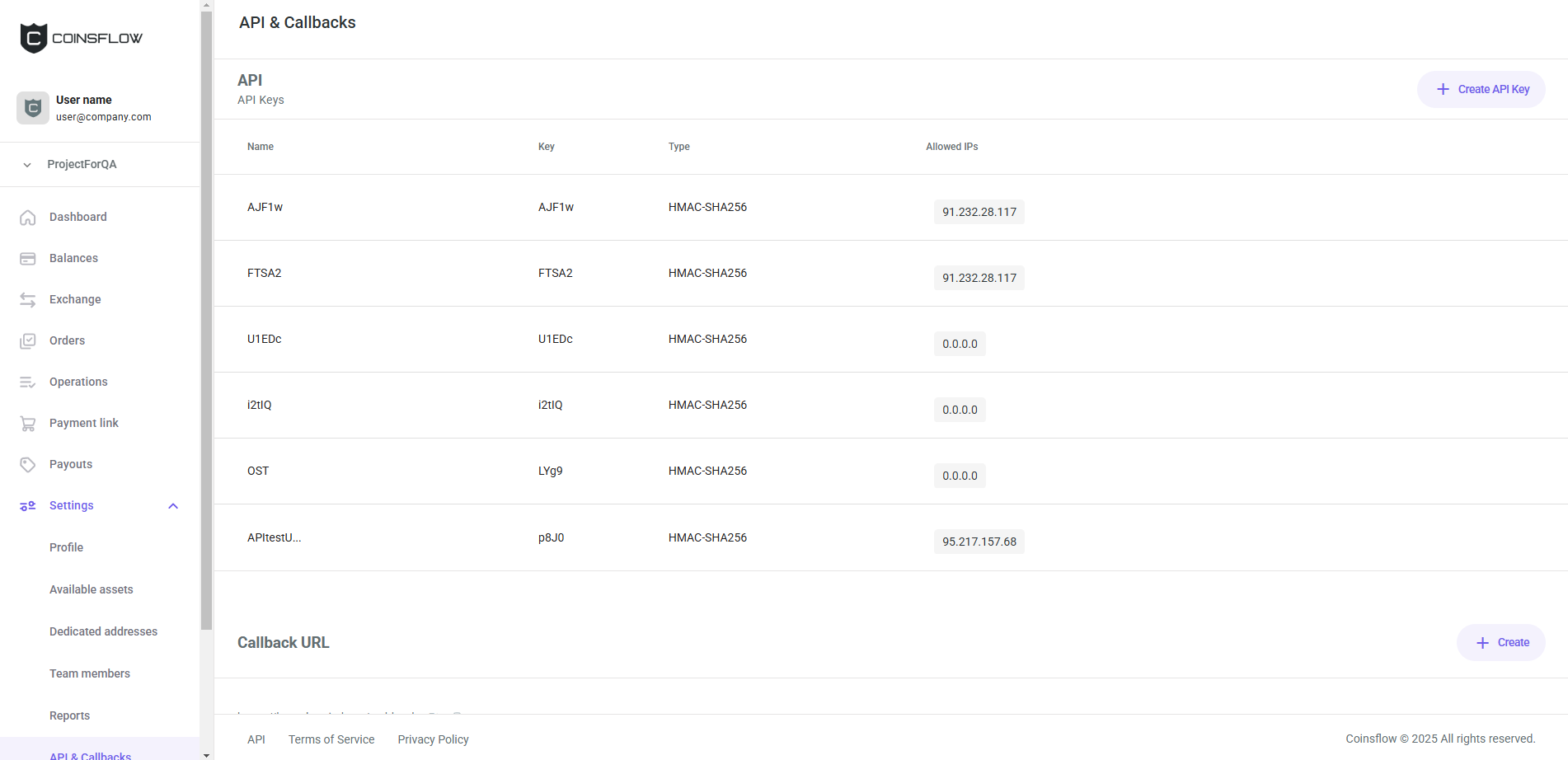
The "API Keys" table is displayed on the "API & Callbacks" page, on the "Settings" sections, and displays the following columns:
| Name | Description |
|---|---|
| Name | Displays the name that identifies the API key on the platform. |
| Key | Displays the unique code that identifies the API key. |
| Type | Displays the signature key type. |
| Allowed IPs | Displays the list of IPs whitelisted for the API key. |
Cards
Exchange
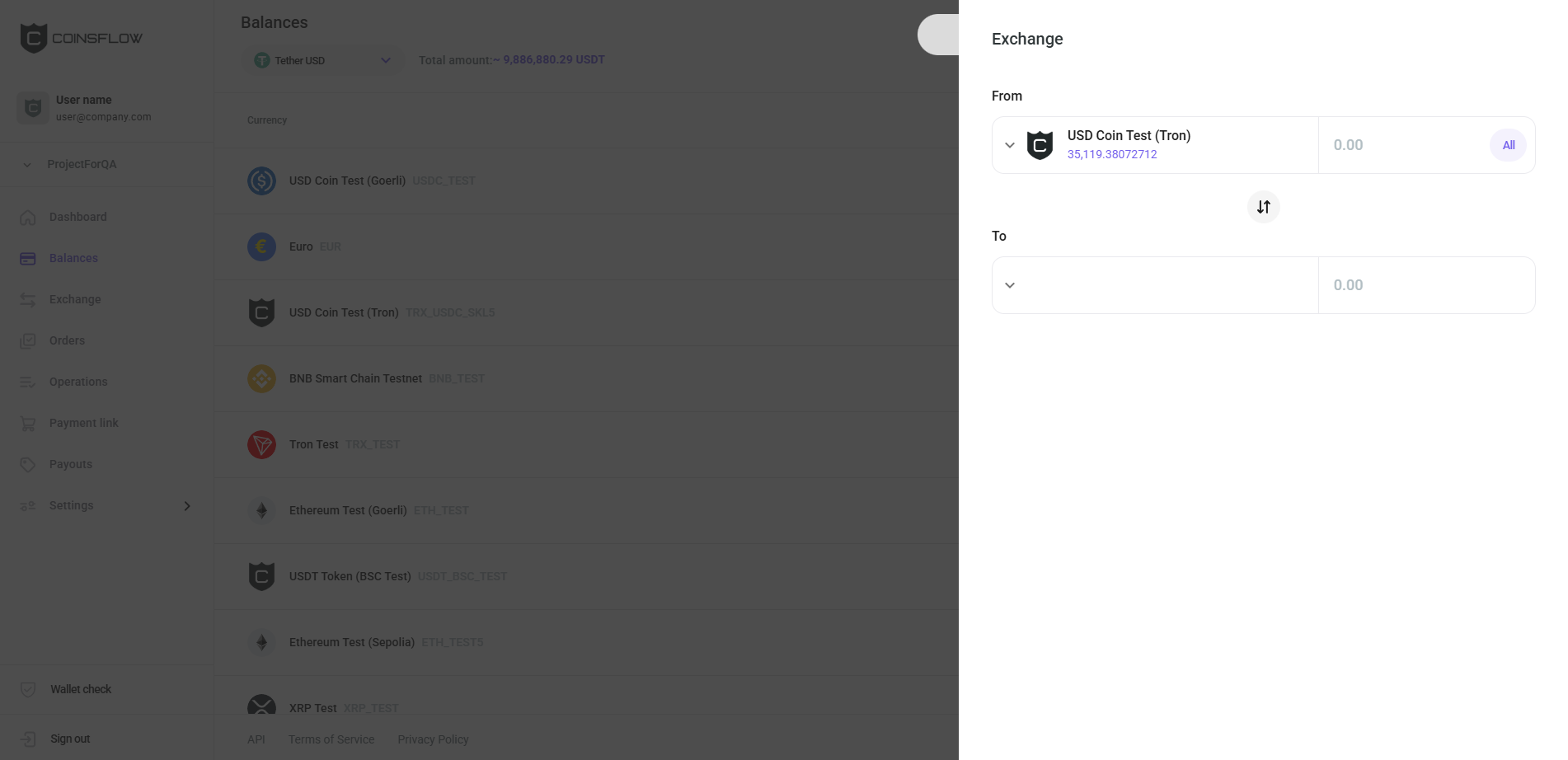
The "Exchange" card is displayed when clicking on "Exchange" button on the "Balances" table that is displayed on the "Balances" page, and displays the following fields:
| Name | Description |
|---|---|
| From | Drop-down menu to select the currency and field to insert the amount of the selected currency to convert to another currency. |
| Amount From | Field to insert the desired amount to convert to another asset. |
| Switch | Icon that allows you to swap places the selected currencies on "From" and "To". |
| To | Drop-down menu to select the currency to convert to from another currency (only allowed currencies to convert with the selected currency on "From" are displayed). |
When both fields are inserted, the card expands:
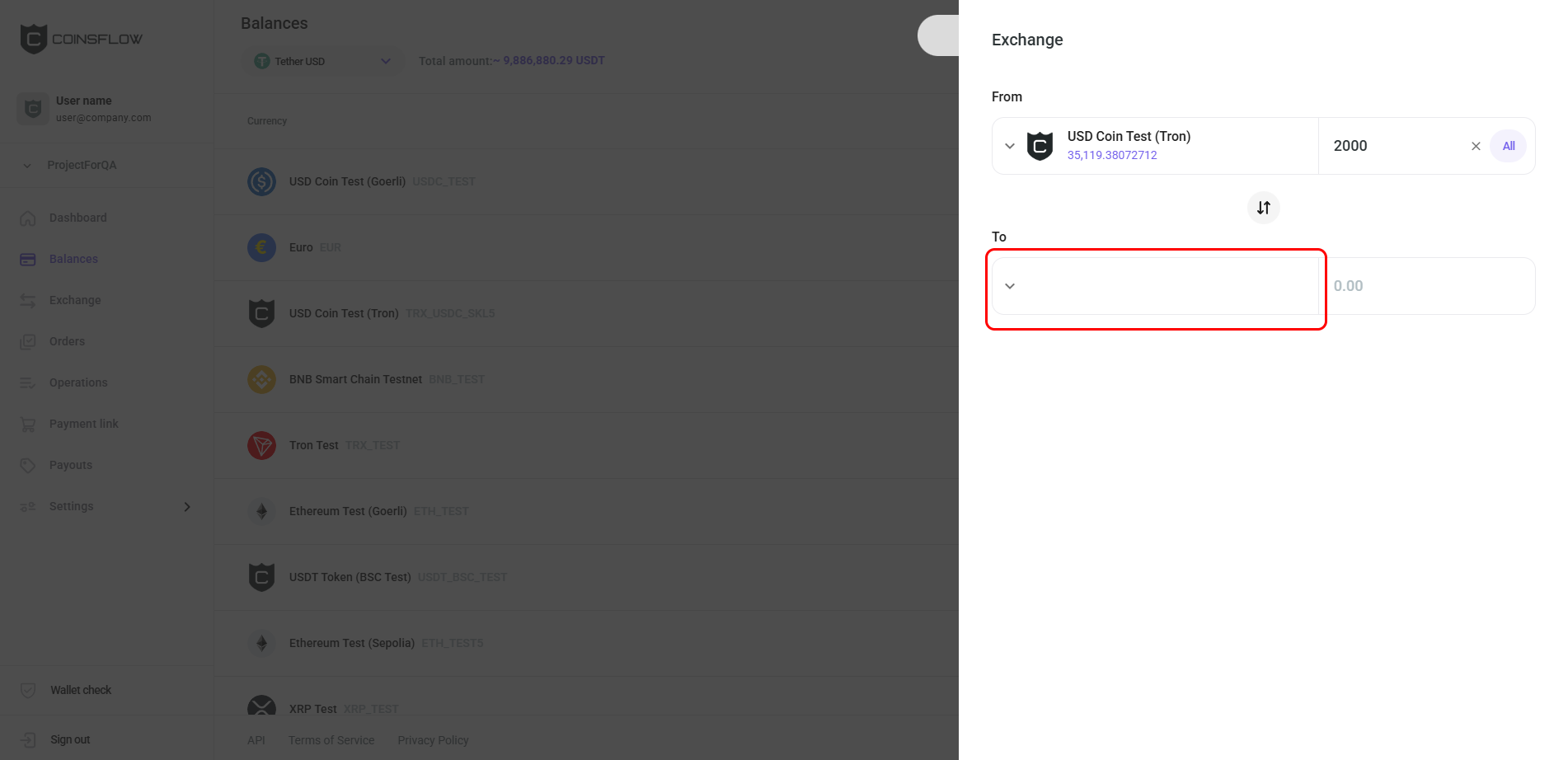
| Name | Description |
|---|---|
| From | Drop-down menu to select the currency and field to insert the amount of the selected currency to convert to another currency. |
| Amount From | Field to insert the desired amount to convert to another asset. |
| Switch | Icon that allows you to swap places the selected currencies on "From" and "To". |
| To | Drop-down menu to select the currency to convert to from another currency (only allowed currencies to convert with the selected currency on "From" are displayed). |
| Amount To | Field that displays the amount converted to from the amount and asset selected on From. |
| You will receive | Displays the amount of units you will receive of the selected currency on "To". |
| Exchange timer | The operation has a 60 seconds limit to be completed. After that you need to refresh the operation to get a new Rate. |
| Rate | Field that displays the convert ratio of 1 unit of the selected currency on "From" to the selected currency on "To". |
| Processing fee | Displays the ratio charged as transaction fee for the selected currencies and amount. If the calculated fee is smaller than the minimum fee charged, the minimum fee is charged and the ratio disregarded. |
Exchange details
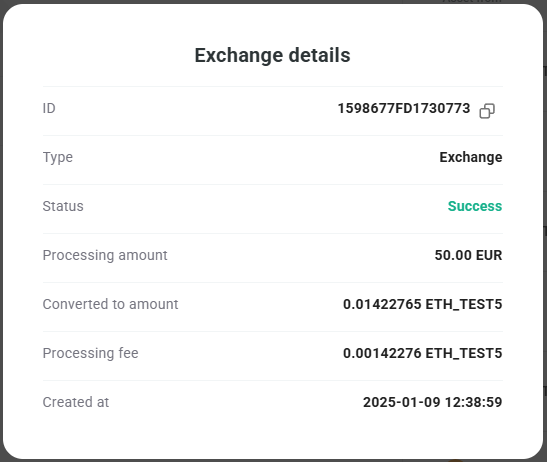
The "Exchange details" pop-up card is displayed when clicking on "Details" button on the "Exchange history" that is displayed on the "Exchange" page, and displays the following fields:
| Name | Description |
|---|---|
| ID | Field that displays the unique code that identifies the exchange operation on the platform (a copy button is available). |
| Type | Field that displays the type of operation (exchange in this case). |
| Status | Field that displays the current status of the exchange operation. |
| Processing amount | Field that displays the amount of the specific asset used to exchange to the selected asset. |
| Converted to amount | Field that displays the amount and specific asset received on the exchange operation. |
| Processing Fee | Field that displays the amount and specific asset charged as fee of the exchange operation. |
| Created at | Field that displays the date and time the exchange operation was created. |
Order
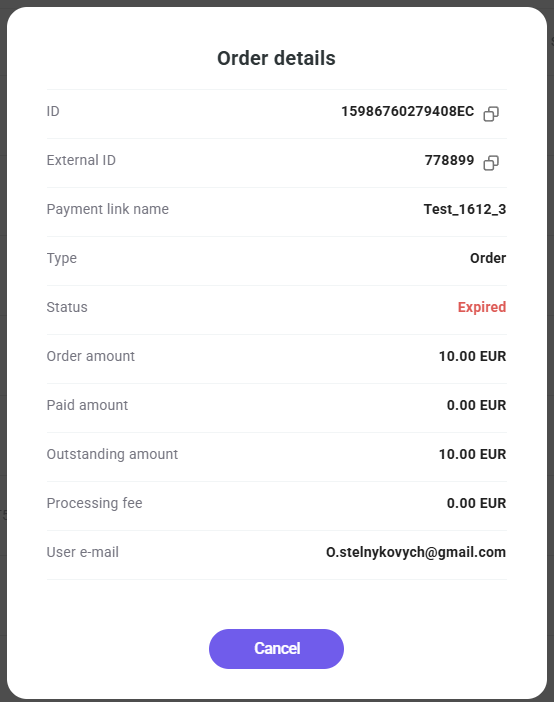
The "Order details" card is displayed when clicking on "Details" button on the "Orders" table that is displayed on the "Orders" page, and displays the following fields:
| Name | Description |
|---|---|
| ID | Field that displays the unique code that identifies the operation on the platform (a copy button is available). |
| External ID | Field that displays the customized tag (a copy button is available). |
| Payment link name | Field that displays the name given to the payment link associated with the order. |
| Type | Field that displays the type of operation (order in this case). |
| Status | Field that displays the current status of the operation from Created, Pending, Paid, Failed, Underpaid, Overpaid, Refunding, Refunded, Partially refunded. |
| Order amount | Field that displays the amount of the specific asset requested on the operation. |
| Paid amount | Field that displays the amount of the specific asset used on the operation. |
| Outstanding amount | Displays the amount of the "Asset" expected to achieve the "Order amount" requested on the operation. |
| Processing fee | Field that displays the amount of the specific asset charged as the processing fee for the operation. |
| User email | Displays the email address associated with the member. |
| Created at | Field that displays the date and time the order was created. |
| Mark as paid | Button that is visible if the operation is pending and that allows you to mark it as successful. |
Operation details
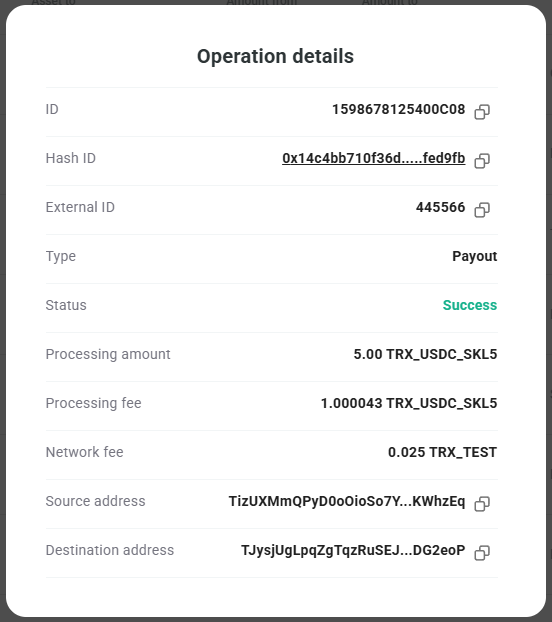
The "Operation details" pop-up card is displayed when clicking on "Details" button on the "Operations" table that is displayed on the "Operations" page, and displays the following fields:
| Name | Description |
|---|---|
| ID | Field that displays the unique code that identifies the operation on the platform (a copy button is available). |
| Hash ID | Field that displays the unique code that identifies the operation on the blockchain. Clicking on the "Hash ID" link opens the blockchain explorer where you can get more information on the transaction (a copy button is available). |
| External ID | Field that displays the code that identifies the External ID (a copy button is available). |
| Type | Field that displays the type of operation from Deposit, Top up, Payout, Exchange, Settlement, or Order. |
| Status | Field that displays the current status of the operation from Deposit, Top up, Payout, Exchange, Settlement, or Order. |
| Requested amount | Field that displays the amount and the asset requested to complete the operation. |
| Processing amount | Field that displays the amount and asset used to complete the operation. |
| Processing fee | Field that displays the amount of the specific asset charged as the processing fee for the operation. |
| Source address | Field that displays the source where the assets were taken. |
| Amount | Field that displays the amount of the specific asset used on the operation (a copy button is available). |
| Destination address | Field that displays the unique code that identifies the address destination of the operation (a copy button is available). |
The "Operation details" card displays different fields depending on the type of operation.
Payment link
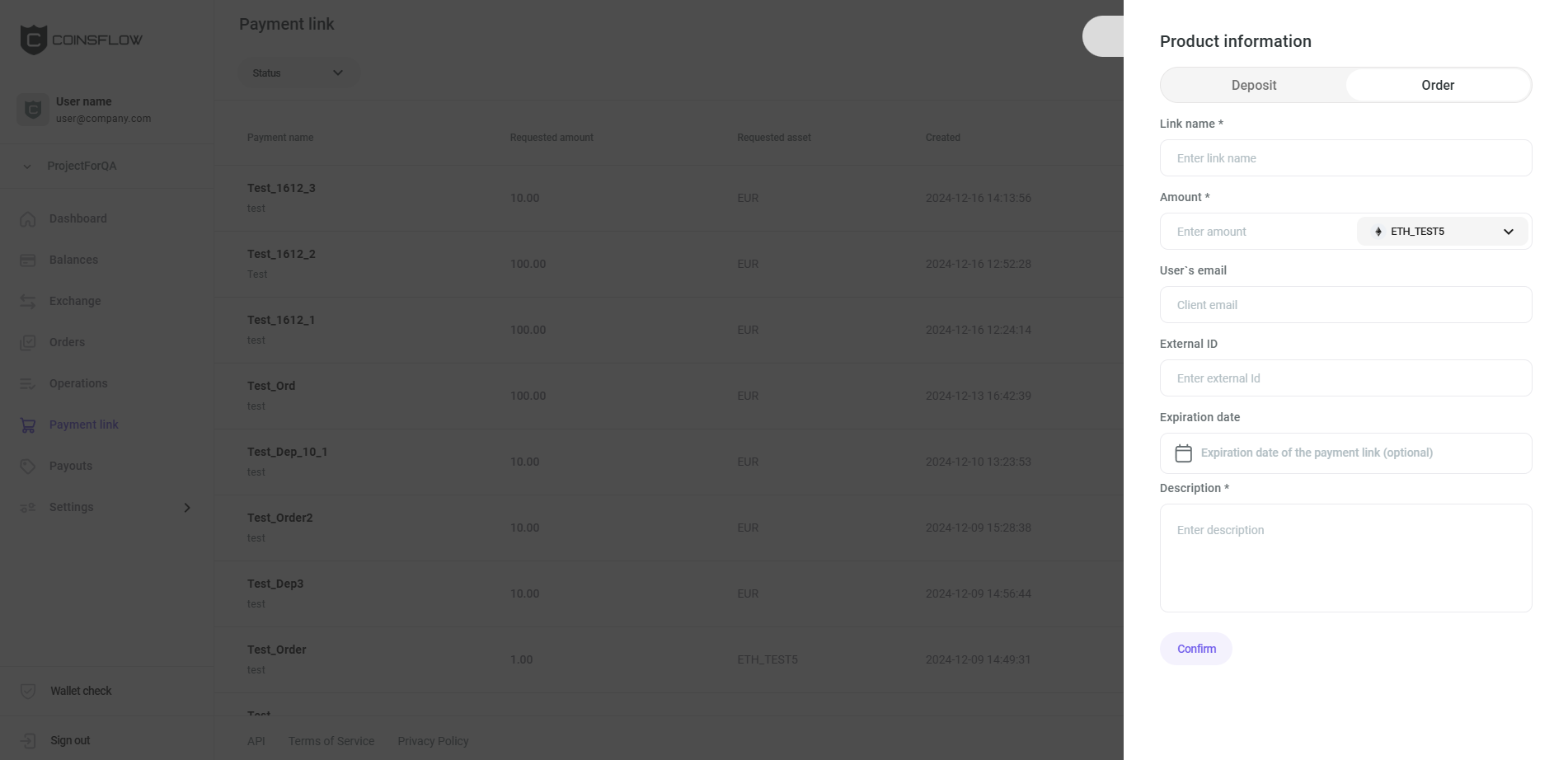
The "Product information" card is displayed when clicking on the "Create" button on the "Payment link" page, and displays the following fields:
| Name | Description |
|---|---|
| Type | Toggle button to indicate if the payment link is for an Order (set by default) or Deposit. |
| Link name | Field to insert the desired name to identify the payment link on the platform. |
| Amount | Field to insert the desired amount to charge on the payment link. |
| Asset | Drop-down menu to select the desired asset associated with the inserted amount. |
| User's email | Field to insert the email address to send the payment link to (this field is not available if the type is Deposit). |
| Expiration date | Field to insert the date, from the calendar, until when the payment link is available (this field is optional and can be left empty). |
| Description | Field to insert the desired text that describes the product associated with the payment link. |
Payment link details
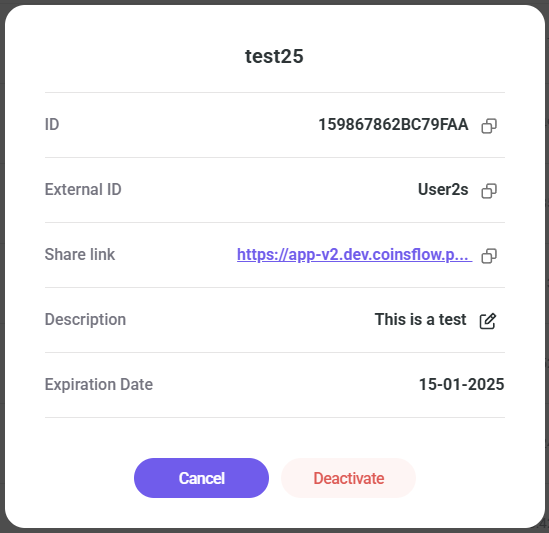
The "Payment link details" pop-up card is displayed when clicking on the "Details" button on the "Payment link" table that is displayed on the "Payment link" page, and displays the following fields:
| Name | Description |
|---|---|
| ID | Field that displays the unique code that identifies the payment link on the platform (a copy button is available). |
| External ID | Field that displays the external ID associated with the payment link (a copy button is available). |
| Share link | Field that displays the payment link (a copy button is available). |
| Description | Field that displays the description associated with the payment link. |
Payout
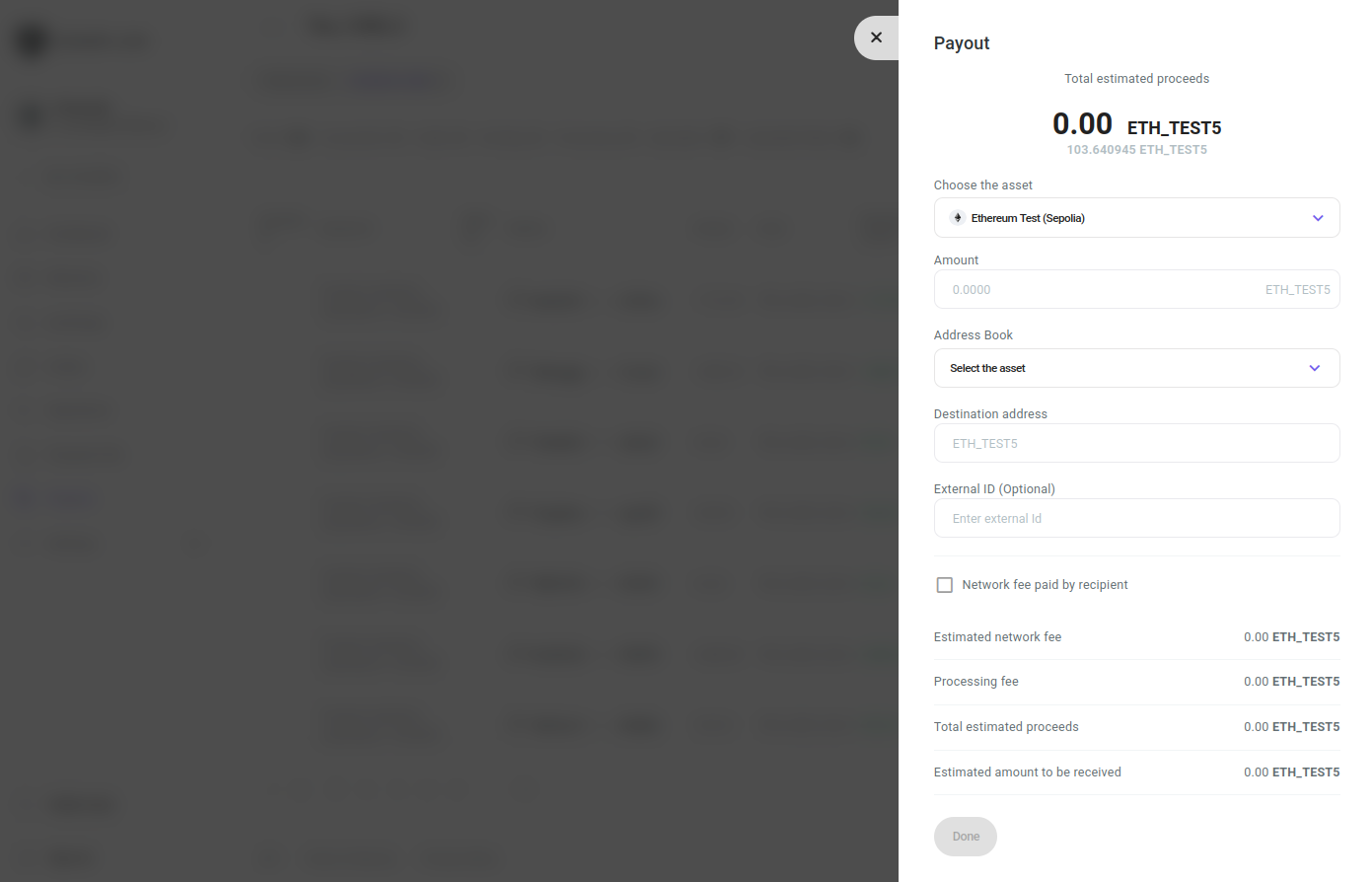
The "Payout" card is displayed when clicking on "Create" single payout" button on the "Payouts" page (and selecting the desired asset to use on the payout operation) or on the "Payout" button on the "Balances" table that is displayed on the "Balances" page, and displays the following fields:
| Name | Description |
|---|---|
| Choose the asset | Drop-down menu to select the desired asset to use on the payout operation. |
| Amount | Field to insert the desired amount of the selected asset to use on the payout operation. |
| Address Book | Drop-down menu to select a wallet previously saved in the Address Book. |
| Destination address | The unique code that identifies the address to send the payout amount. |
| External ID (optional) | Field to insert the desired tag for internal purposes (this field is optional and it can be left blank). |
| Wallet tag | Field to insert the unique numerical code, required by some blockchains, to pair with the deposit address, as an additional Security measure. This field is only visible for some assets and is required when transferring to a centralized exchange. |
| Network fee paid by recipient | Checkbox to indicate who is charged for the payout operation: TRUE - The customer is charged (this is only possible for the native asset of the network and not for the tokens.) FALSE - you are charged |
| Estimated network fee | Field that displays the estimated amount to be charged as the network fee for the payout operation. |
| Processing fee | Field that displays the amount to be charged for the payout operation. |
| Total estimated proceeds | Field that displays the total amount charged on the payout operation. |
| Estimation amount to be received | field that displays the amount that the customer will receive as payout (either the total amount inserted on "amount" or the "amount" - "Network fee, if the "Network fee responsible" is checked as TRUE). |
Mass payout
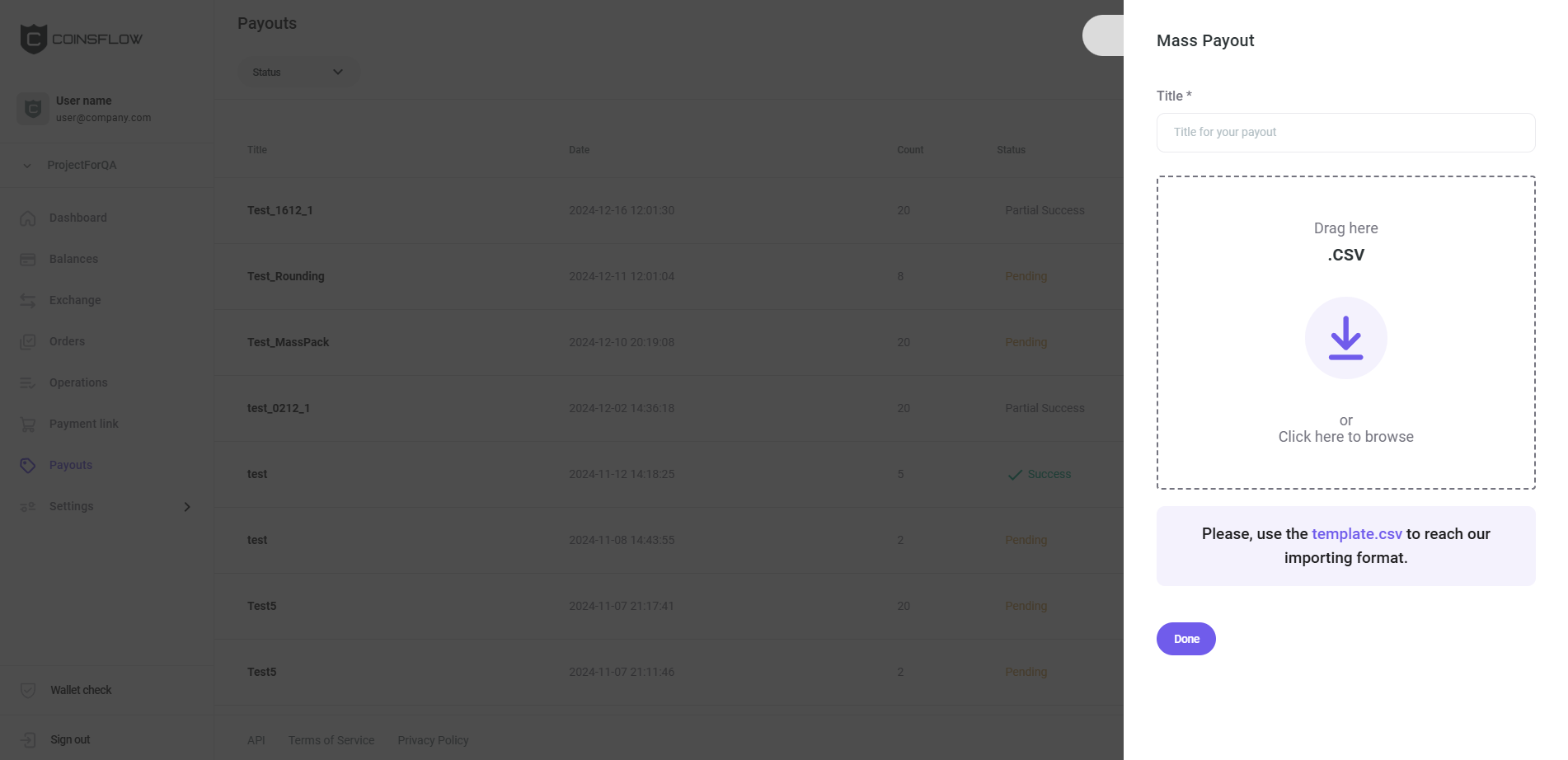
The "Mass payout" card is displayed when clicking on "Mass payout" button on the "Payouts" page, and displays the following fields:
| Name | Description |
|---|---|
| Title | Field to insert the desired name to identify the batch of payouts on the platform. |
| Upload | Area to drop the CSV file (or click the icon to upload the CSV file). |
Payout info
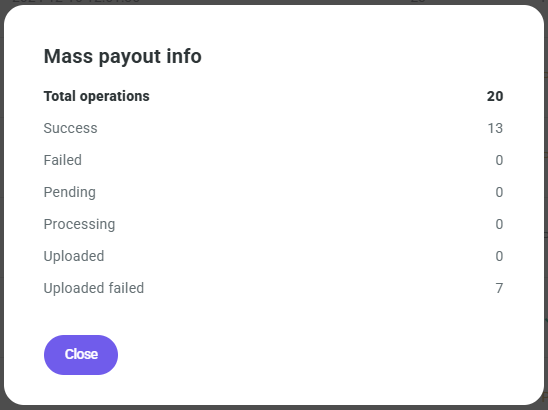
The "Payout info" pop-up card is displayed when clicking on "Info" button on the "Payout" table that is displayed on the "Payout" > "Mass payout" > "Details" button, and displays the following fields:
| Name | Description |
|---|---|
| Total Operations | Field that displays the amount of operations included on the payout. |
| Success | Field that displays the amount of operations included on the payout marked as successful. |
| Failed | Field that displays the amount of operations included on the payout marked as failed. |
| Pending | Field that displays the amount of operations included on the payout marked as pending. |
| Processing | Field that displays the amount of operations included on the payout marked as processing. |
| Uploaded | Field that displays the amount of operations included on the payout marked as uploaded. |
| Uploaded failed | Field that displays the amount of operations included on the payout marked as uploaded failed. |
Payout details
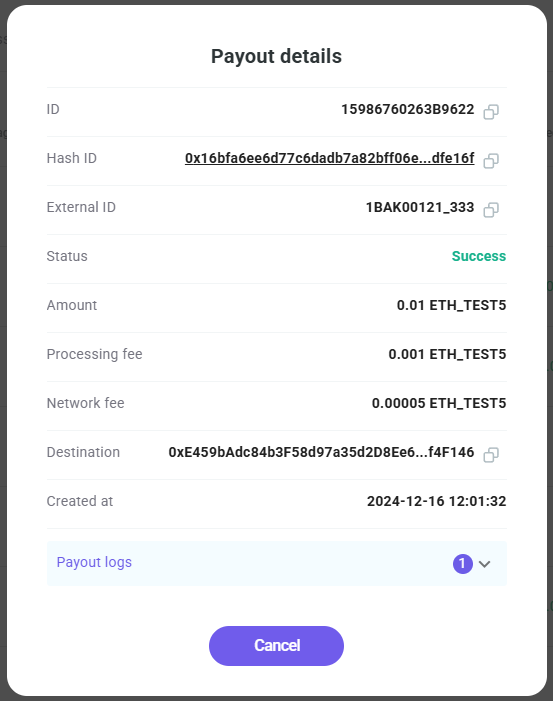
The "Payout details" pop-up card is displayed when clicking on "Details" button on the "Payout" table that is displayed on the "Payout" > "Mass payout" > "Details" button, and displays the following fields:
| Name | Description |
|---|---|
| ID | Field that displays the unique code that identifies the payout on the platform (a copy button is available). |
| Hash ID | Field that displays the unique code that identifies the payout on the blockchain. Clicking on the "Hash ID" link opens the blockchain explorer where you can get more information on the transaction (a copy button is available). |
| External ID | Field that displays the external id (a copy button is available). |
| Wallet tag | Field that displays the wallet tag (a copy button is available). |
| Status | Field that displays the current status of the payout. |
| Amount | Field that displays the amount and currency used for the payout process. |
| Processing fee | Field that displays the amount of the asset charged as the processing fee for the payout. |
| Network fee | Field that displays the amount of the specific asset charged as the network fee for the payout. |
| Destination | Field that displays the unique code that identifies the address destination of the payout (a copy button is available). |
| Created at | Field that displays the date and time the operation was created. |
| Payout logs | Drop-down menu that displays the additional information concerning the payout process (this field is only displayed when the operation is successful). |
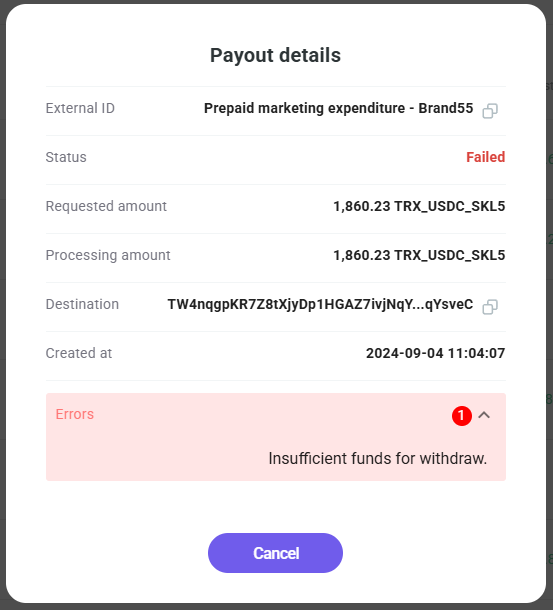
| Errors | Field that displays the errors that blocked the payout operation (this field is only displayed when the operation is not successful and replaces the Payout logs field). |
Payout details error example:
Create a Dedicated address
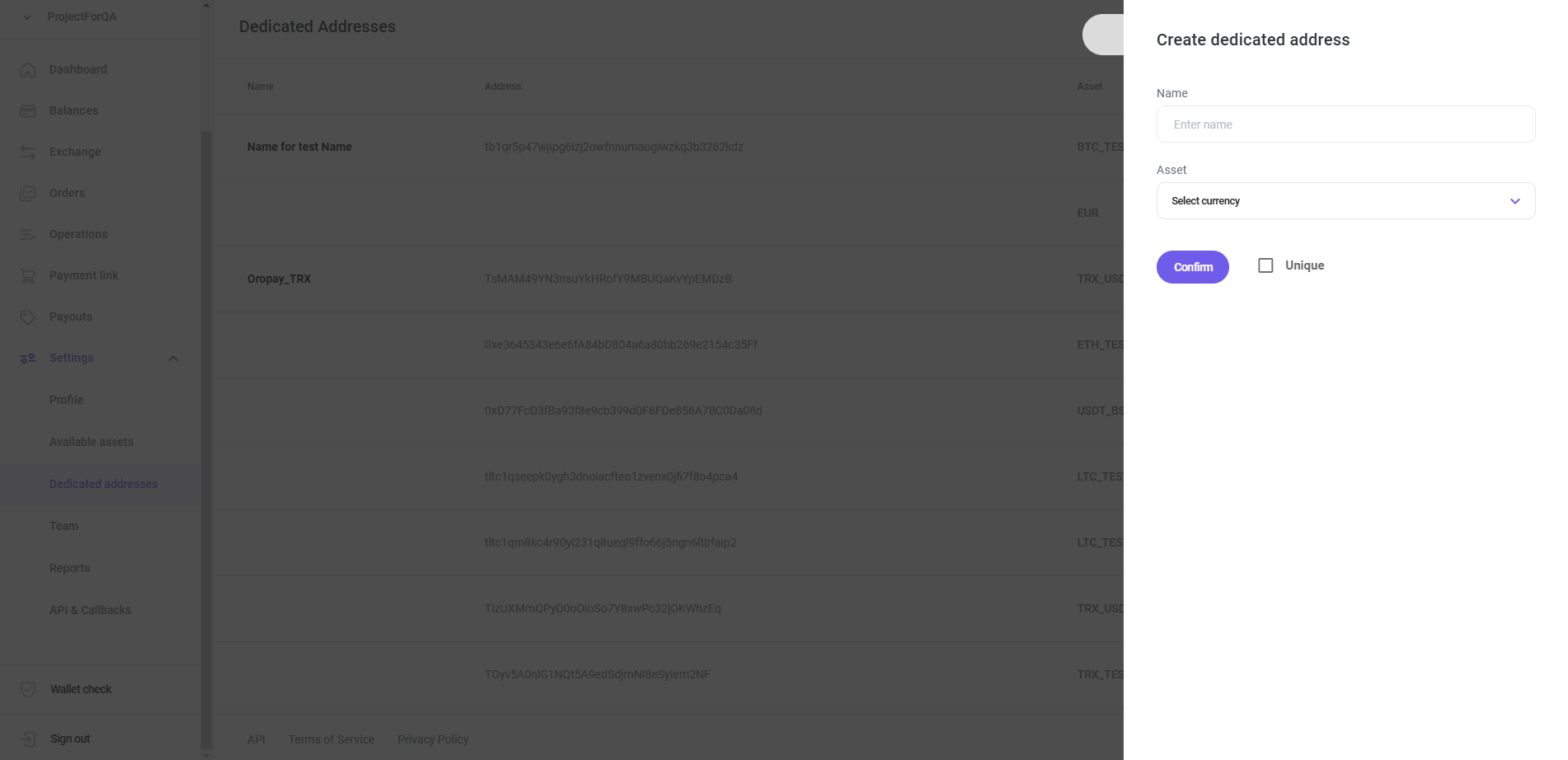
The "Create dedicated address" card is displayed when clicking on the "create" button on the "Dedicated Addresses" page, and displays the following fields:
| Name | Description |
|---|---|
| Name | Field to insert the name to identify the dedicated address on the platform. |
| Asset | Drop-down menu to select the desired asset. |
| Unique | Checkbox to indicate if the dedicated address is unique or not (the address is not unique, by default. Only the combination of the Address and asset is unique. The same address with a different asset can be connected to a different balance.). |
Edit Dedicated address
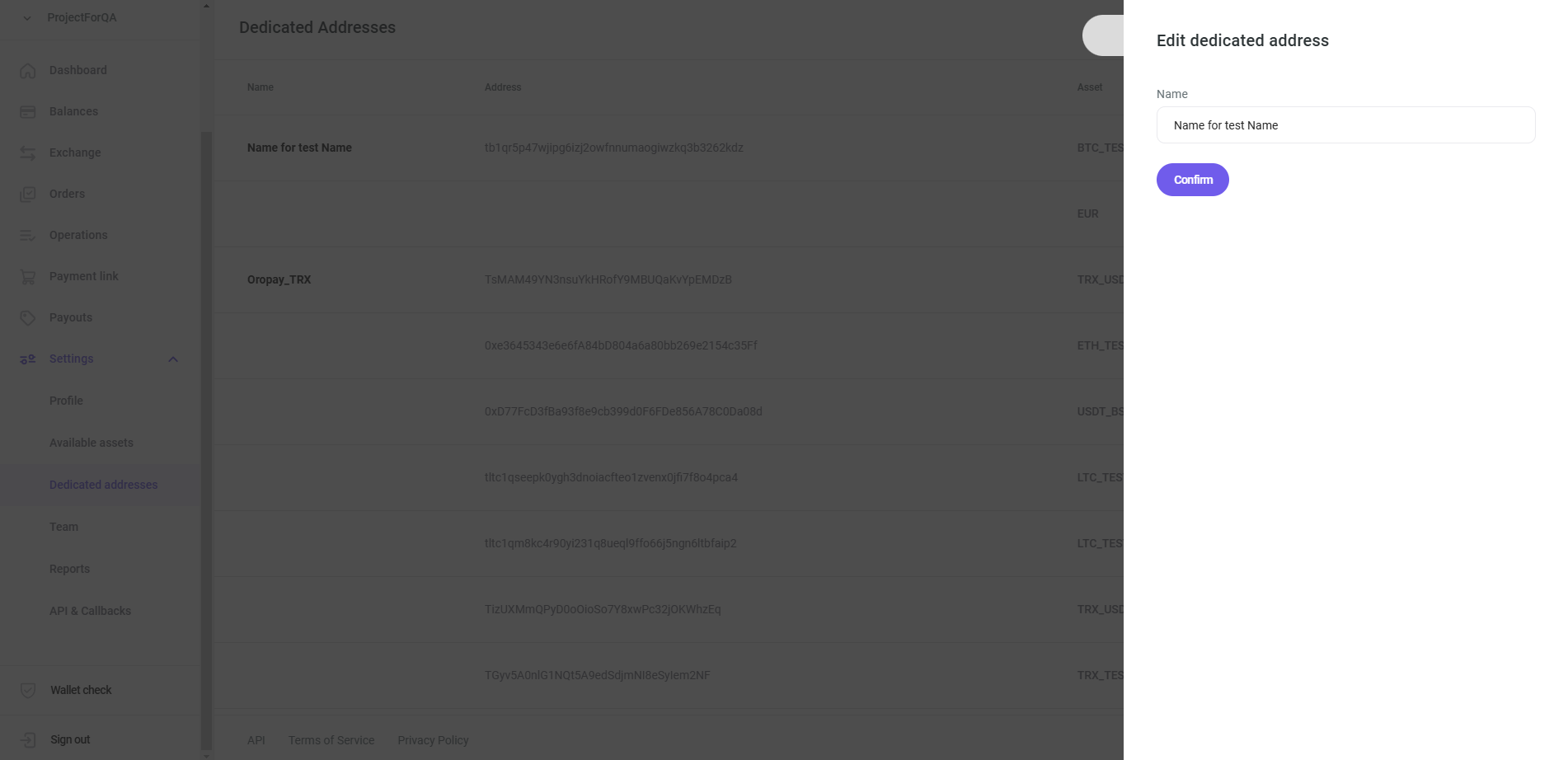
The "Edit dedicated address" card is displayed when clicking on the "Details" button on the "Dedicated Addresses" table that is displayed on the "Dedicated Addresses" page, and displays the following fields:
| Name | Description |
|---|---|
| Name | Field to insert the name to identify the dedicated address on the platform. |
New Address
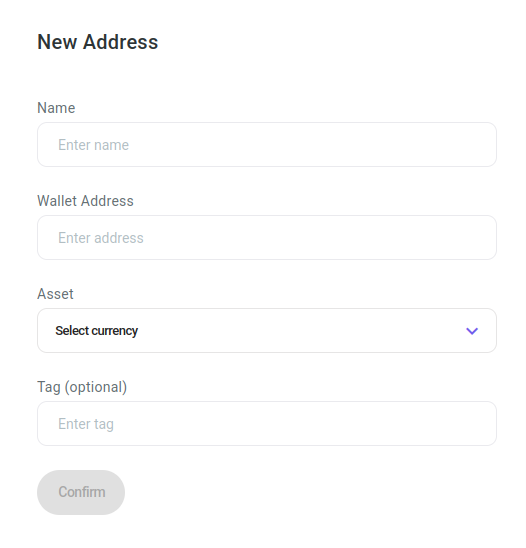
The "Add Address" card is displayed when clicking on the "Add Wallet" button on the "Address Book" page, and displays the following fields:
| Name | Description |
|---|---|
| Name | Field to insert the name to identify the address on the platform. |
| Wallet Address | The unique code that identifies the address on the blockchain. |
| Asset | Drop-down menu to select the desired asset. |
| Tag (optional) | Tag that can help identify the wallet. |
Edit Address
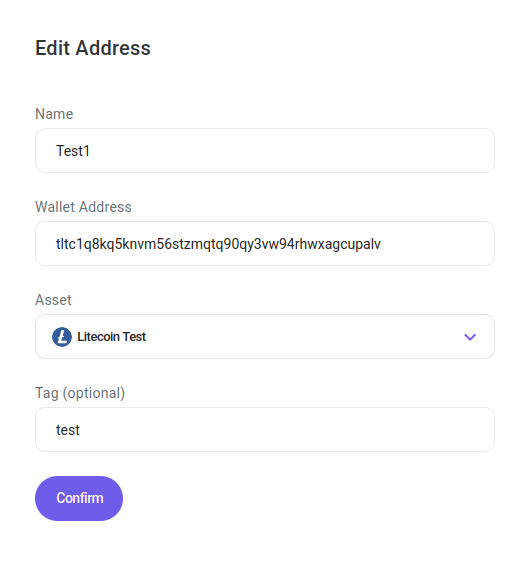
The "Edit Address" card is displayed when clicking on the "Edit" button on the "Address Book" table that is displayed on the "Address Book" page, and displays the following fields:
| Name | Description |
|---|---|
| Name | Field to insert the name to identify the address on the platform. |
| Wallet Address | The unique code that identifies the address on the blockchain. |
| Asset | Drop-down menu to select the desired asset. |
| Tag (optional) | Tag that can help identify the wallet. |
Create a team member
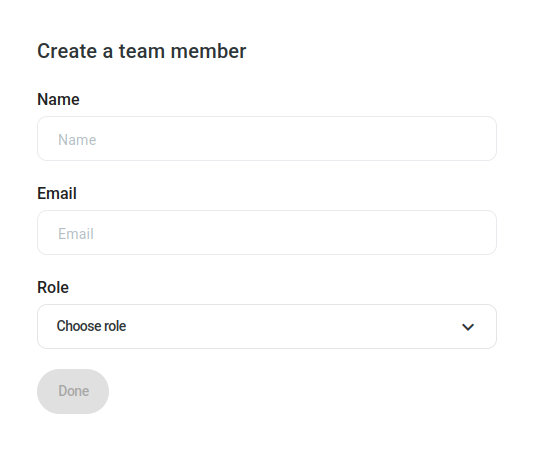
The "Create a team member" card is displayed when clicking on the "Add a team member" button on the "Teams" page, and displays the following fields:
| Name | Description |
|---|---|
| Name | Field to insert the name to identify the user on the platform. |
| Field to insert the email address associated with the user. | |
| Role | Drop-down menu to select the role to assign the user to. |
Create an API Key
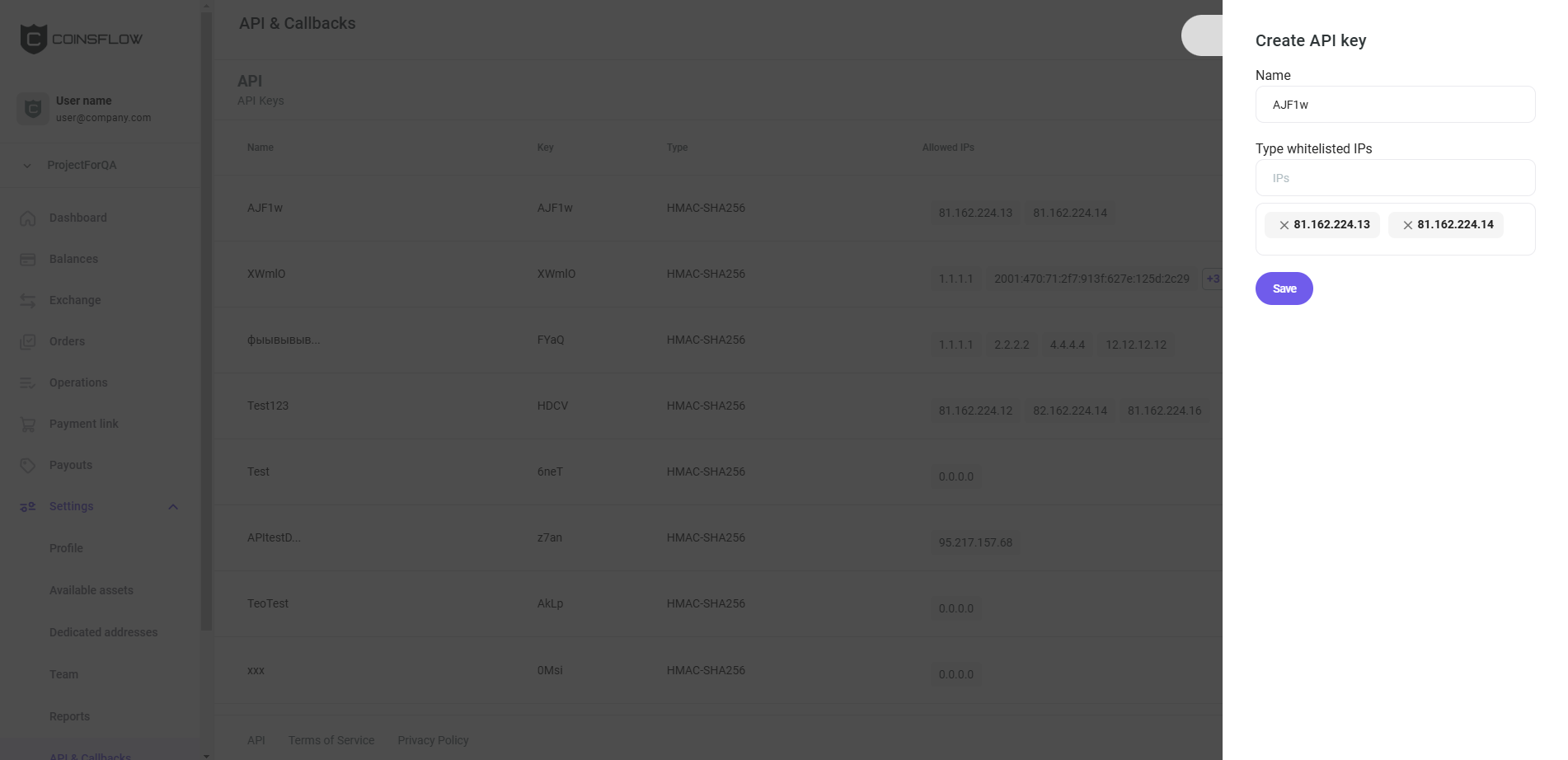
The "Create API Key" card is displayed when clicking on the "Create API Key" button on the "API & Callbacks" page, and displays the following fields:
| Name | Description |
|---|---|
| Name | Field to insert the name to identify the API Key on the platform. |
| Type whitelisted IPs | Field to insert the desired IP addresses whitelisted for the API key (allowed to use the API key). |
Edit an API Key
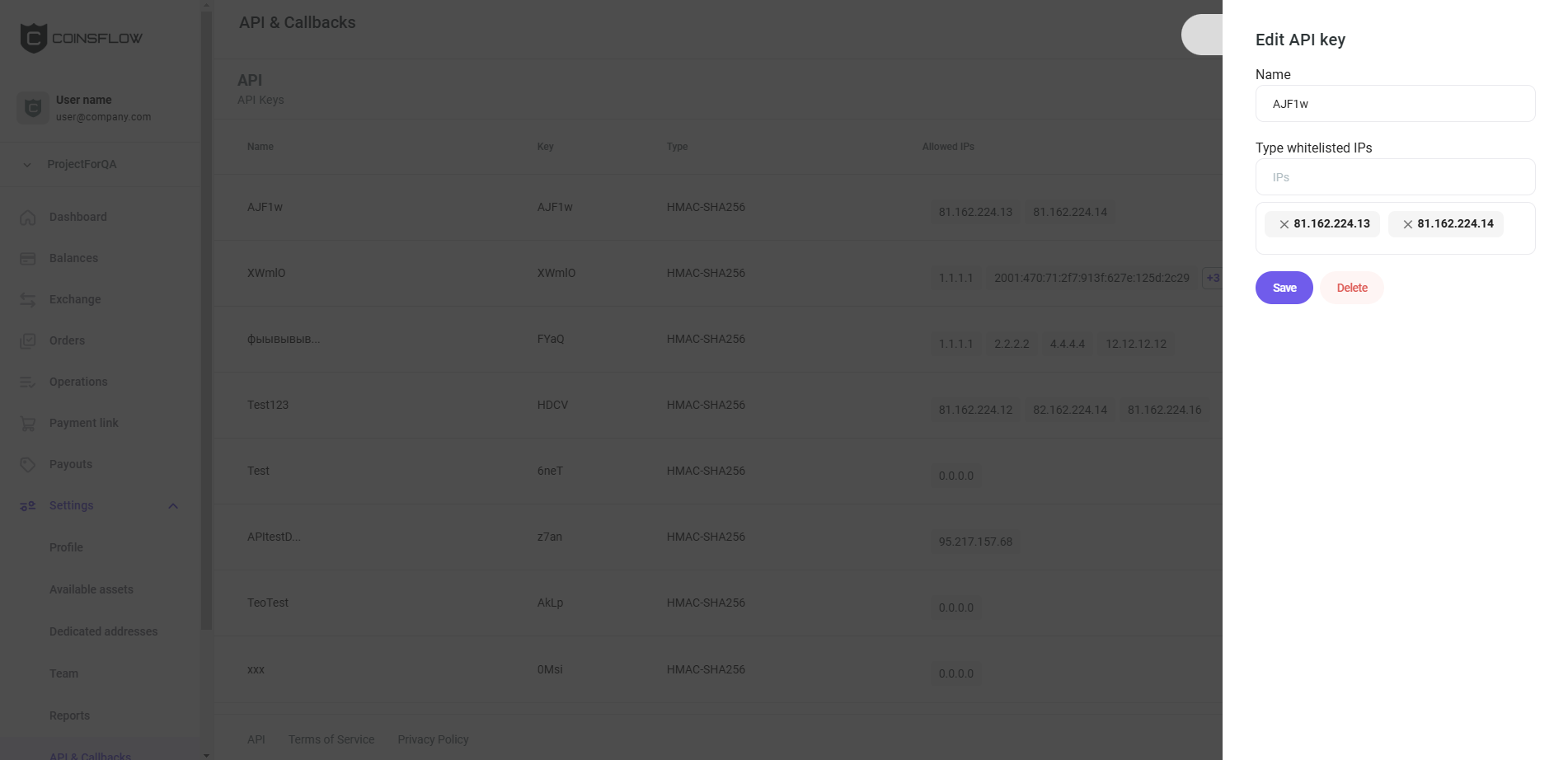
The "Edit an API Key" card is displayed when clicking on the "Details" button on the "API Keys" table that is displayed on the "API & Callbacks" page, and displays the following fields:
| Name | Description |
|---|---|
| Name | Field to insert the name to identify the API Key on the platform. |
| Type whitelisted IPs | Field to insert the desired IP addresses whitelisted for the API key (allowed to use the API key). |
| Whitelisted IPs | List of whitelisted IPs that can be removed. |
Create a callback
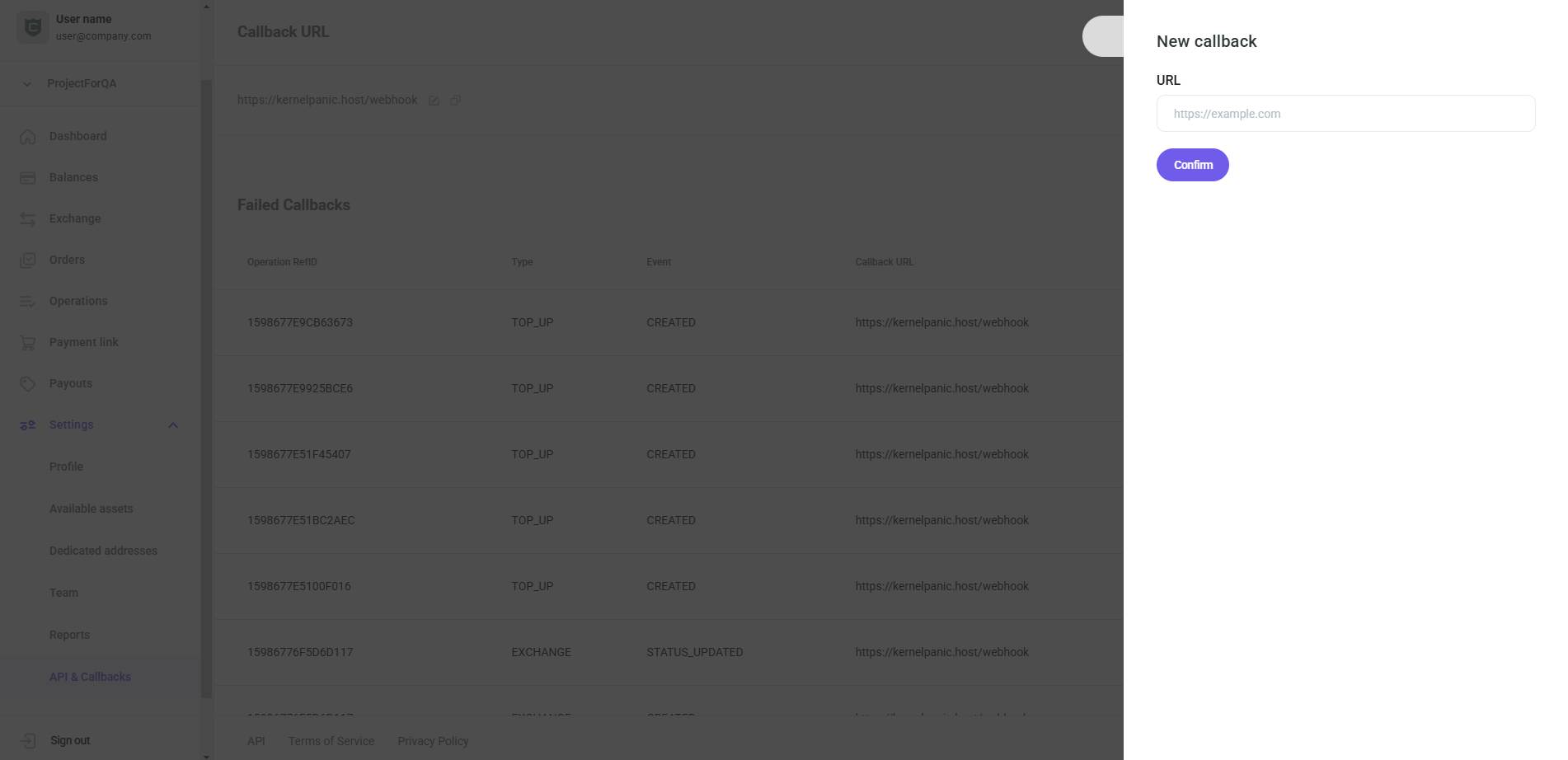
The "New callback" card is displayed when clicking on "Create" button on the "API & Callbacks" page, and displays the following fields:
| Name | Description |
|---|---|
| URL | Field to insert the desired URL to be used to receive callbacks. |