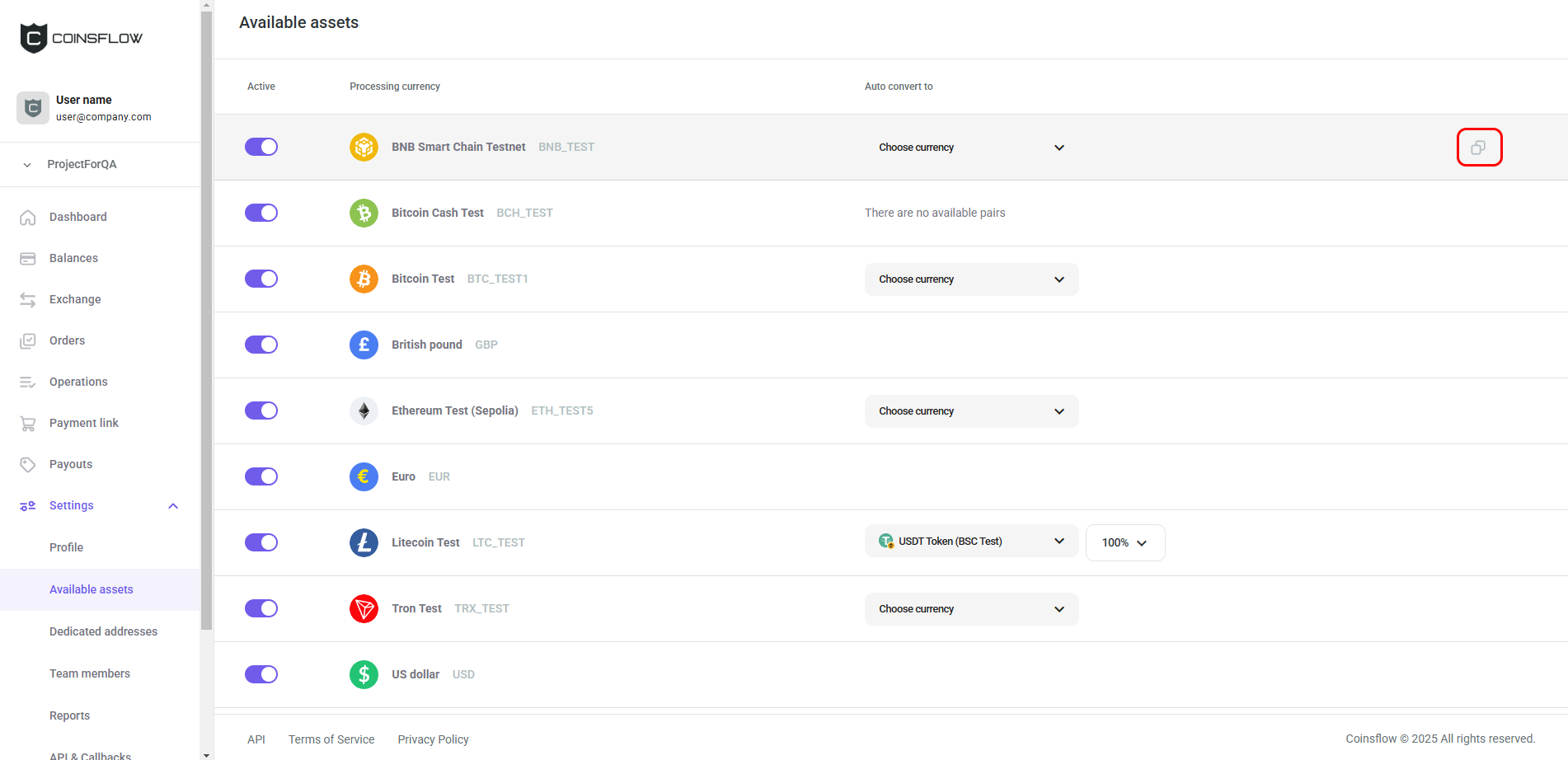
Available Assets Tab
The Available assets tab allows you to configure the assets that are available on your account and the asset they auto convert too, if needed.
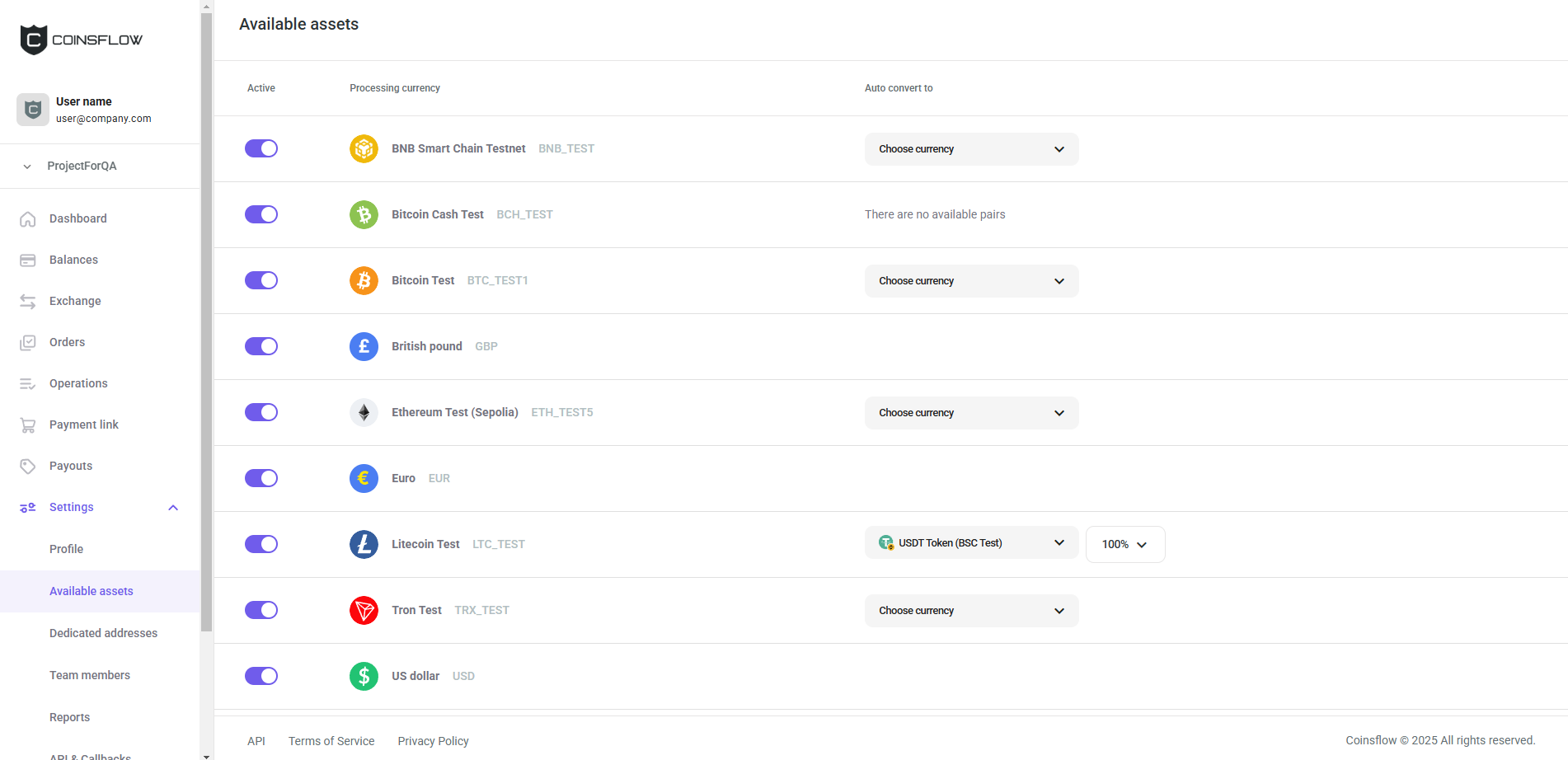
On the Available asset tab you can:
Enable/Disable Assets (crypto currencies and fiat)
-
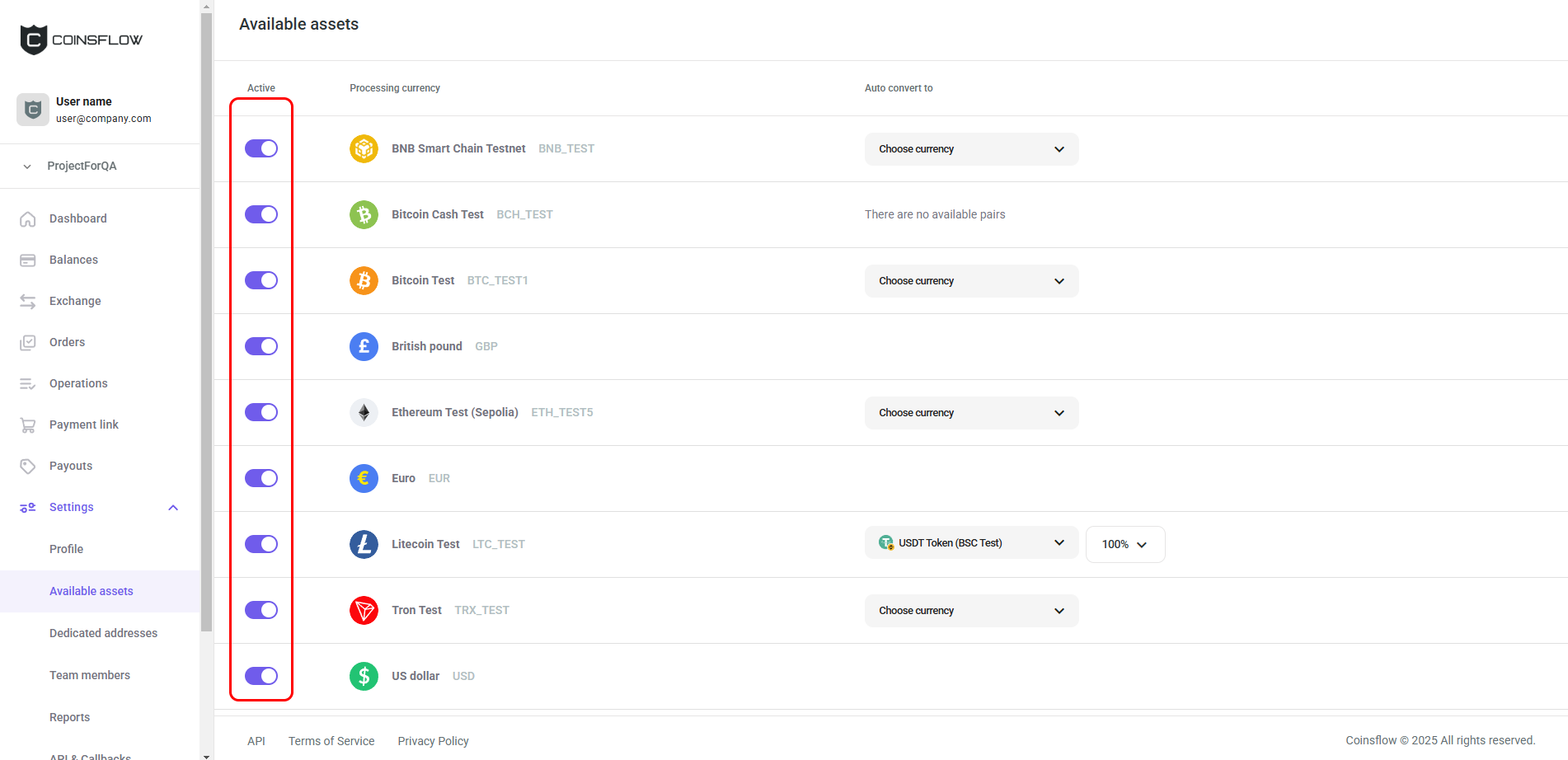
The available assets have the toggle button set to "True":
-
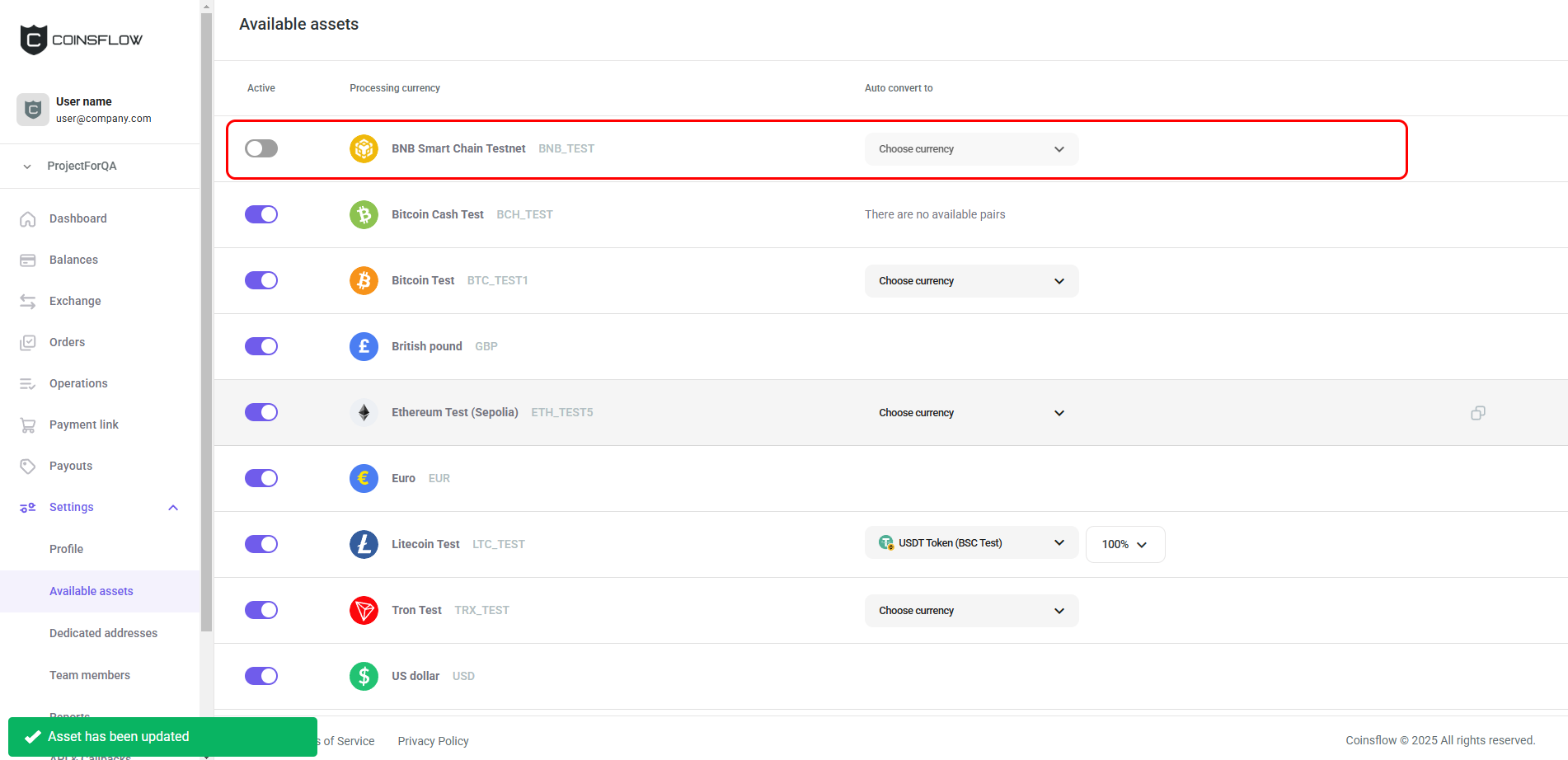
Click on the toggle button of the desired asset to set it as inactive.
-
Confirm the action with your one-time (2FA) password.
-
The asset is displayed as inactive and a notification is displayed in the bottom-left corner of the screen confirming the operation:
Configure the Asset Auto Convert Currency
-
If an asset is set as "True" for "Exchange" and has an auto convert option, click on the Choose currency drop-down menu:
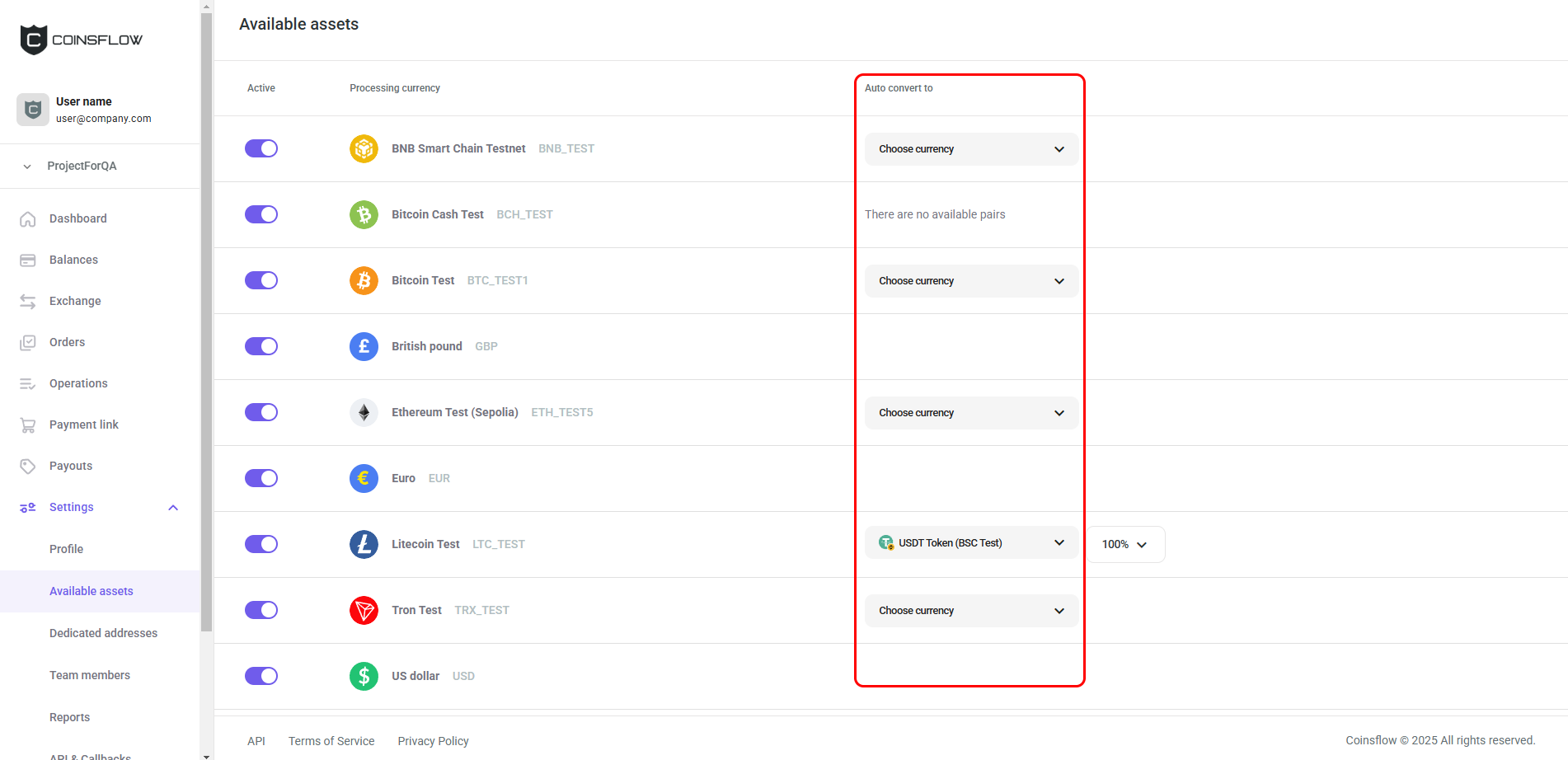
-
Select the desired pair available to convert to from the drop-down menu (to know more about the auto-exchange feature, click here):
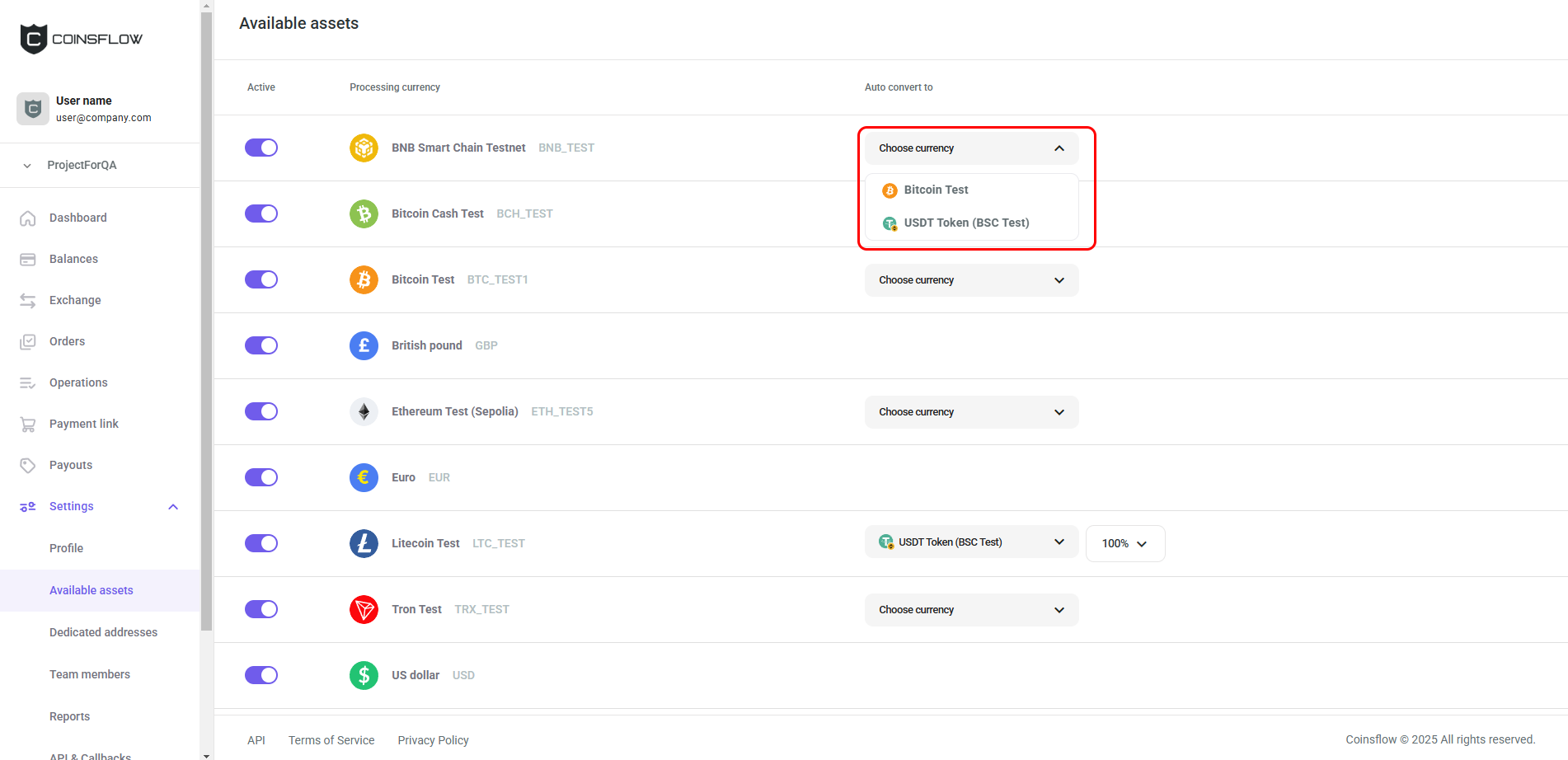
-
Select the ratio to auto convert from the drop-down menu:
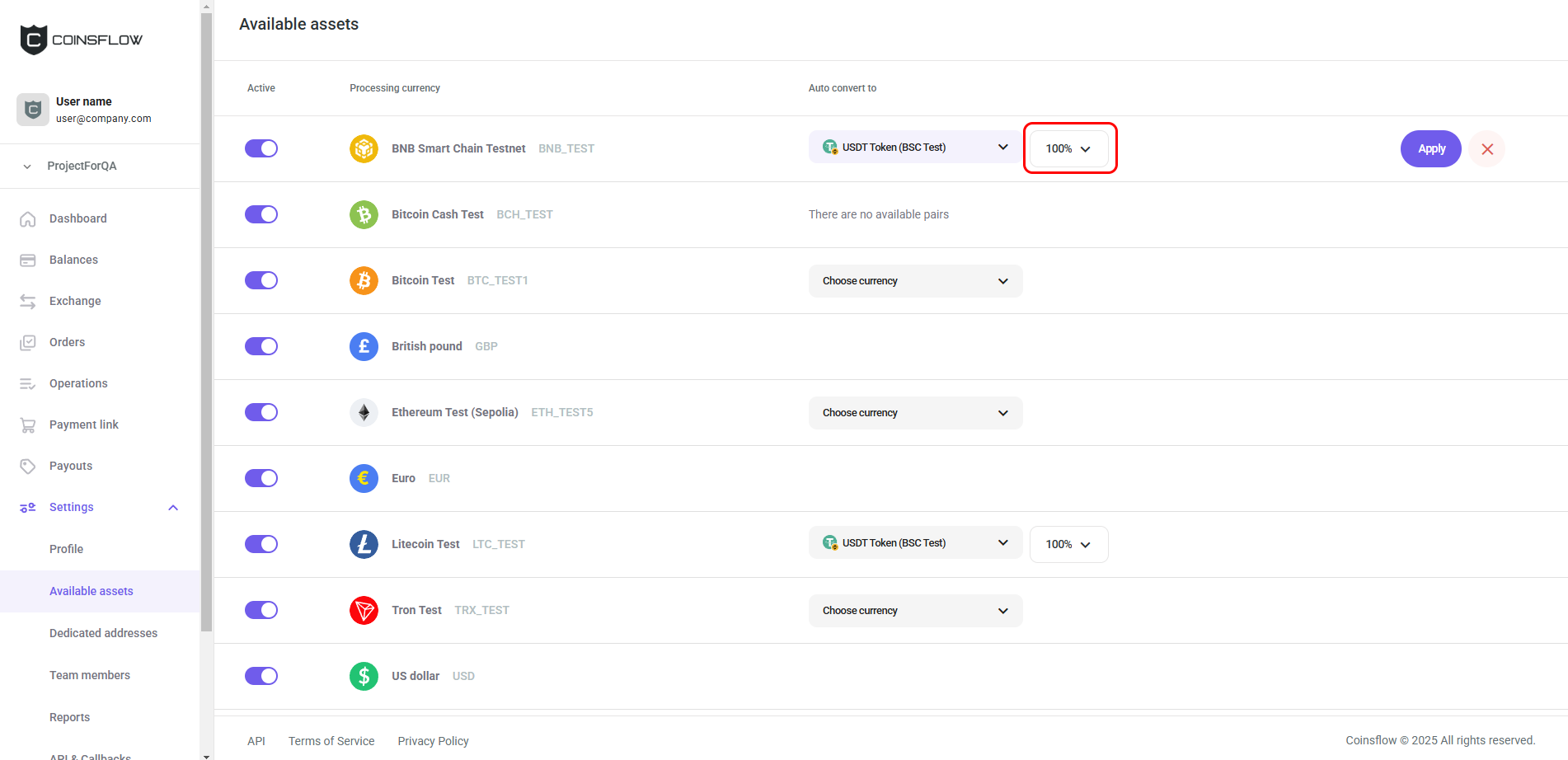
-
Click on the Apply button and confirm the action with your one-time (2FA) password.
Copy Asset ID
-
Hover over the desired asset:
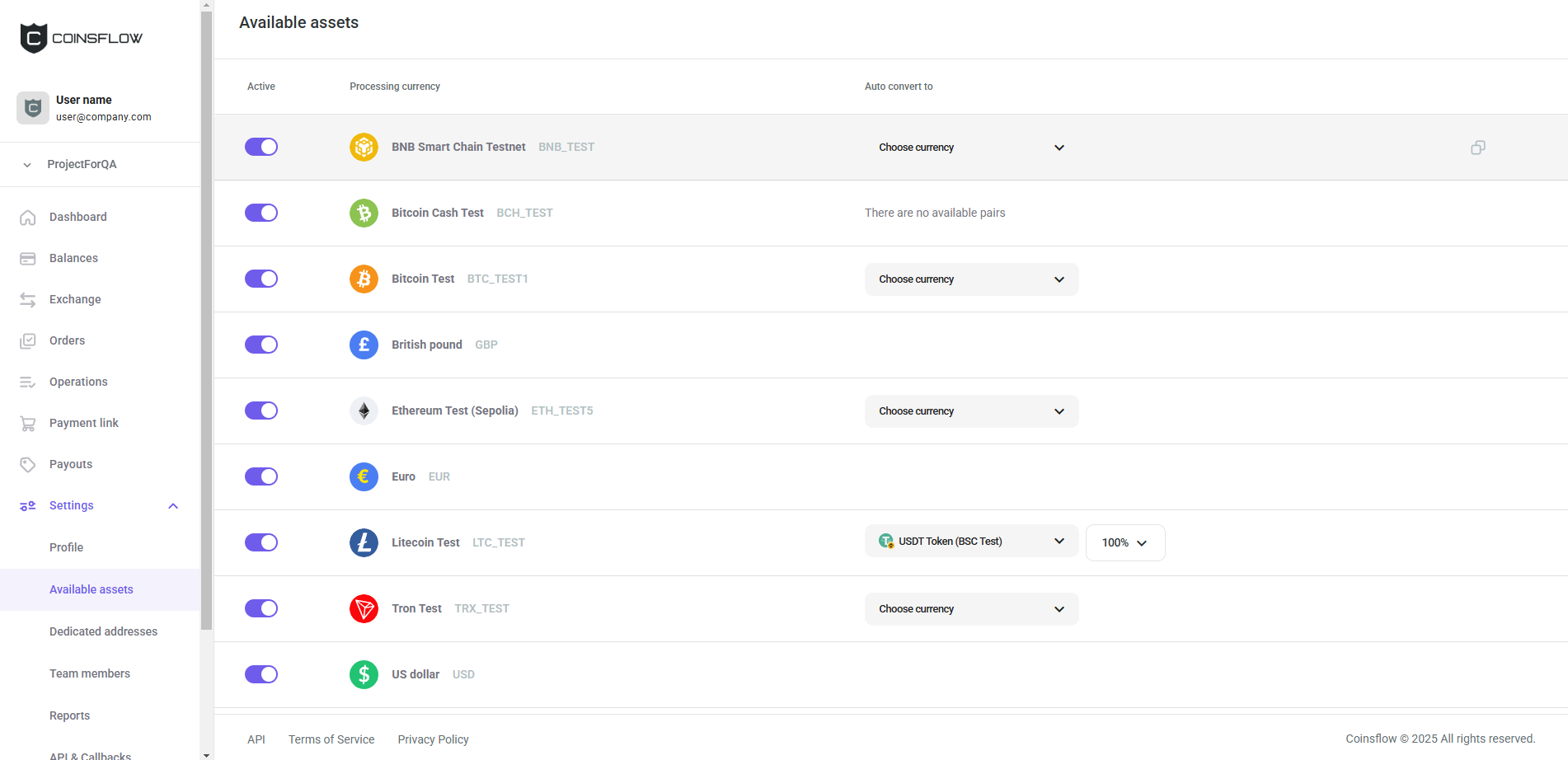
-
Click on the Copy icon: