Exchanges Tab
Exchange is the operation that refers to a conversion of assets on the merchant’s accounts, where an amount of a crytocurrency is used to get an amount of another cryptocurrency.
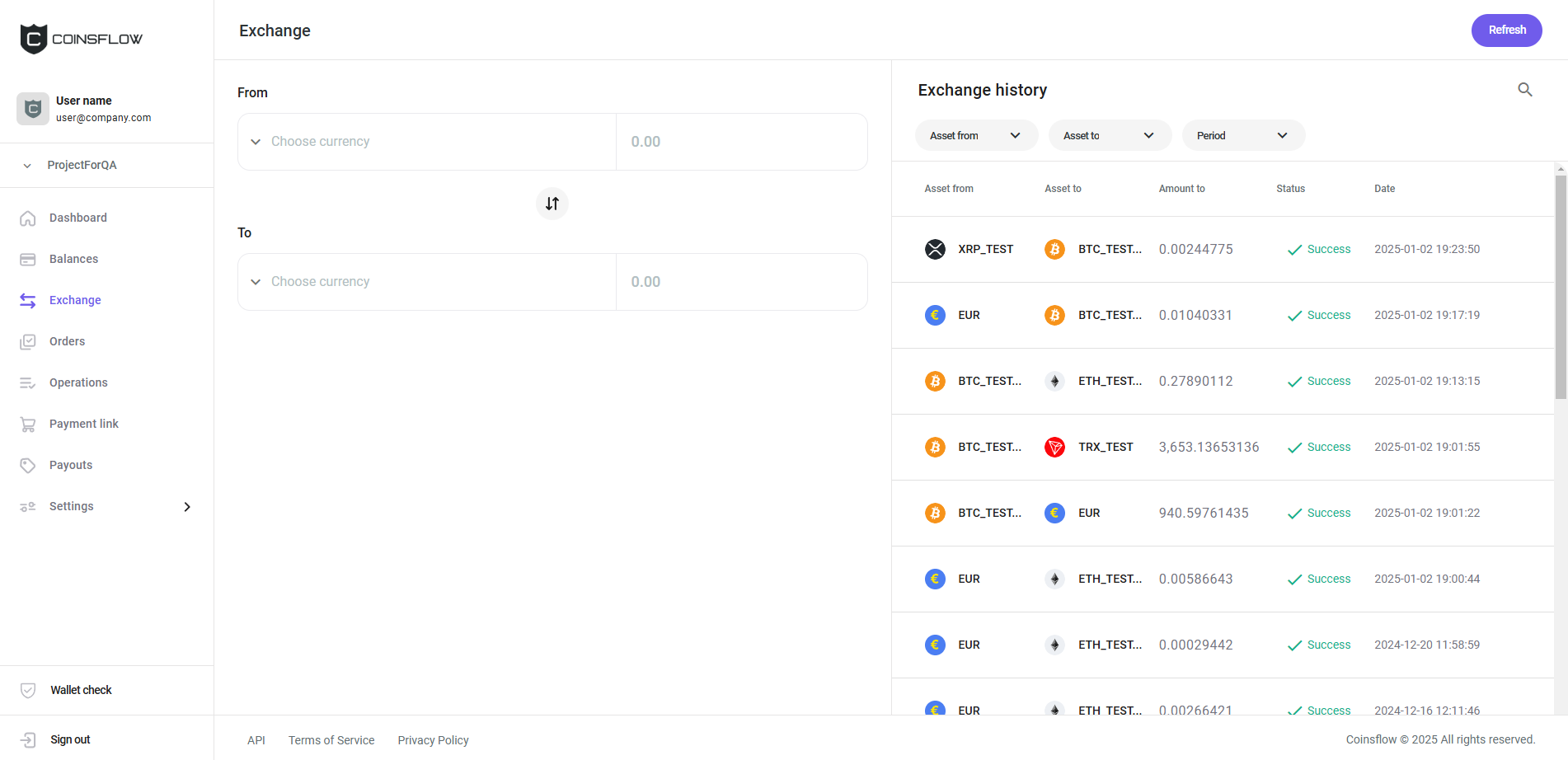
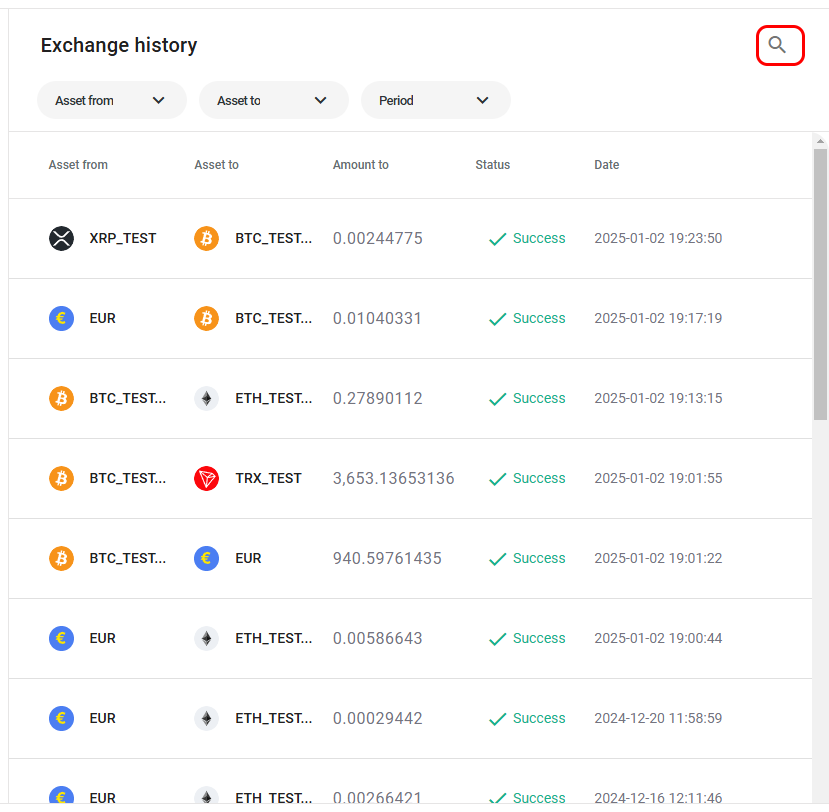
The Exchange history table displays the following information:
| Name | Description |
|---|---|
| Asset from | Displays the asset used to exchange to another asset. |
| Asset to | Displays the asset the amount was exchanged to. |
| Amount to | Displays the amount received on the exchange operation. |
| Status | Displays the current status of the exchange operation. |
| Date | Displays the date and time the exchange operation occurred. |
On the exchange tab you can:
Exchange Crypto
-
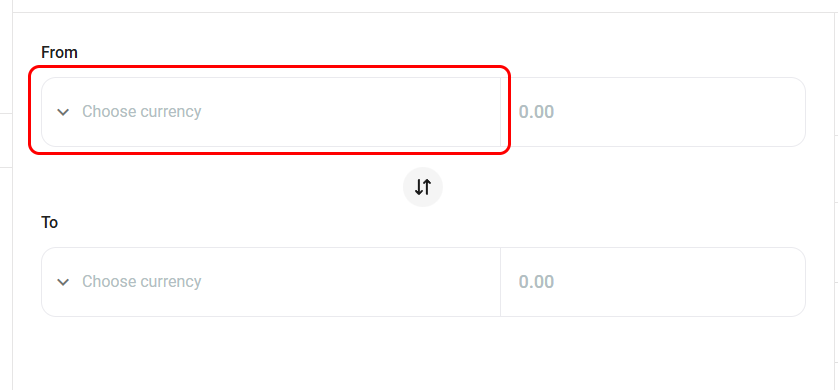
On the From field, select the desired crypto currency to convert:
-
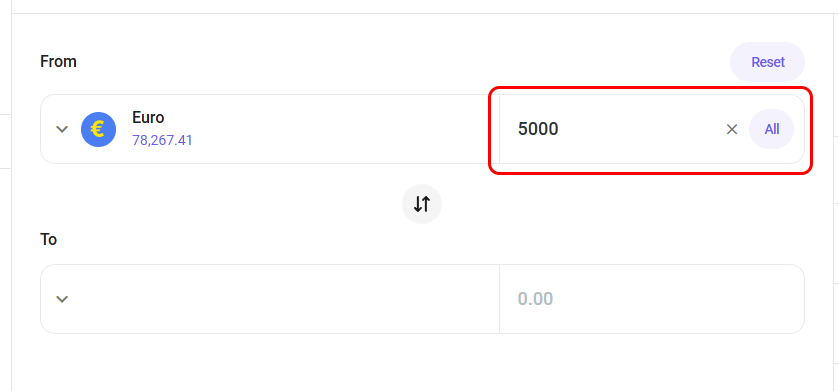
Insert the desired amount to convert:
-
On the To field, select the desired crypto currency to convert to:
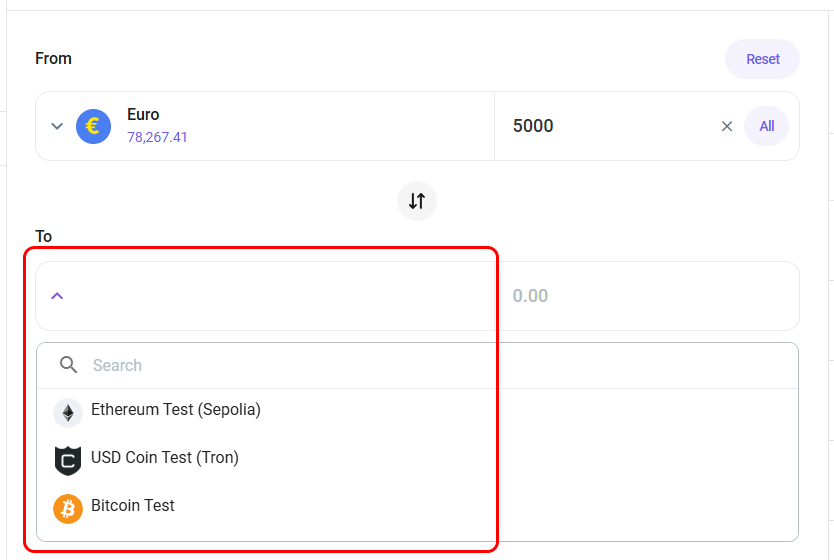
The "To" table displays only the available pairs for the selected "From" crypto currency.
-
The card displays all the information for the exchange operation:
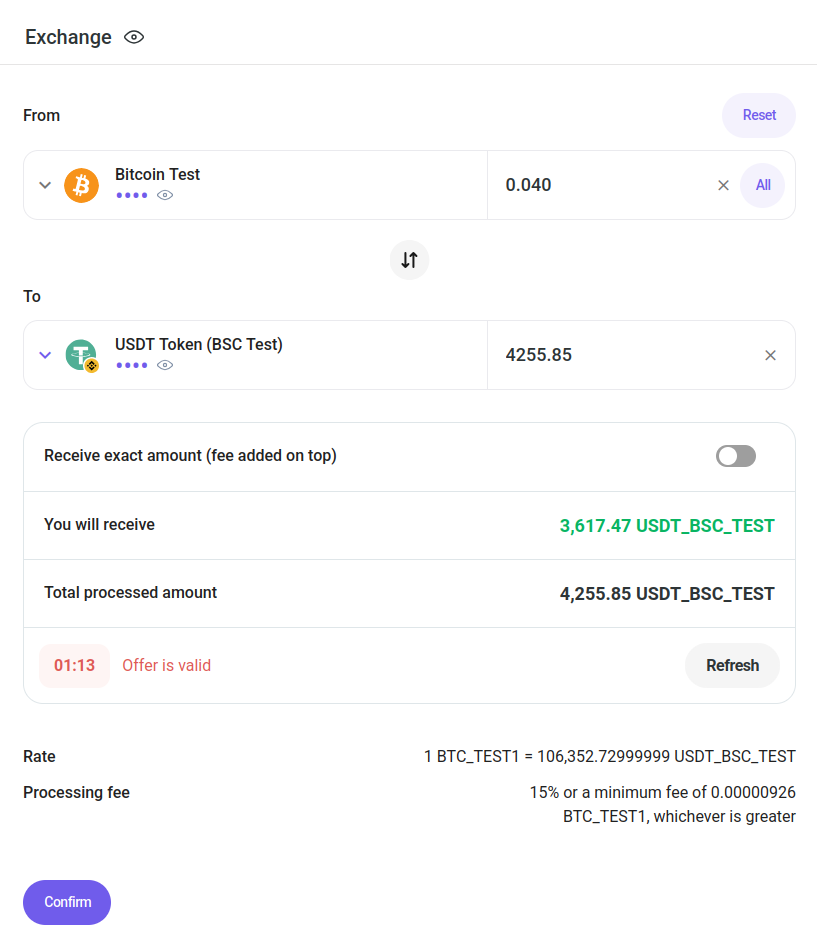
This information includes:
- The amount that will be received
- The amount of time available to accept the exchange
- The rate used for the exchange
- The Amount charged as a Processing fee (either 10% of the operation or the minimum fee)
You can invert the exchange currencies by clicking on the Revert icon between the From and To fields:

You can toggle the Receive exact amount (fee added on top) switch to recalculate the exchanged amount based on the value of the To field - you will receive the exact amount specified there and any fees will be added on top.
-
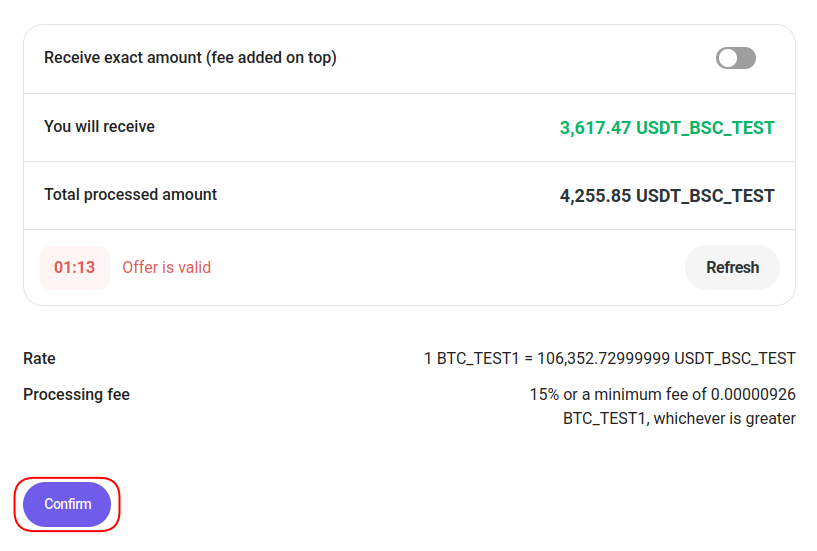
Click on the Confirm button to proceed:
-
Confirm the action with your one-time (2FA) password.
-
The exchange operation is performed, the converted amount is added to the asset on the Balances table, and the amount used to convert is subtracted from the asset used in the operation.
-
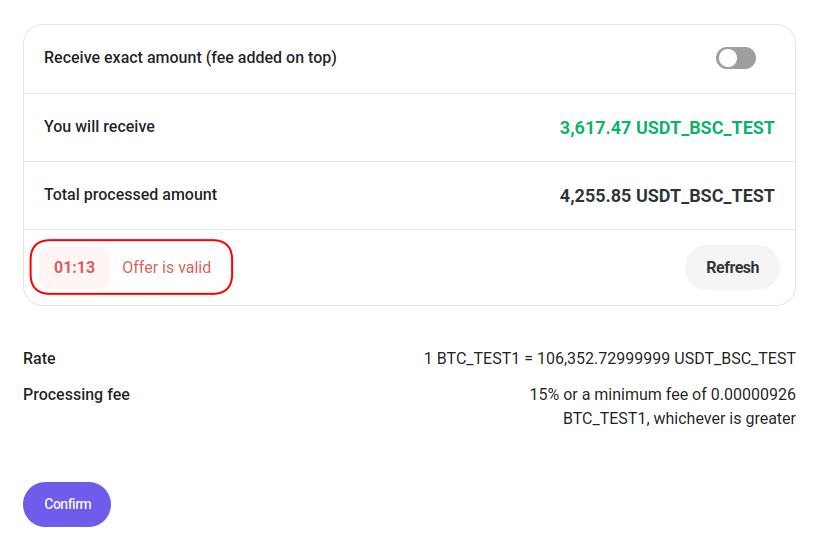
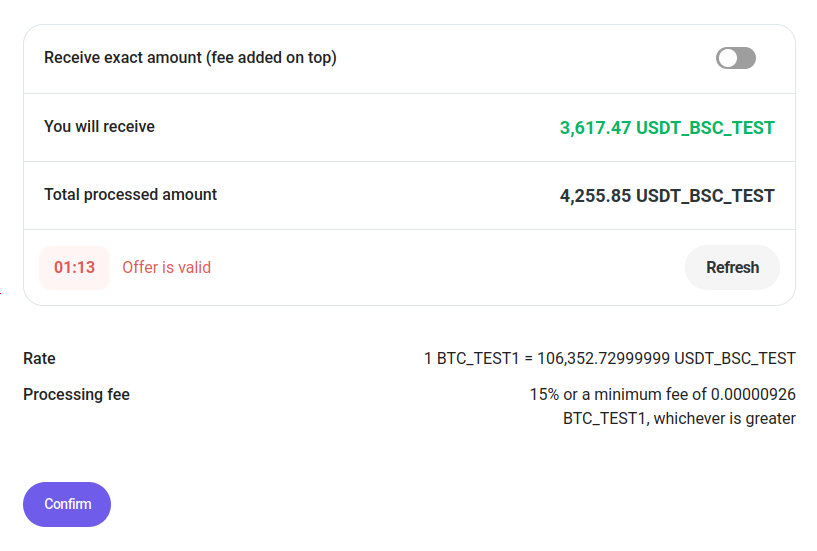
A timer indicates the amount of time left to proceed with the exchange operation:
-
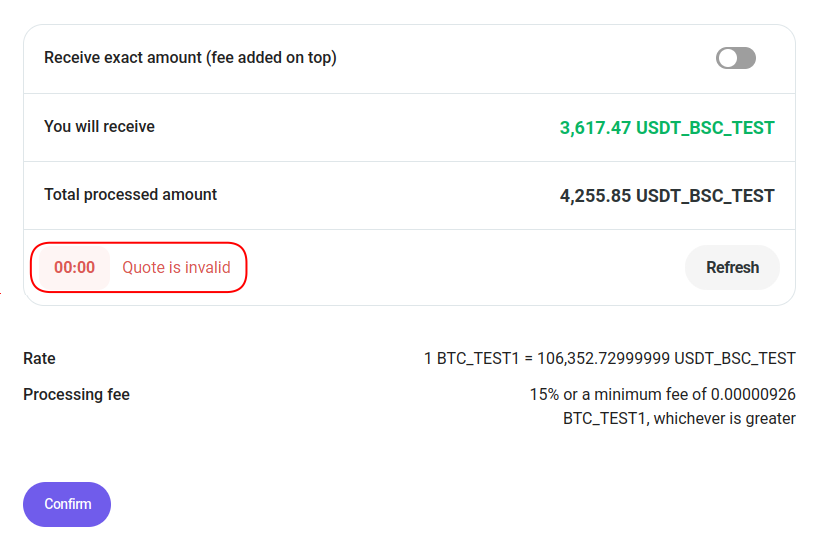
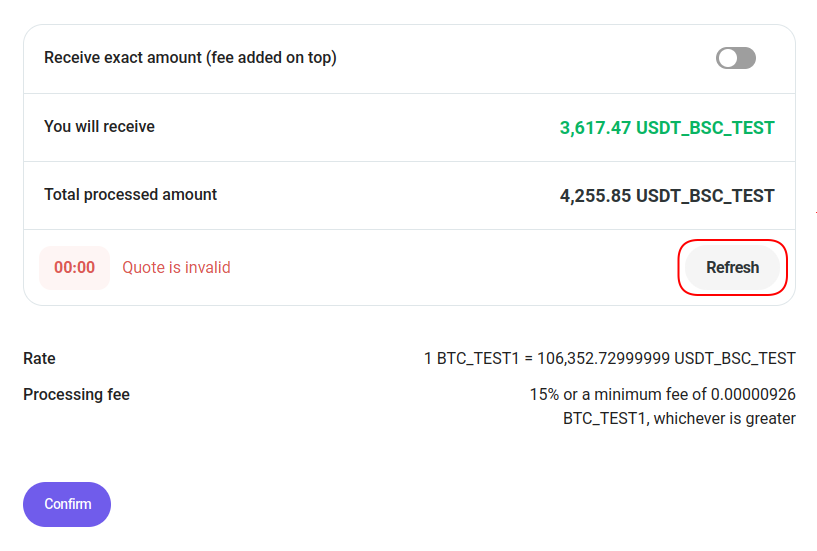
If the operation is not concluded in the available time, the quote becomes invalid:
-
Click on the Refresh button to get a new quote:
-
A new quote is displayed and the timer is reset:
-
See the Exchange Details
-
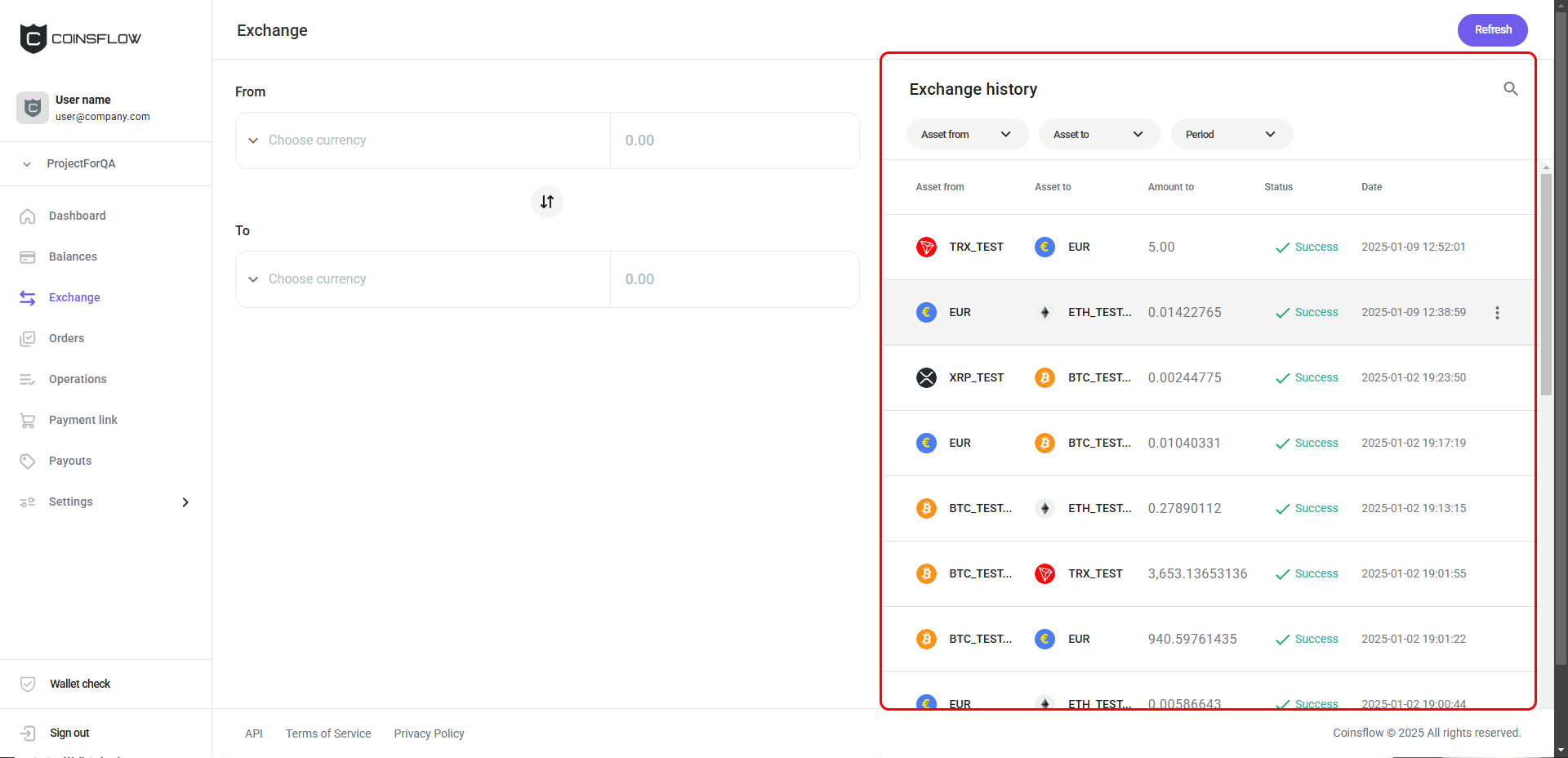
Hover over the desired asset row on the Exchange history table:
-
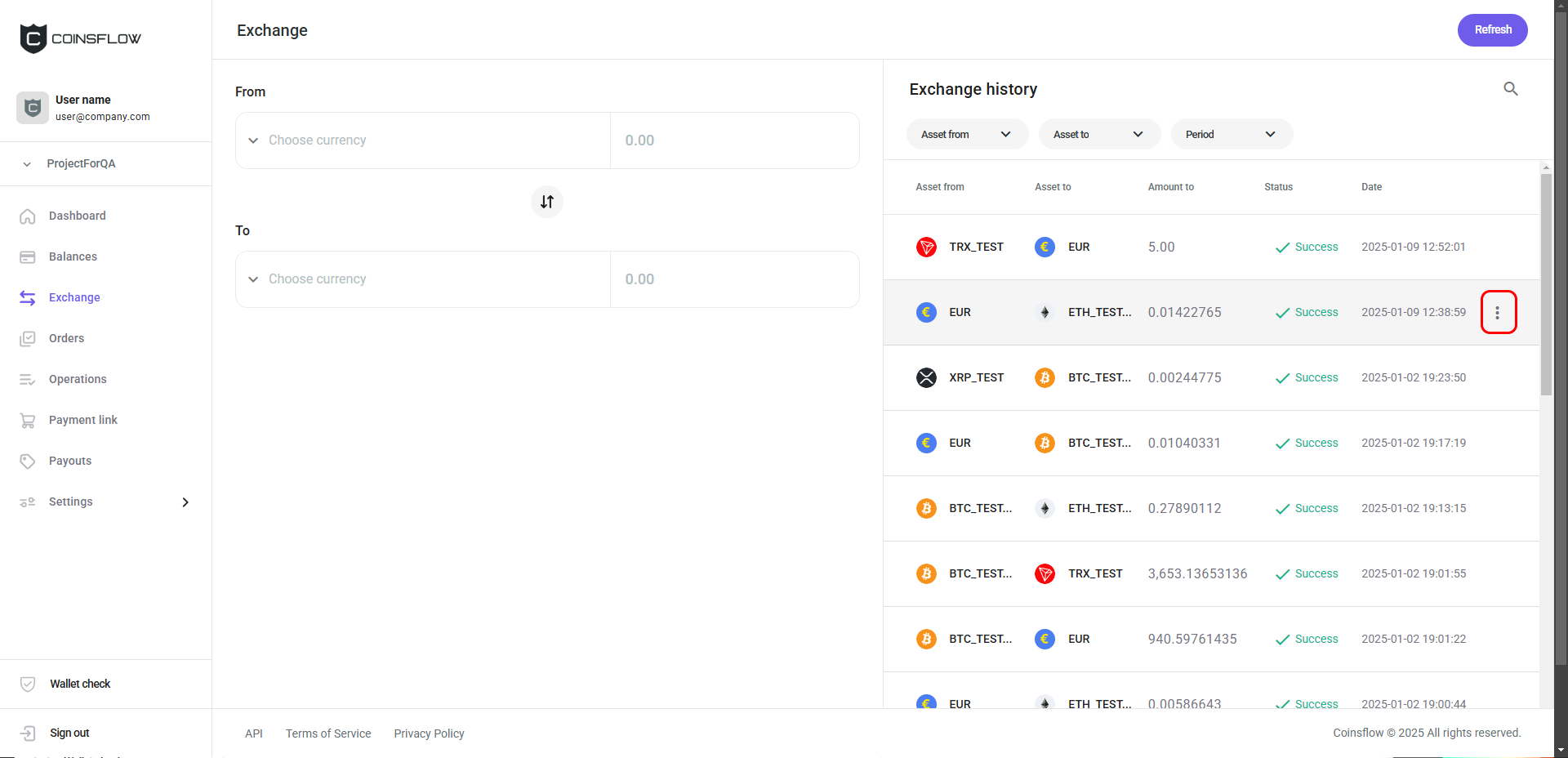
Click on the "Details" button of the desired exchange operation:
-
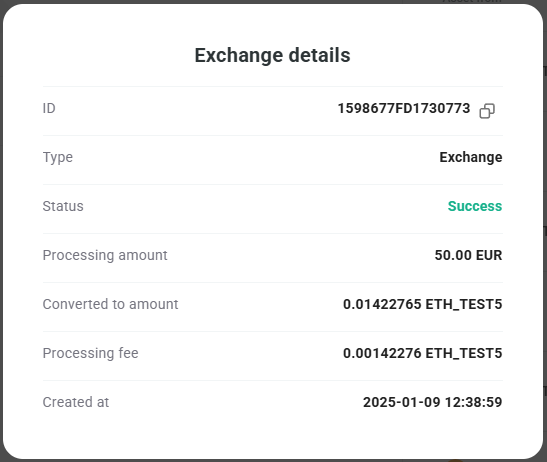
The "Exchange details" card is displayed:
-
The "Exchange details" card displays the following information:
- Amount from: Displays the amount and asset used to exchange to another asset.
- Amount to: Displays the amount and asset exchanged to.
- Fee: Displays the amount charged as fees on the exchange operation.
- Status: Displays the outcome of the exchange status (success or failed).
- Initiator: Indicates if the operation was created automatically (for auto-exchange operations) or manually.
- Created at: Displays the date and time the exchange operation was created.
Filter the Exchange History Table
-
Click on the Search icon:
-
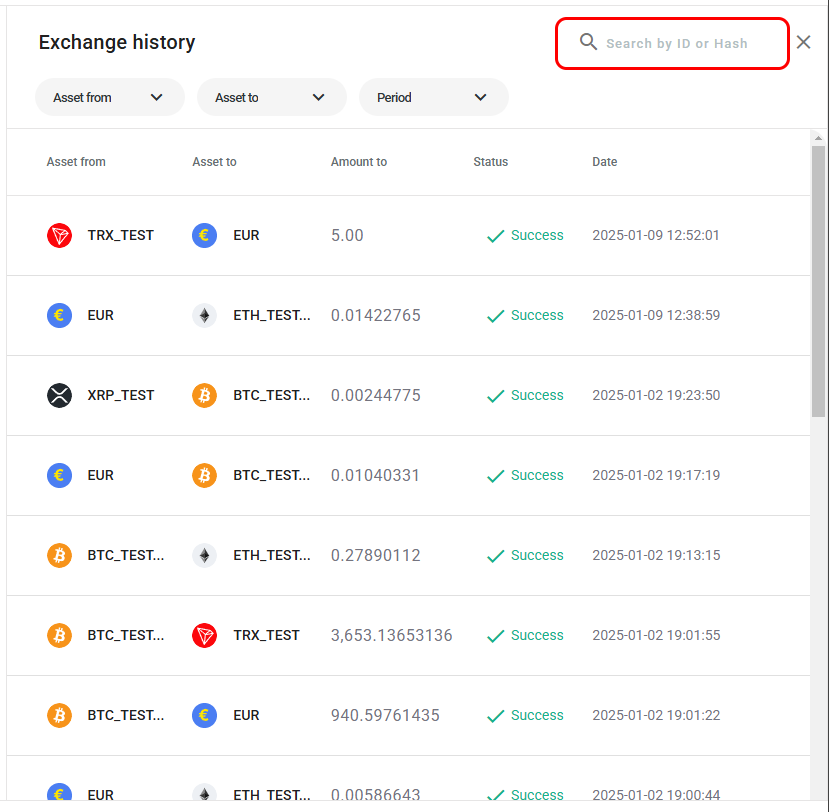
Insert the desired asset into the expanded Search field:
-
The Exchange history table displays only exchange operation with the inserted asset.