Operations Tab
The Operations tab allows you to get lists of interactions with the platform so you can have an overall view of what's been happening with your business.
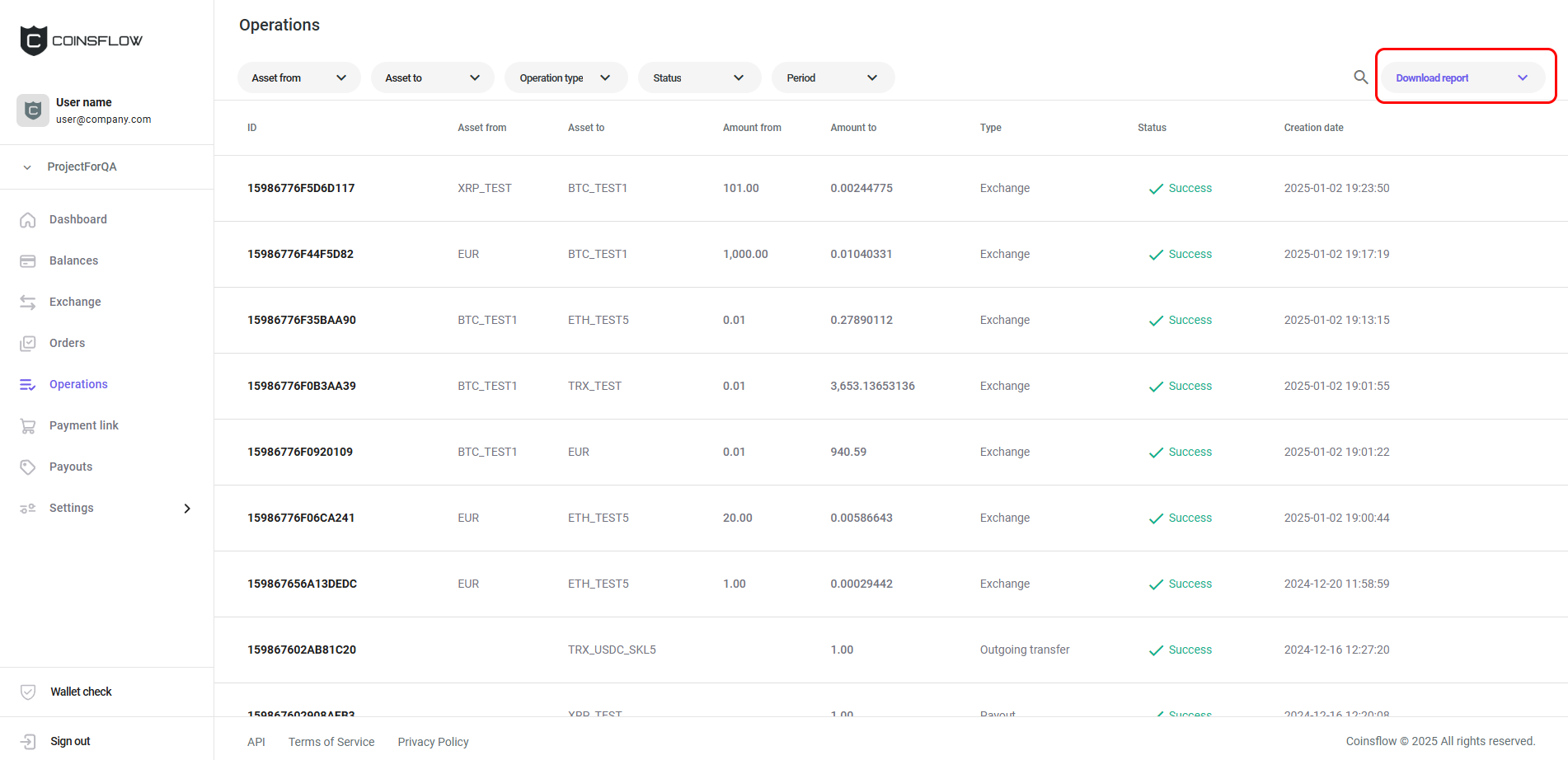
Reports are generated and exported from the "Operations" page. The "Operations" page displays the "Operations table:
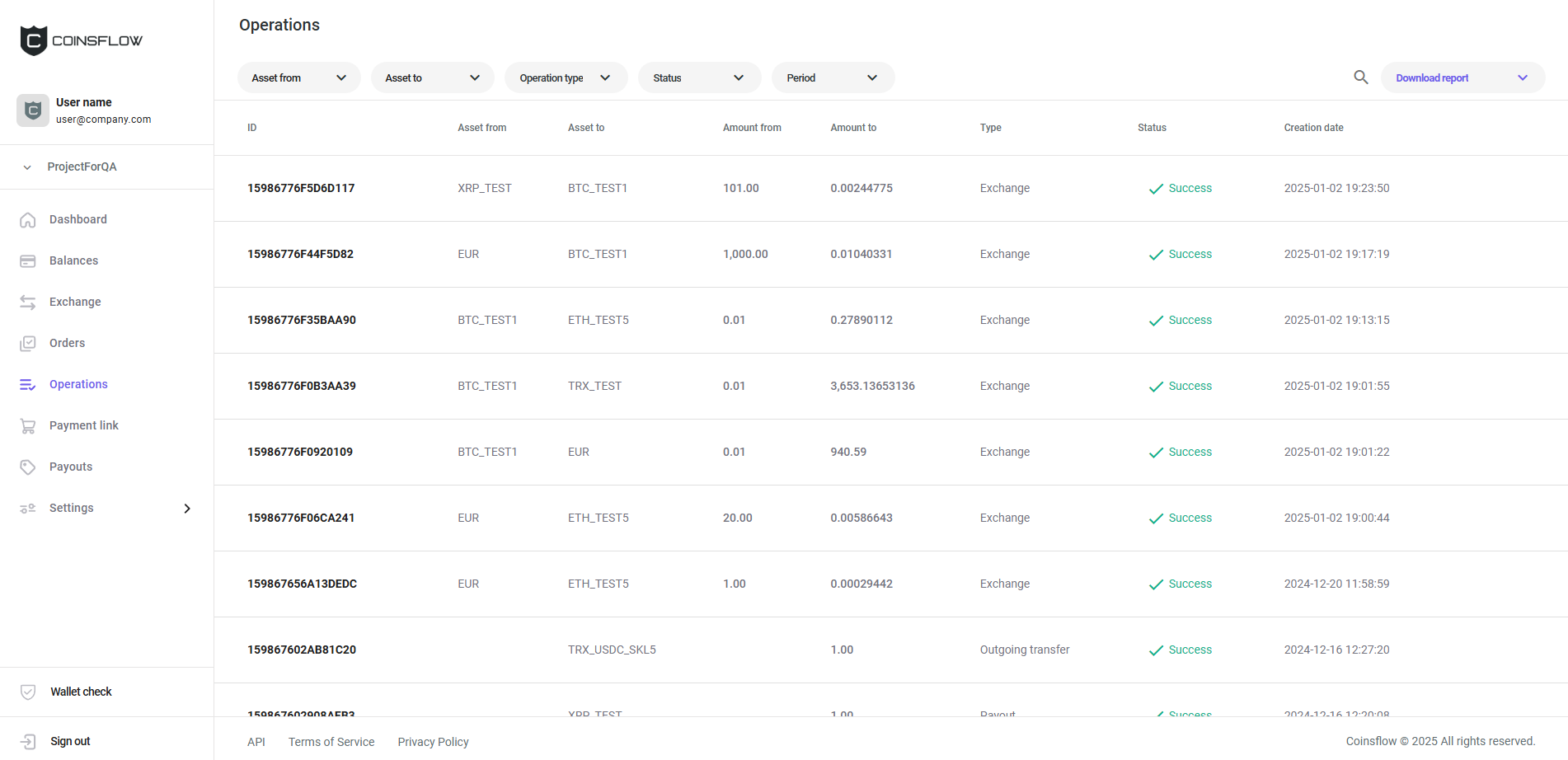
The "Operations" table displays the following information:
| Name | Description |
|---|---|
| ID | Displays the unique code that identifies the operation on the platform. |
| Asset from | Displays the selected cryptocurrency to exchange assets from. |
| Asset to | Displays the selected cryptocurrency used to execute the operation. |
| Amount from | Displays the amount of the "Asset from" currency used on the operation. |
| Amount to | Displays the amount of the "Asset to" currency used on the operation. |
| Type | Displays the type of operation: Deposit, Top up, Payout, Exchange, Settlement, and Order. |
| Status | Displays the current state of the operation. |
| Creation date | Displays the date and time the operation was created. |
Click the title of the desired column to sort the table in ascending or descending order based on that column’s values.
The "Filter" tab, at the top of the screen, allows you to filter the information displayed on the table:
| Name | Description |
|---|---|
| Asset from | Select the cryptocurrency used on an exchange operation to convert to another cryptocurrency. |
| Asset to | Select the cryptocurrency used on an exchange operation to be converted to. |
| Operation type | Select the the type of operation (deposit, top up, payout, exchange, settlement, order, network fee, incoming transfer, outgoing transfer, min fee, onboarding fee, or dormant fee) to be displayed. |
| Status | Select the current status of the operation (pending, paid, expired, fail, success, or exchanging ). |
| Period | Select the period range to display the operations from (today, yesterday, last 7 days, last 30 days, previous month, or custom - select the start and end dates from the calendar). |
Selecting a custom period displays the selected start date and end date on the button).
You can select more than one item from the drop-down menu of the selected filter, and the results will be displayed in an aggregated view (e.g.: Operation type: Deposit and Top up).
On the Operations tab you can:
See Operations Details
-
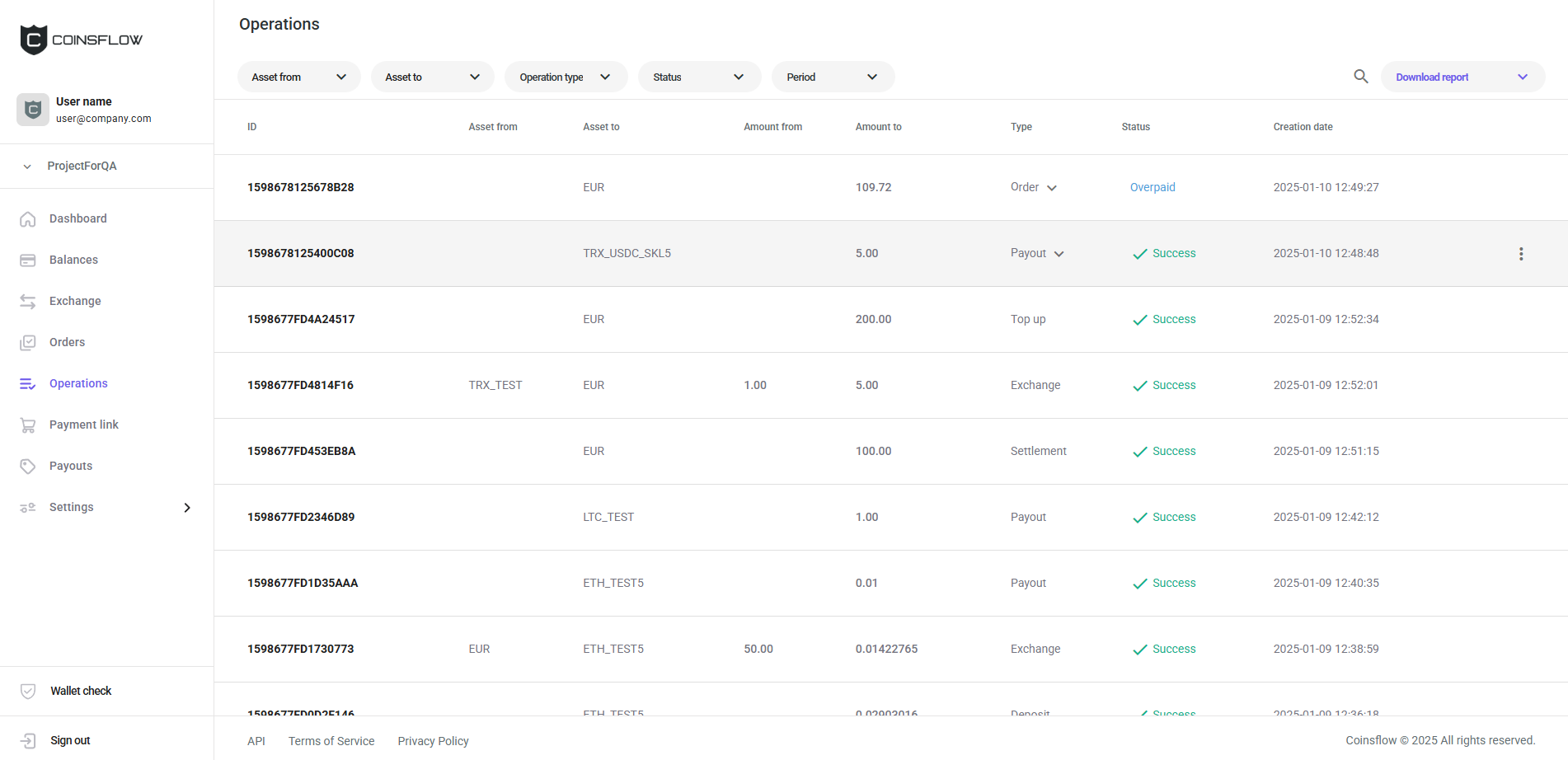
Hover over the desired operation row on the Operations table:
-
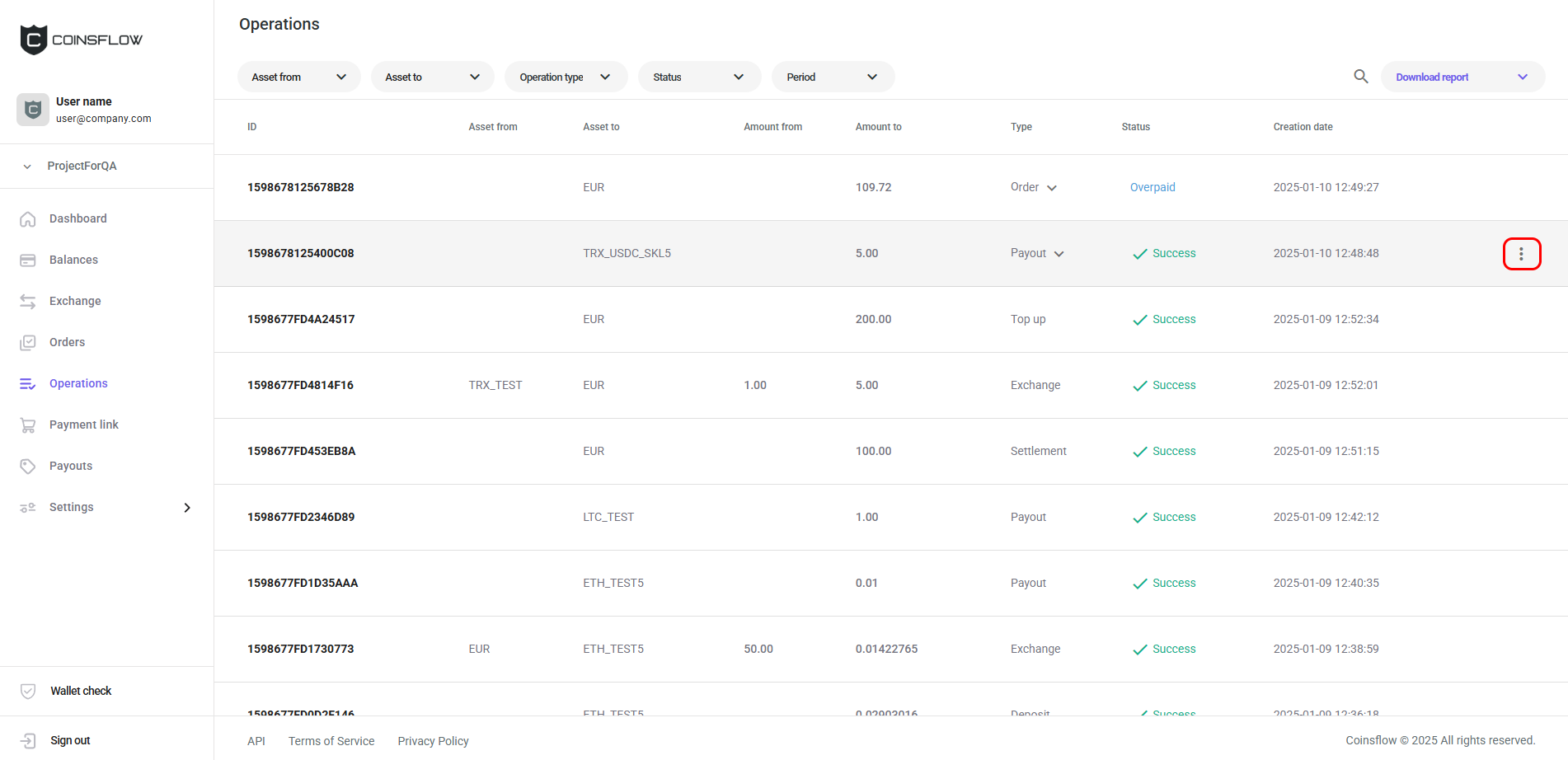
Click on the "Options" button of the desired operation:
-
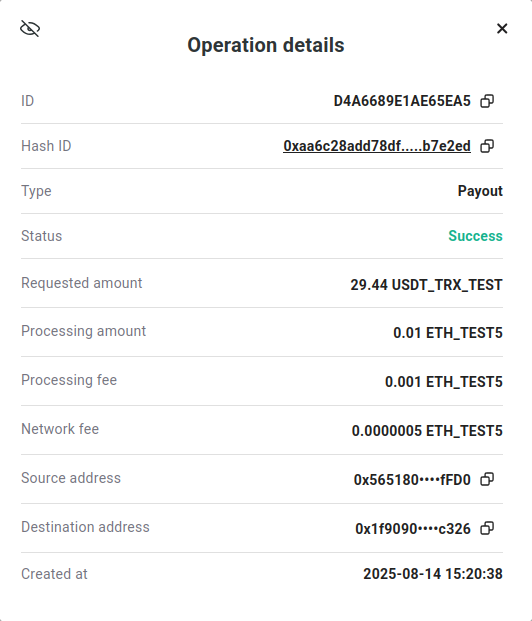
The "Operation details" pop-up card is displayed:
-
Clicking on the "Hash ID" link opens the blockchain explorer where you can get more information on the transaction.
The information displayed on the "Operation details" card depends on the type of operation.
-
You can copy the operation's ID, Hash ID or External ID, by clicking on the Copy icon netx to the value.
Fail a Pending Payout
-
Hover over the desired pending payout row on the Operations table, click on the "Options" button, and then on the "Fail payout" button:

-
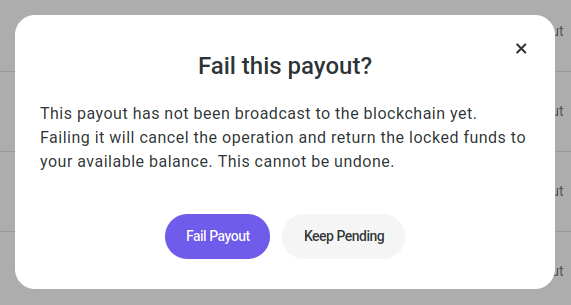
A confirmation pop-up card is displayed:
-
Click on the "Fail Payout" button to confirm, or on "Keep Pending" to cancel.
-
The payout status changes to "Failed" and the locked funds are returned to your available balance.
This option is only available for payouts in "Pending" status that haven't been broadcast to the blockchain yet.
Filter the "Operations" Table
There are two ways of filtering the "Operations" table:
- Search bar:
-
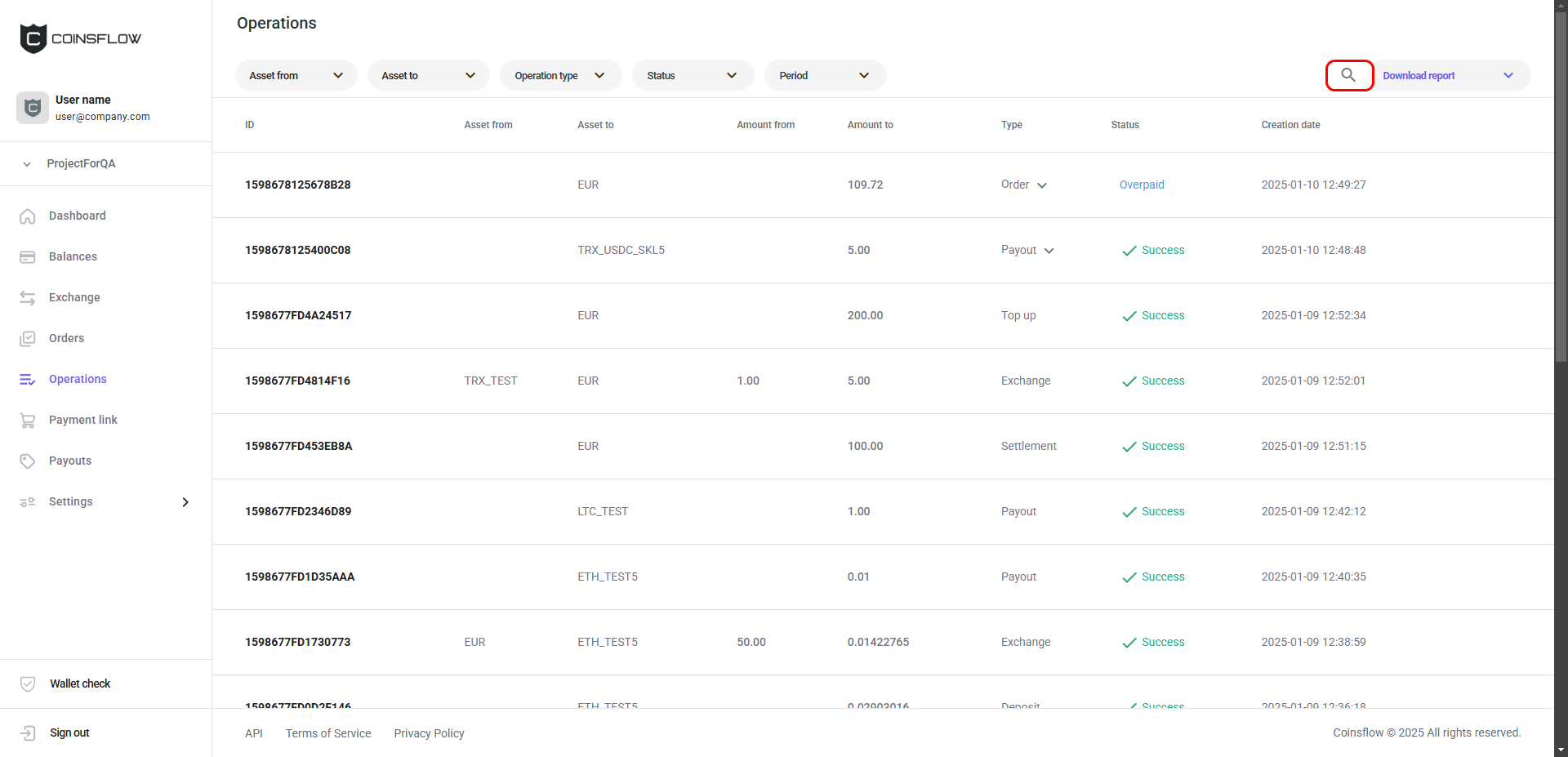
Click on the Search icon:
-
Insert the desired value into the search bar:
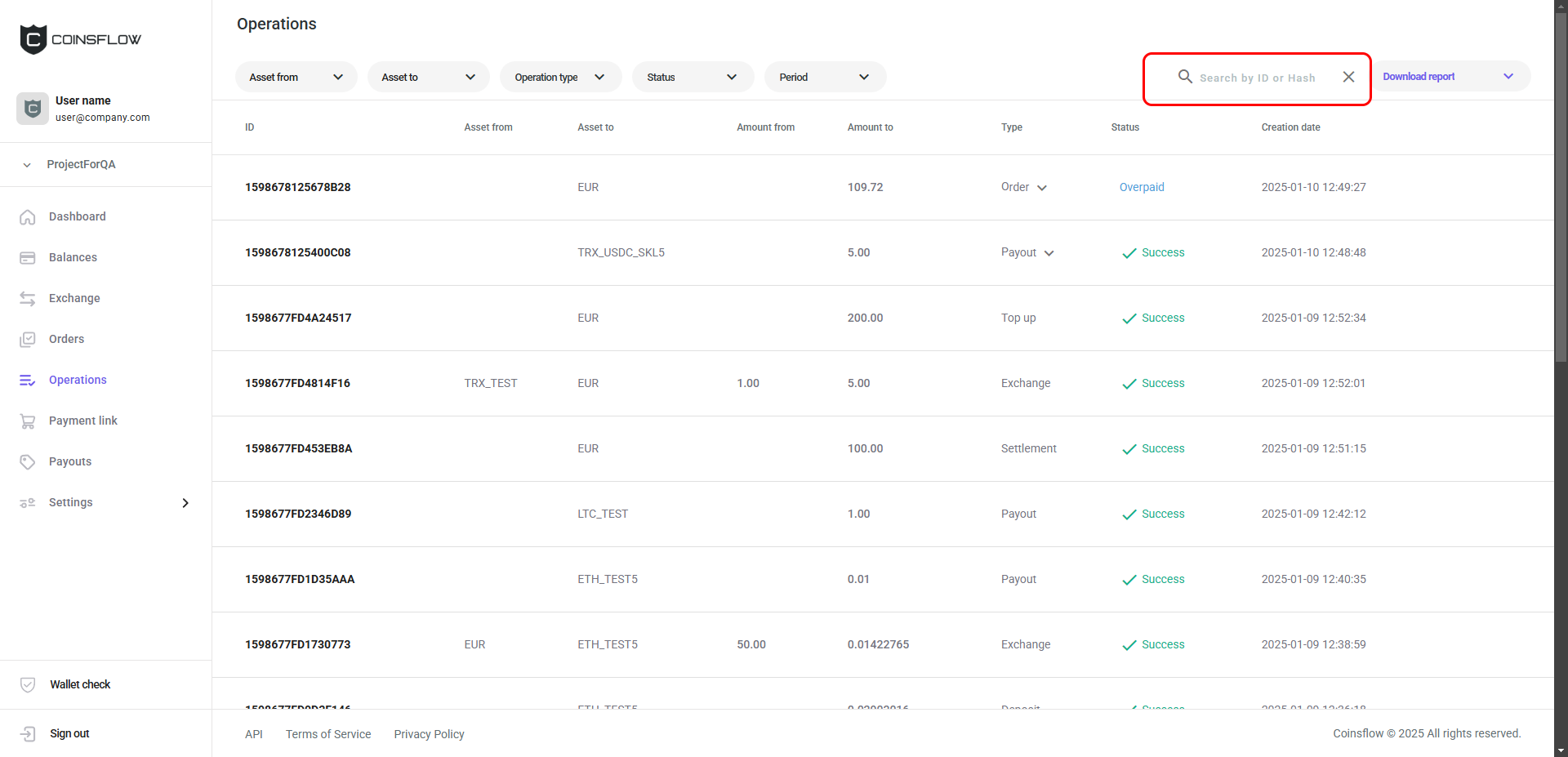
You can search by Order ID, Suboperation ID or Hash.
-
The table displays only the entries that match the inserted text:

- Filter selection:
-
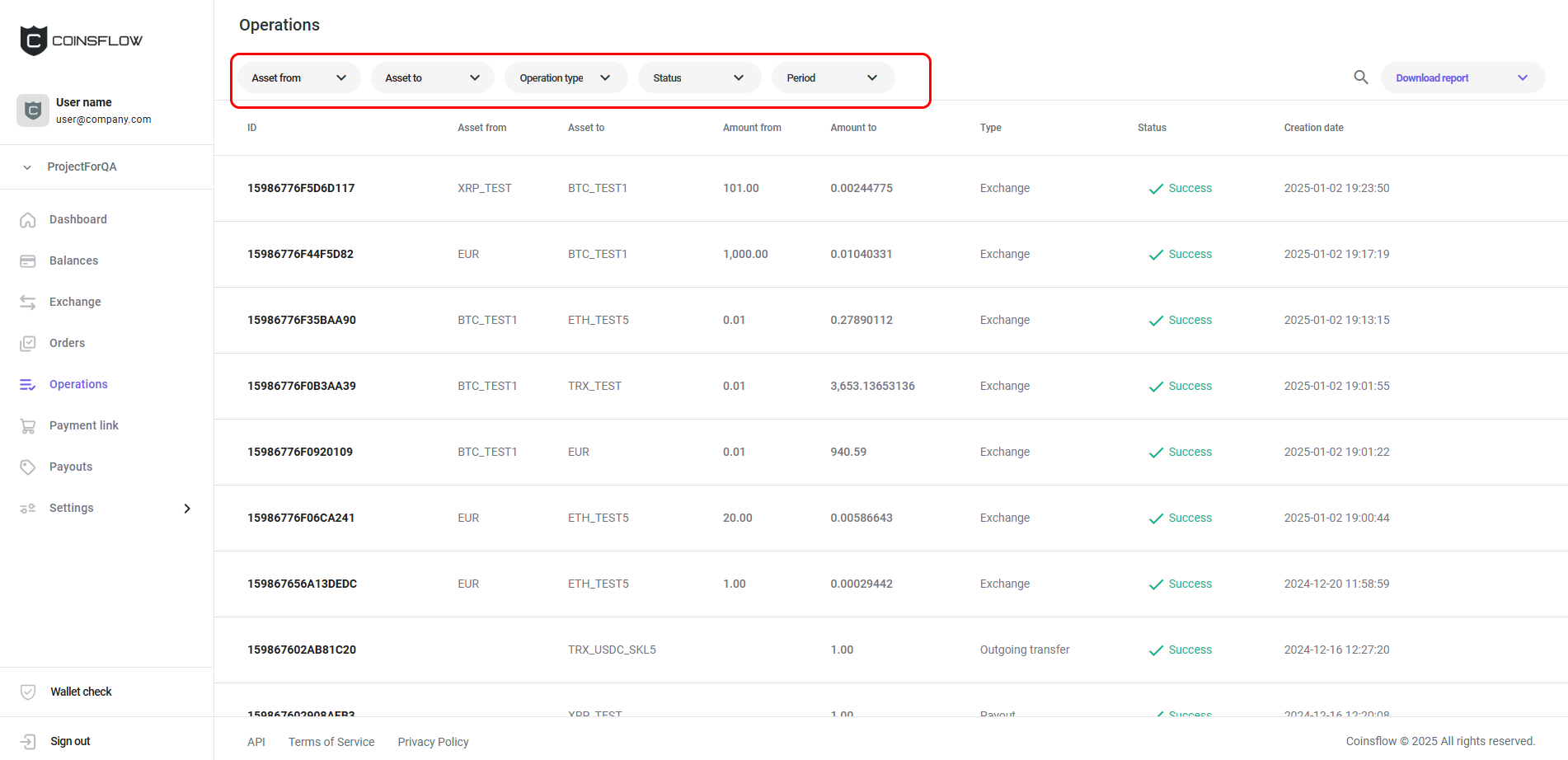
In the top-left corner of the screen you have five drop-down menus:
-
Click on the desired asset from from the drop down menu.
-
Click on the desired asset to from the drop down menu.
-
Click on the desired operation type from the drop down menu.
-
Click on the desired status from the drop down menu.
-
Click on the desired period from the drop down menu.
-
The table only displays the entries that match the selected filters.
Click the title of the desired column to sort the table in ascending or descending order based on that column’s values.
Download Reports
-
On the "Filter" tab, as explained above, you can select the desired operations to include in the report.
-
Click on the "Download reports" button:
-
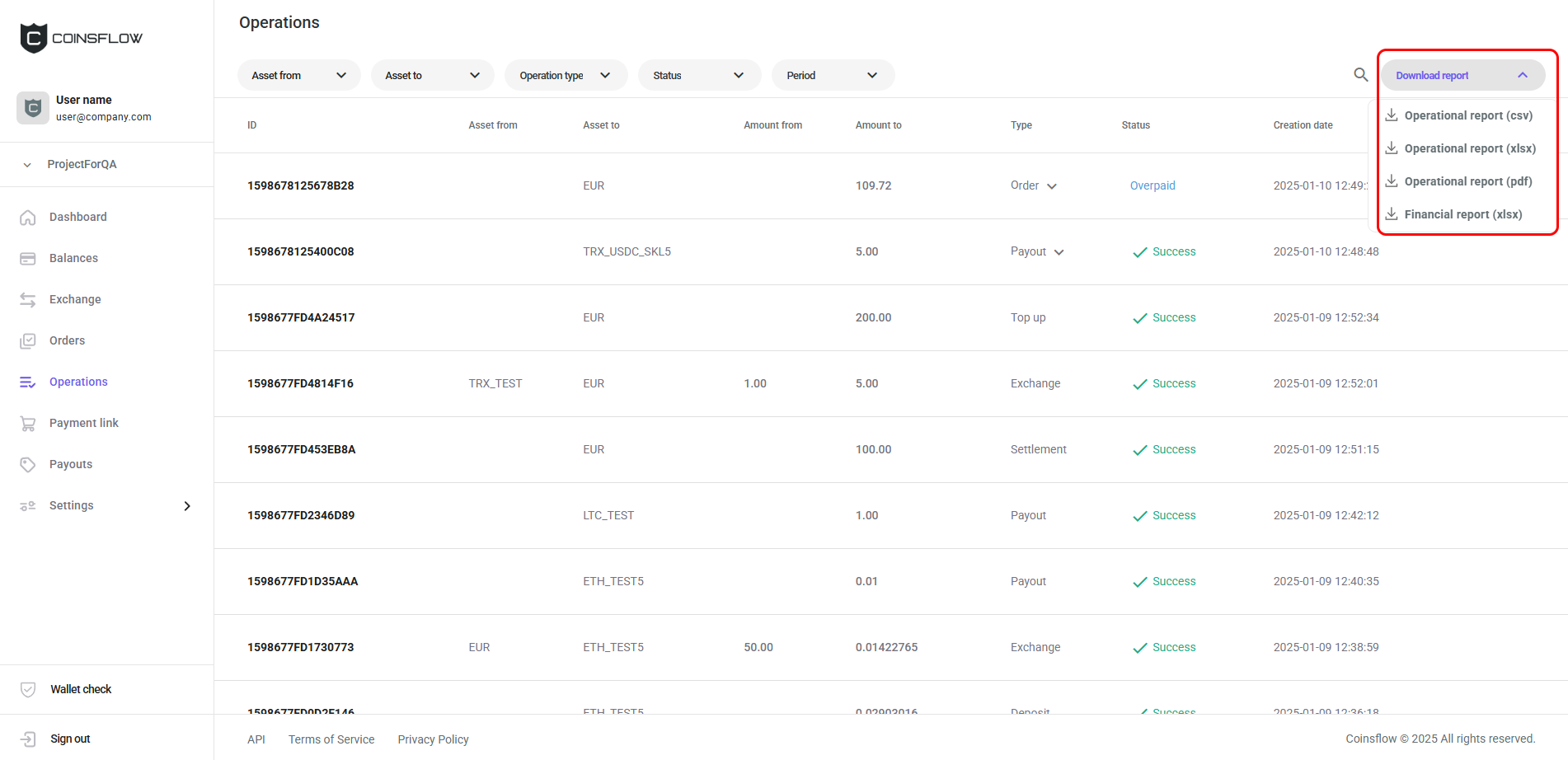
Select the desired report format from the drop-down menu:
-
A notification in the top-right corner of the screen indicates the report is being created:

-
Select the external location to save the file.
-
The report file is saved on the selected location.
To know more about the operation reports and financial reports and their structure and content, click here.