Dashboard Tab
The Dashboard tab is the tab displayed by default when you log into the Coinsflow app.
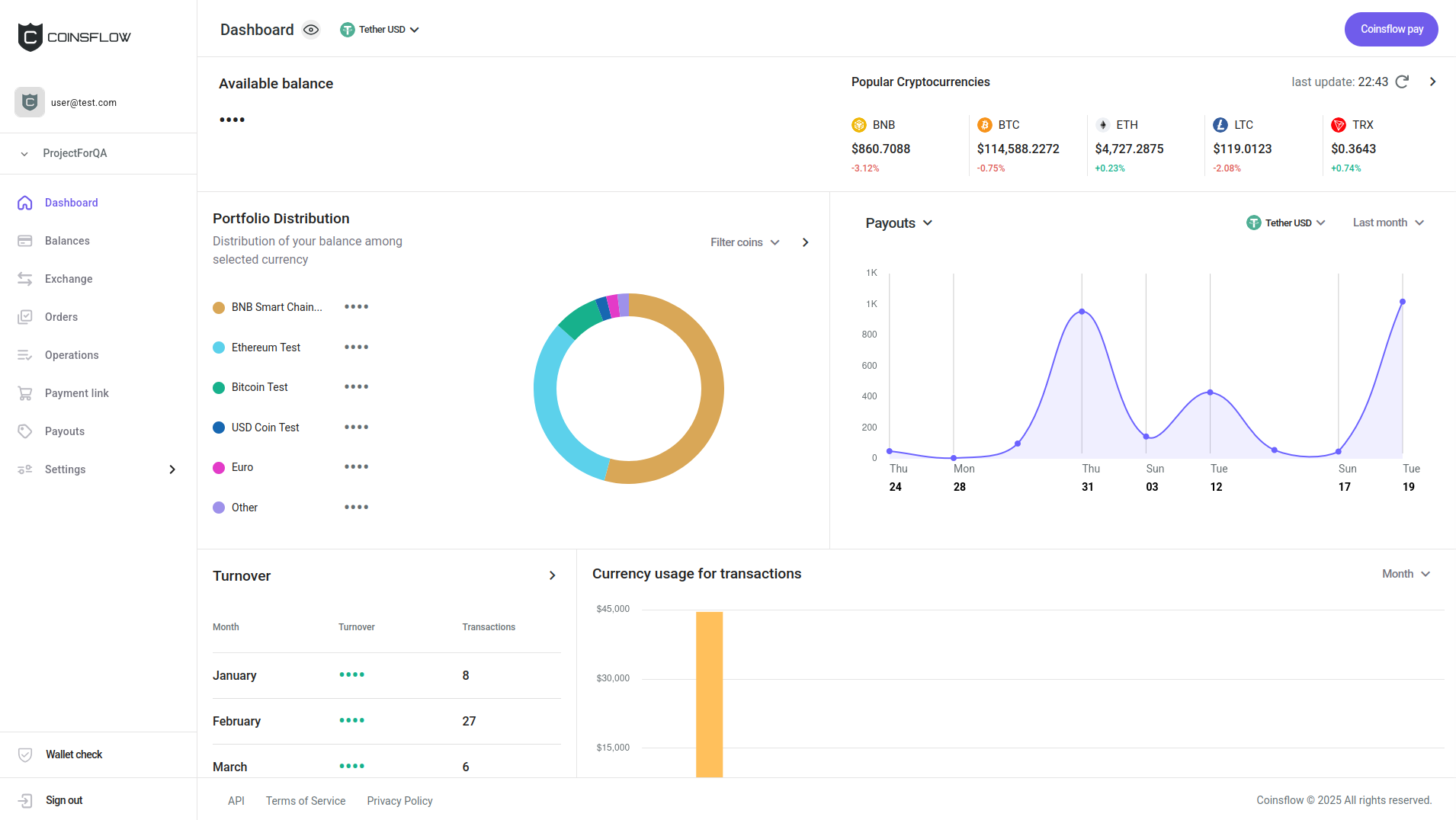
By default, sensitive data, such as balances, is initially hidden on the dashboard, but you can reveal it by clicking the eye button above the Available balance section.
You can also select the currency to display your balance in via the dropdown menu next to the eye button.
Use Coinsflow Pay
Coinsflow Pay lets you transfer funds between projects within the Coinsflow platform. You can move funds between your own projects or make payments to partners who also have a Coinsflow account. Since these transfers happen entirely within Coinsflow, they’re faster and cheaper than any other method.
-
Click on the Coinsflow pay button in the top-right corner of the screen.
-
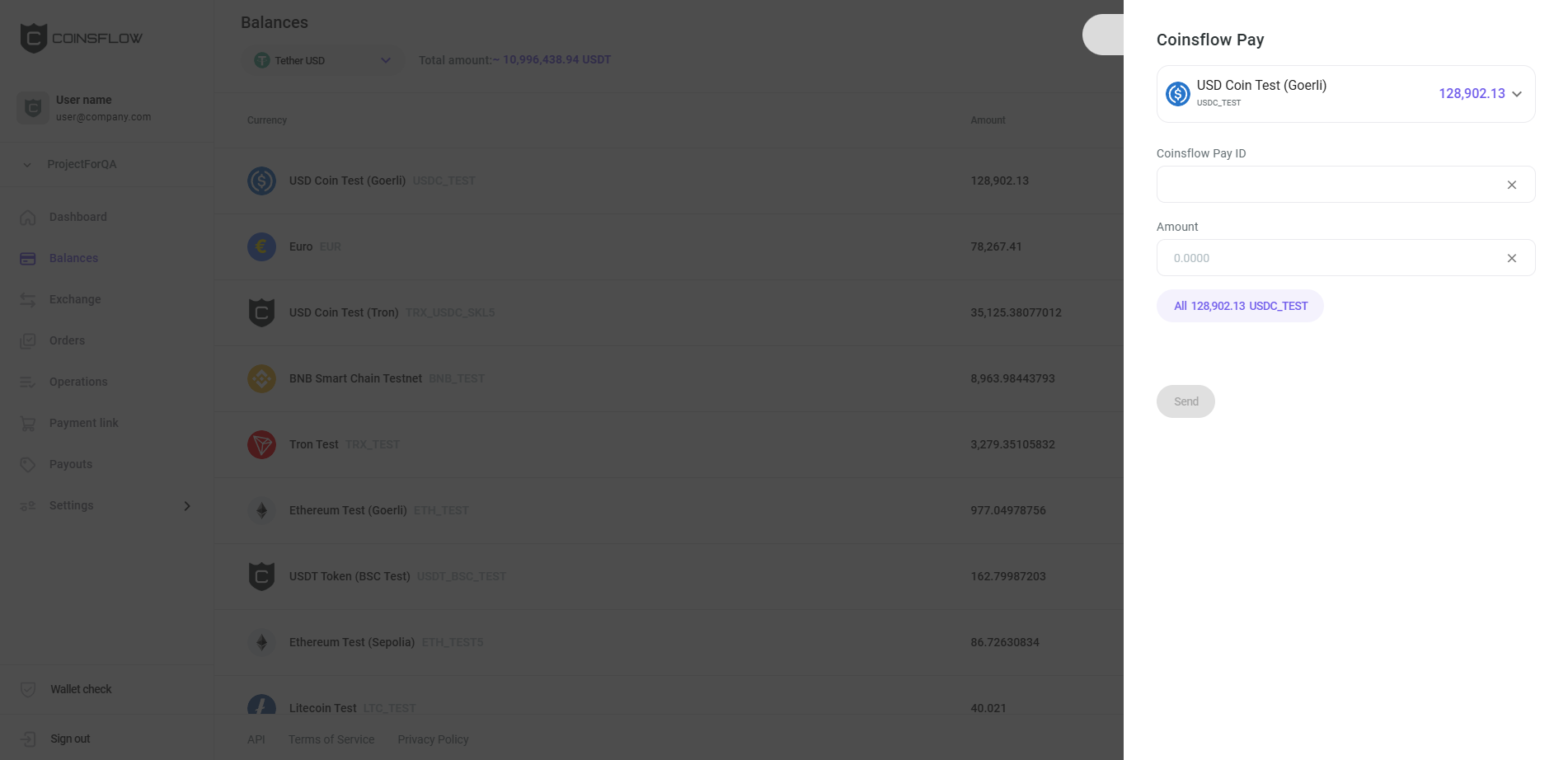
The Coinsflow Pay card is displayed:
-
Select the desired asset to transfer (if it is not displayed already).
-
Insert the desired Coinsflow pay id to transfer the asset to.
-
Insert the desired amount of the selected asset to transfer to (click on the "All" button to transfer the total amount of the asset).
-
Click on the "Send" button to proceed and confirm the action with your one-time (2FA) password.
-
The inserted amount of the selected asset is transferred to the indicated project.
-
The operation is created and displayed on the Operations table, on the Operations tab, under the Outgoing transfer type (the recipient sees the same operation with the Incoming transfer type). The amount used on the pay operation is subtracted from the balance of the selected asset and the Balances table on the Balances tab is updated accordingly.
Available Balance
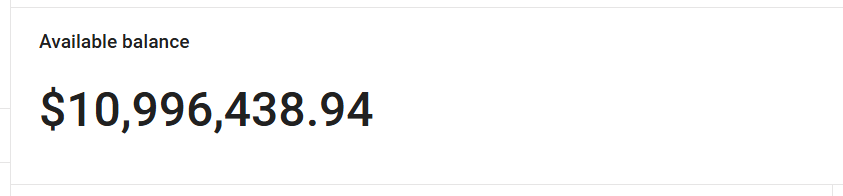
The Available balance section displays the current available balance in USD. It sums up all the assets available in the currently selected project and converts the total to USD:
Popular Cryptocurrencies
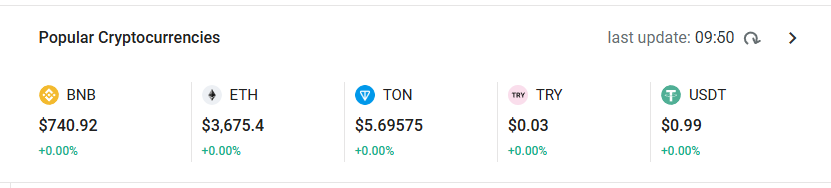
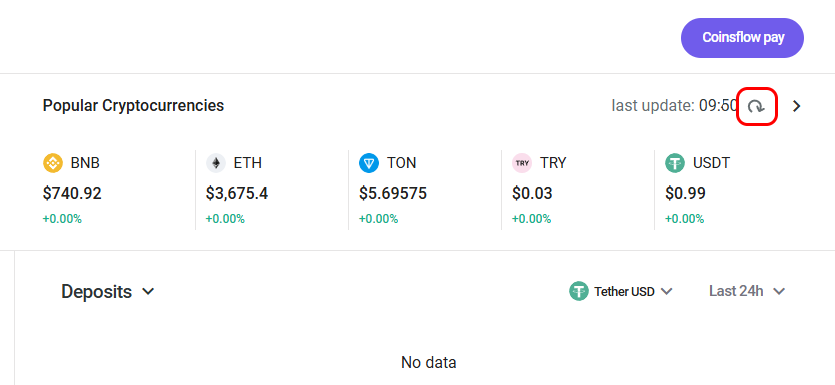
The Popular Cryptocurrencies section displays the most popular assets, their current value in USD, and their ratio fluctuation on the day:
In the Popular Cryptocurrencies section you can:
Refresh the Popular Cryptocurrencies Information
-
Click on the "Refresh" icon:
-
The Popular Currencies section is refreshed to display the updated information.
Go to the Balances tab
-
Click on the ">" icon:
-
The Balances tab is displayed.
Portfolio Distribution
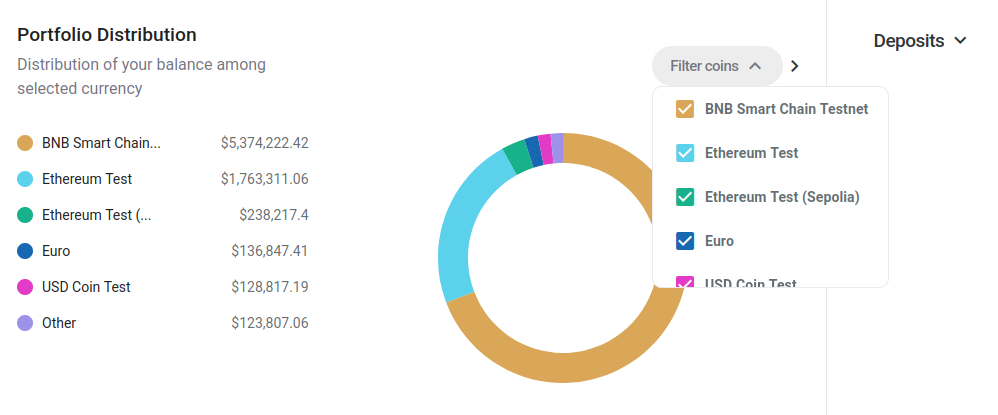
The Portfolio Distribution section displays the current balance distribution by currency.
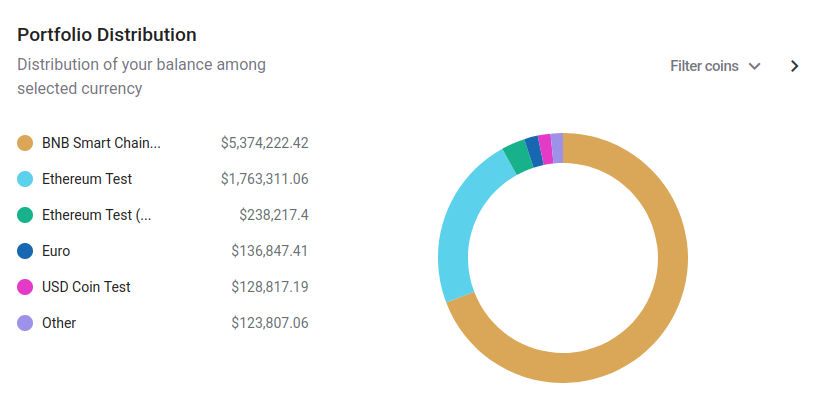
In the Portfolio Distribution section you can:
Filter the Selected Assets
-
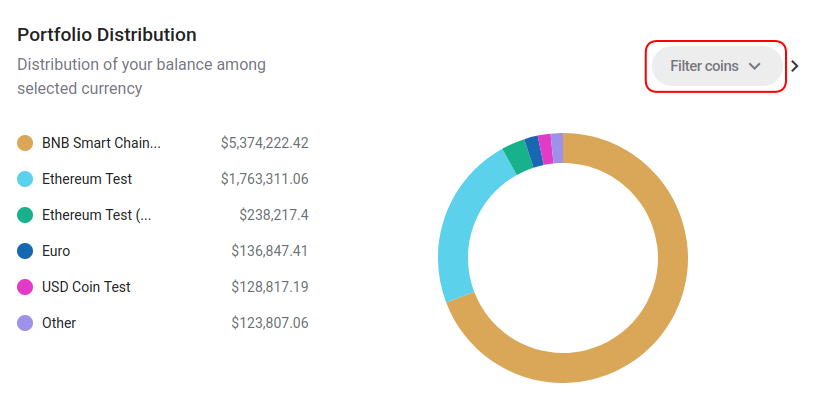
Click on the "Filter coins" icon:
-
Select the desired assets to see the balance distribution:
Go to the Balances Tab
-
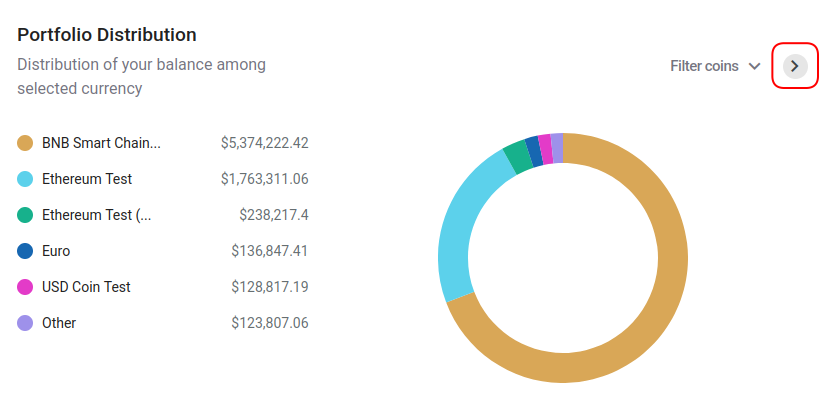
Click on the ">" icon:
-
The Balances tab is displayed.
Deposits
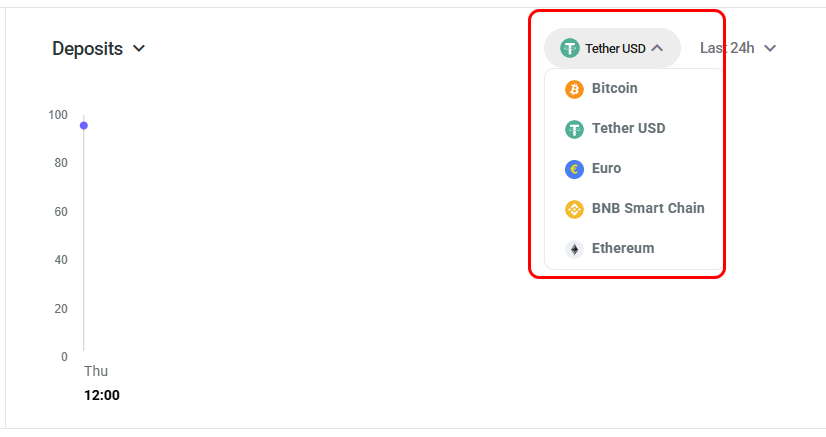
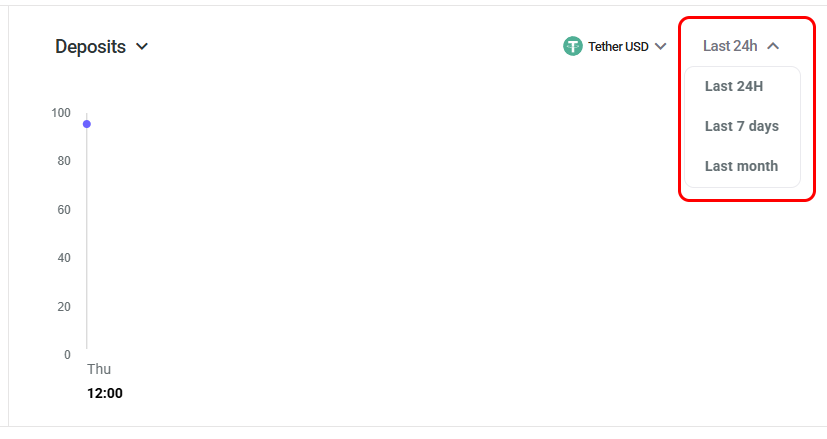
The Deposits section displays the latest deposits for the currently selected asset:
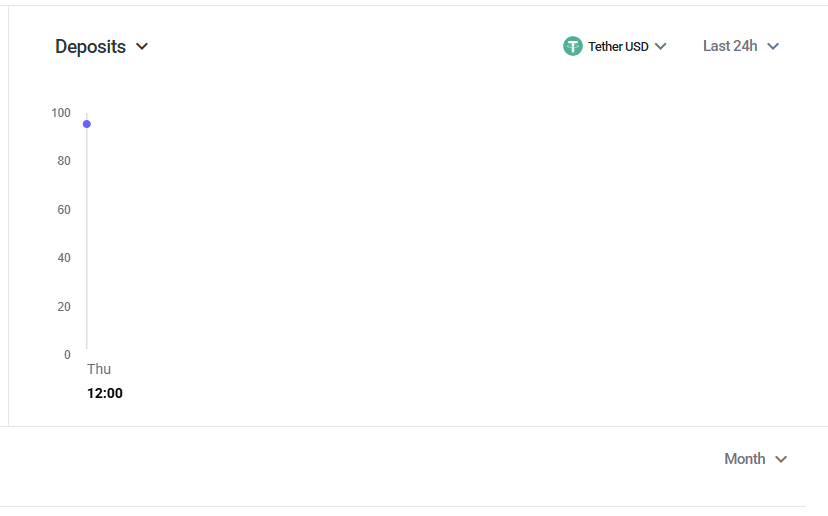
On the Deposits section you can:
Filter the Selected Assets
-
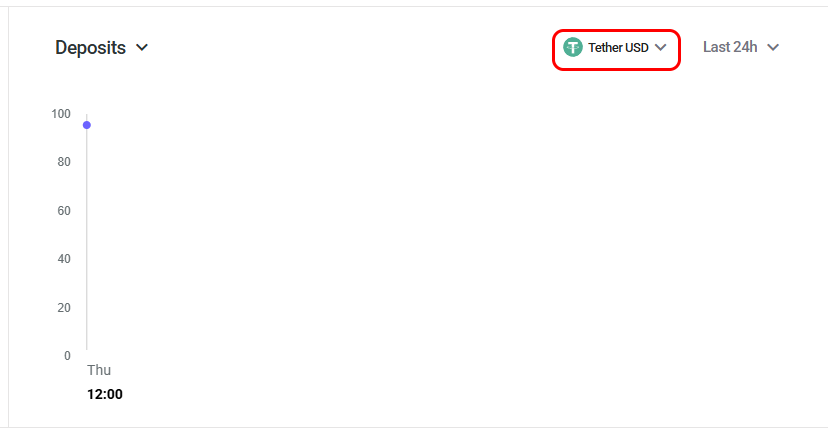
Click on the "Asset" icon:
-
Select the desired asset to apply to the Deposits dashboard:
-
The Deposits chart displays the latest deposits of the selected asset.
Filter the Selected Range Period
-
Click on the "Range" icon:

-
Select the desired range to apply to the Deposits dashboard:
-
The Deposits chart displays the latest deposits of the selected asset on the selected range period.
Turnover
The Turnover section displays the latest operations:

On the Trunover section you can:
Go to the Operations Tab
-
Click on the ">" icon:

-
The Operations tab is displayed.
Currency Usage for Transactions
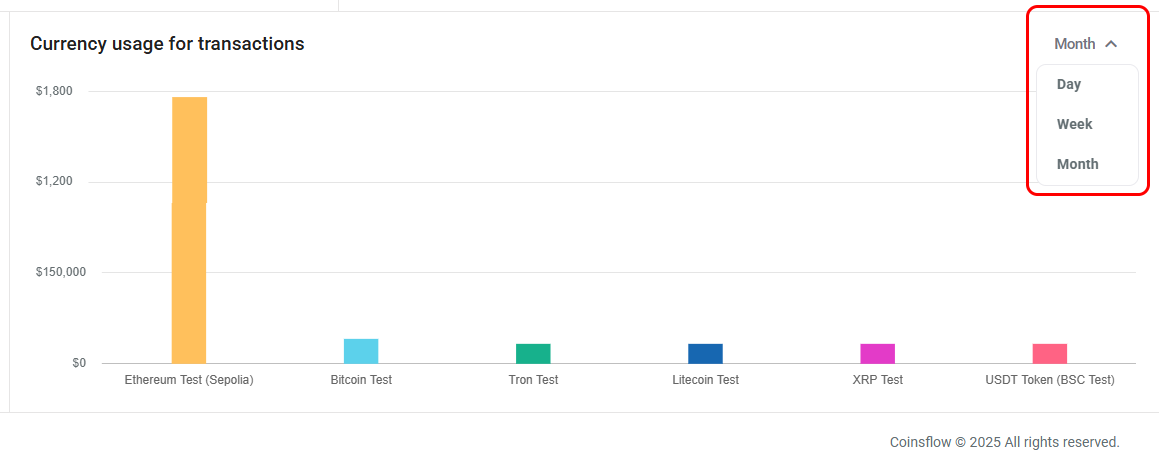
The Currency usage for transactions section displays the asssets used in the latest transactions:
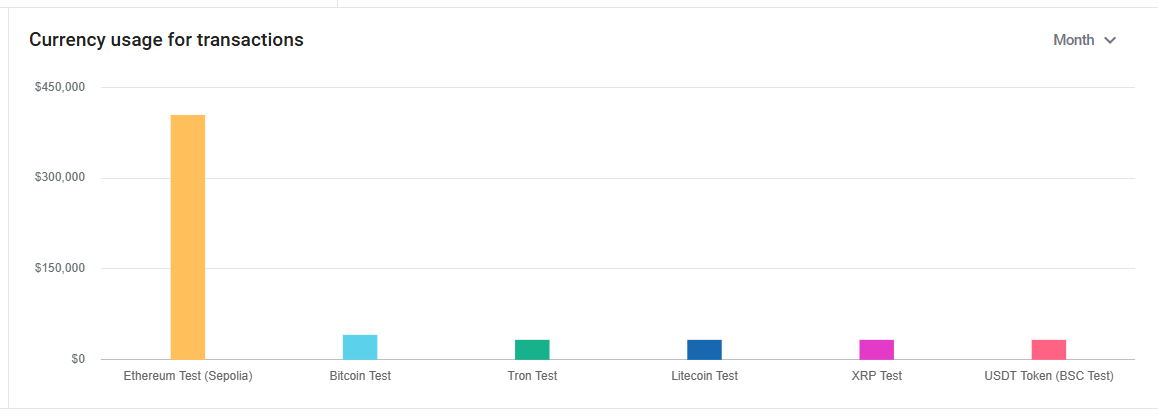
On the Currency usage for transactions section you can:
Filter the Selected Range Period
-
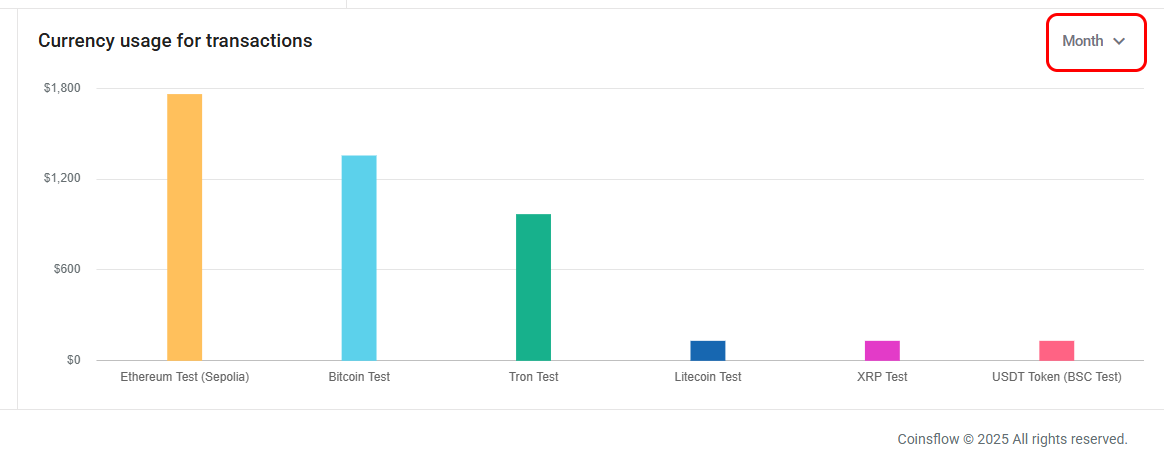
Click on the "Range" icon:
-
Select the desired range to apply to the Currency usage for transactions dashboard:
-
The Currency usage for transactions chart displays the latest usage of assets on the selected range period.