Starting on Coinsflow
This article provides information on how to get started with Coinsflow.
Registration
-
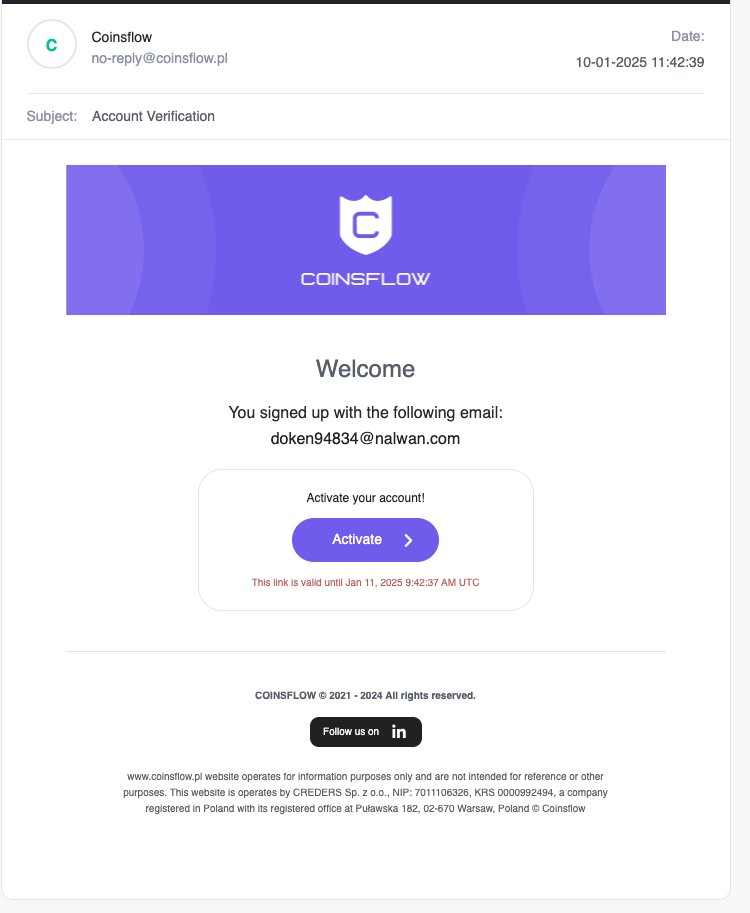
The first time you register on the Coinsflow app, a verification email is sent to the provided email address:
-
Click on the link provided in the email to open the Coinsflow application.
-
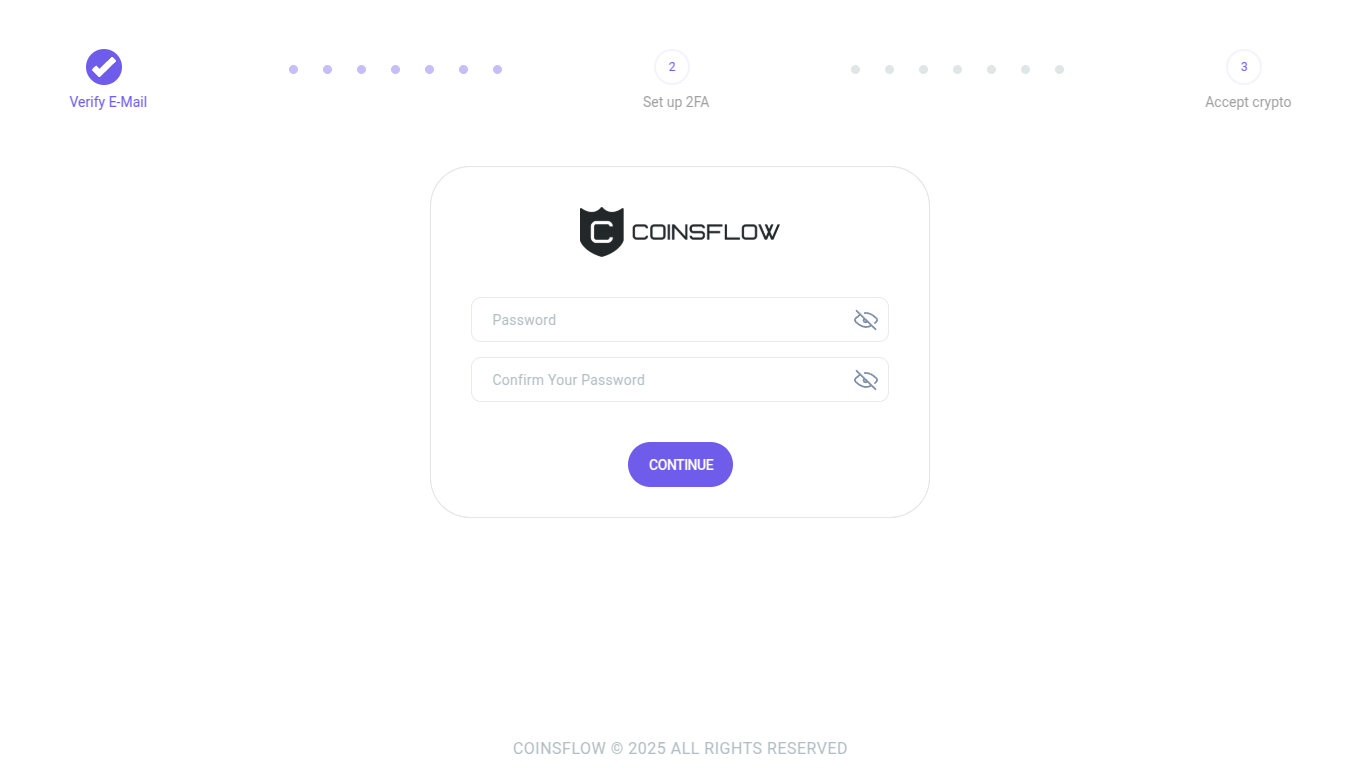
The "Verify e-mail" screen is displayed:
-
Insert the desired password.
-
Re-insert the same password to confirm that it is the intended password.
-
Click on the "Continue" button to proceed.
-
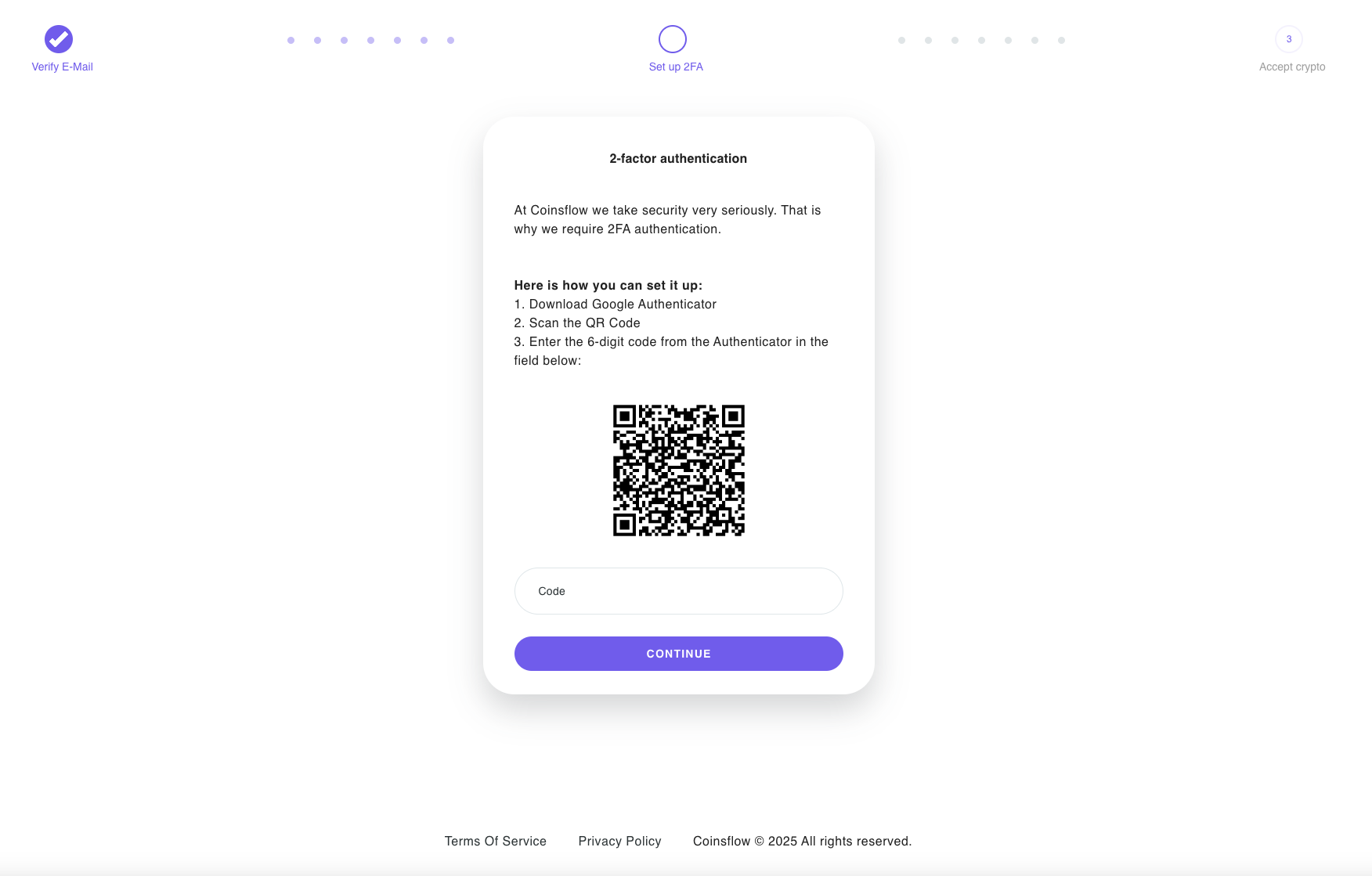
The "2-factor-authentication" screen is displayed:
-
Open the "Google Authenticator" application on your mobile phone (download and install it first if it is not installed yet).
-
Scan the the QR Code displayed on the screen.
-
Insert the 6-digit code from the Aunthenticator in the field below.
-
Click on the "Continue" button to proceed.
-
The "Enabled 2FA Authentication" screen is displayed.
-
Click on the "Continue" button to proceed.
-
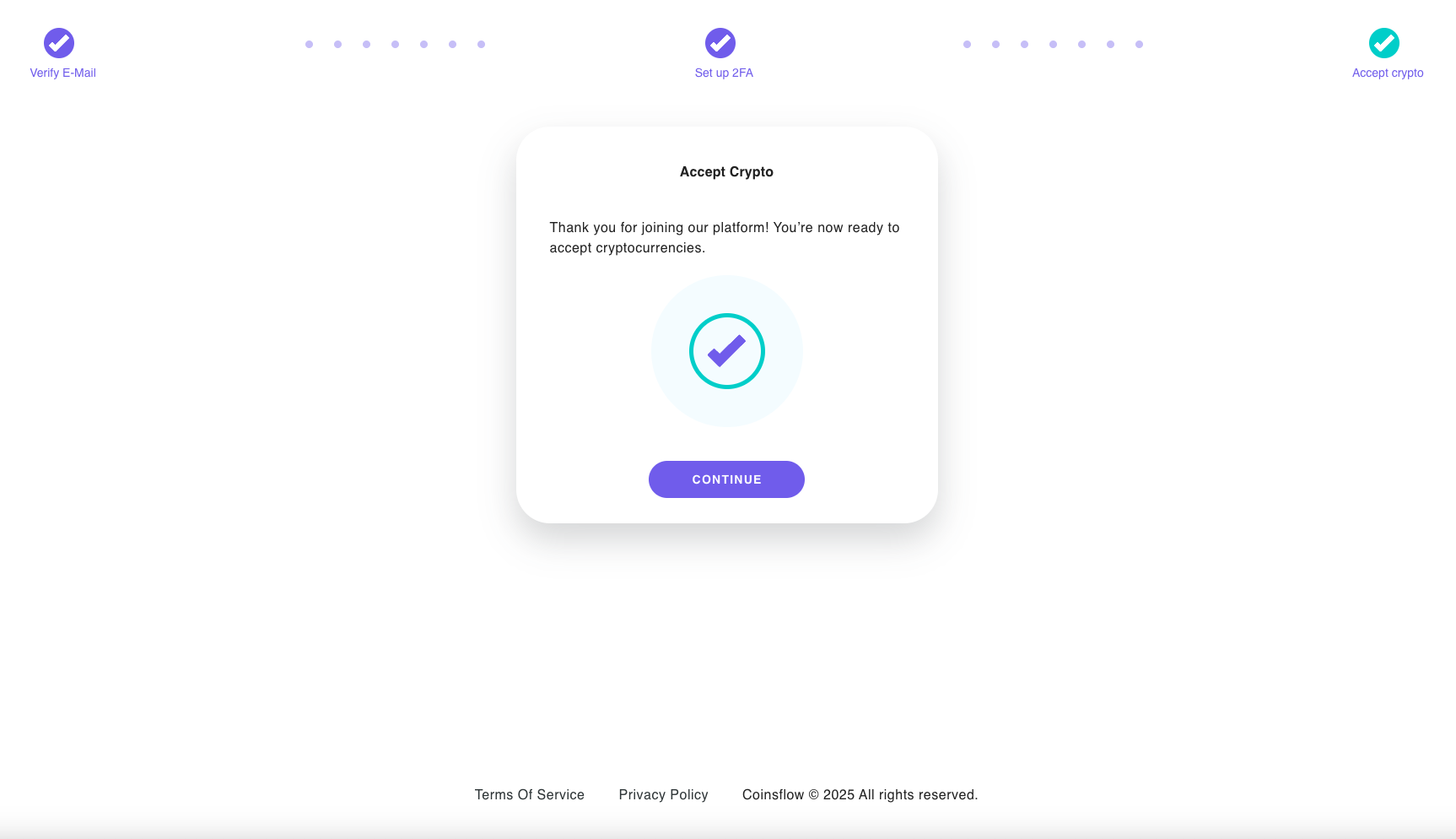
The "Registration completed" screen is displayed:
Log In
-
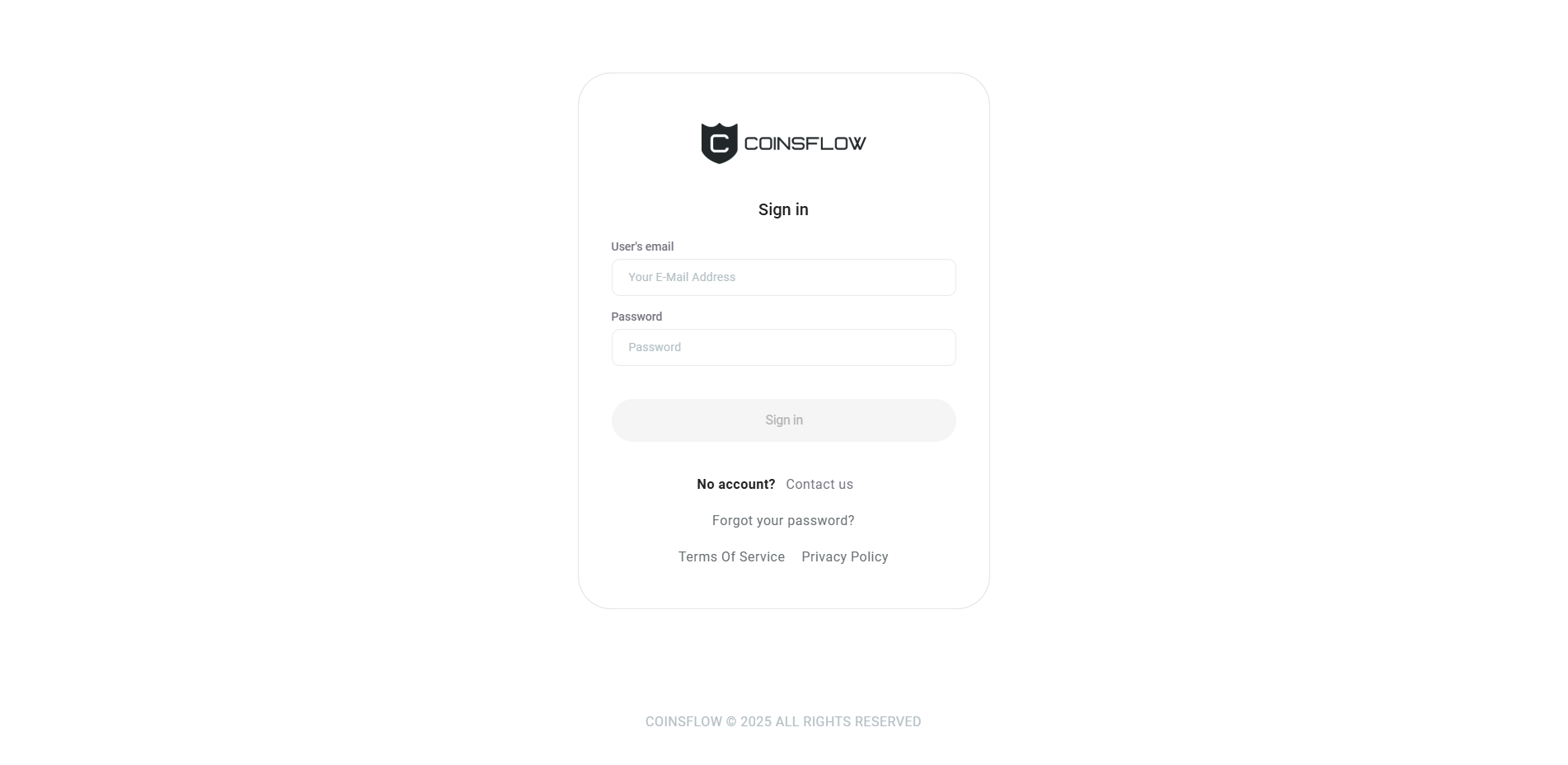
Insert the email address provided to create the account, on the "Sign in" card:
-
Insert the password assigned to match the email address on the authentication process.
If you don’t remember your password, click on the "Forgot your Password?" link. An email will be sent to the inserted email address with the instruction on how to change your password.
-
Click on the sign in button to proceed.
-
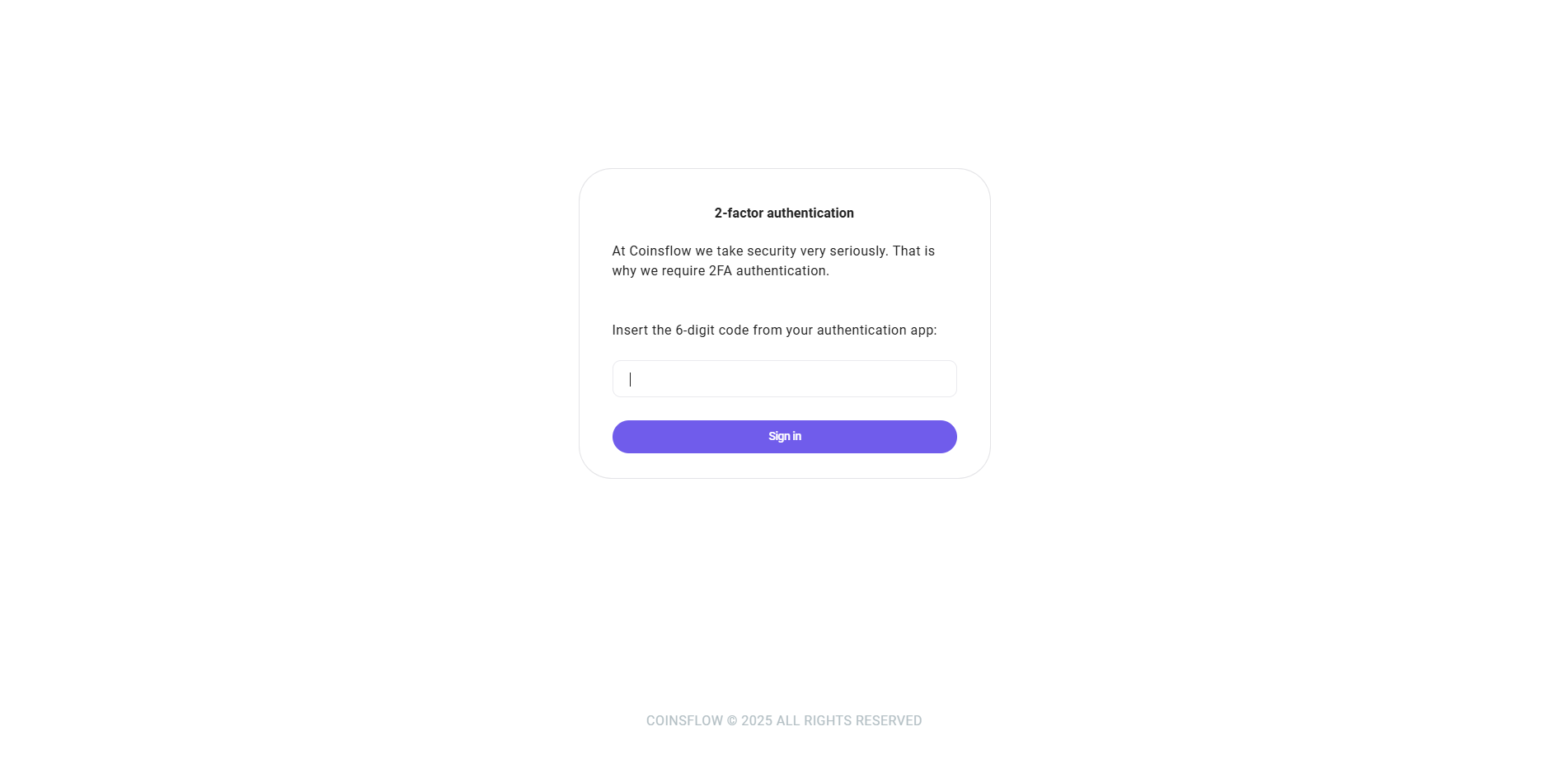
The 2-factor authentication card is displayed:
-
Open the Authenticator app, on your mobile phone.
-
Select the account associated with the Coinsflow authentication process.
-
A code number is displayed, with 6 digits.
-
Insert the code on the 2-factor authentication card.
-
Click on the "Sign in" button to proceed.
-
The Coinsflow application is displayed.
Switch Between Projects
-
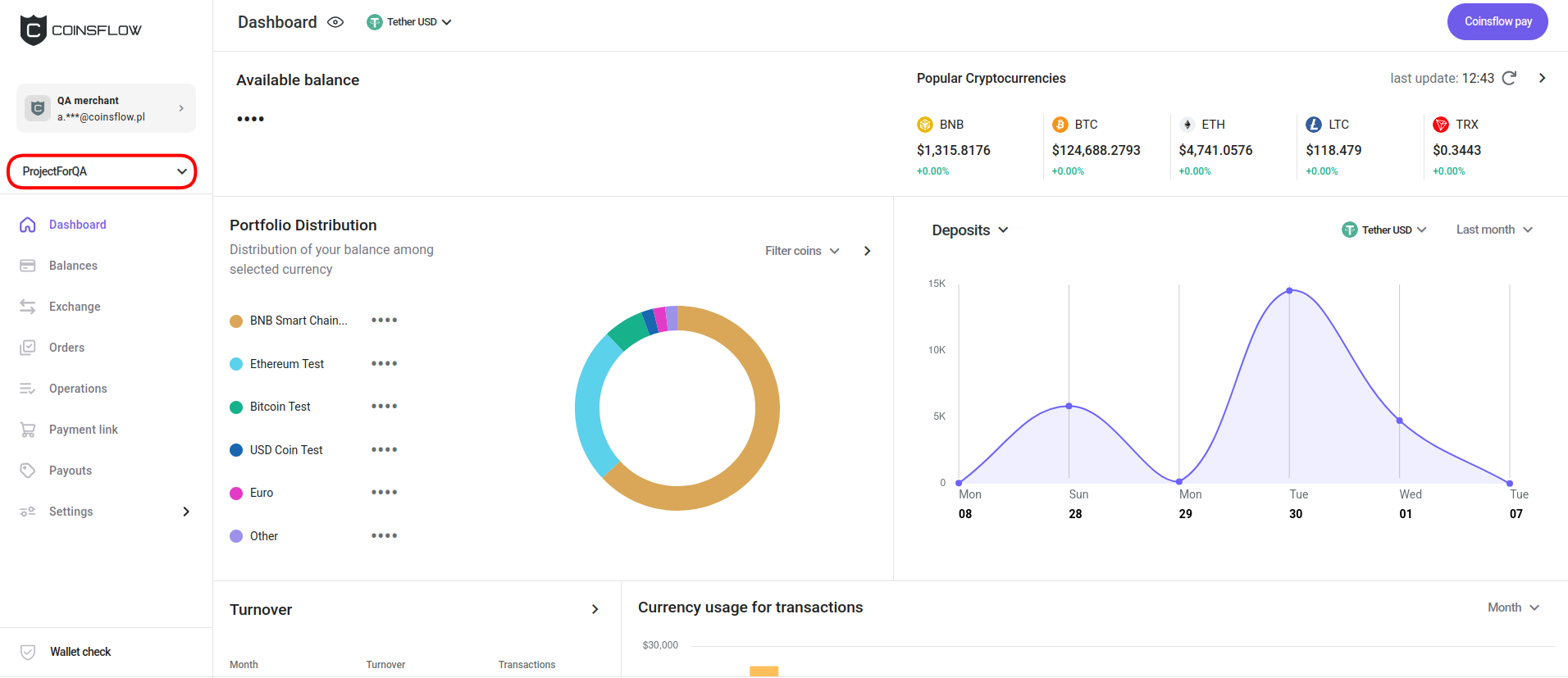
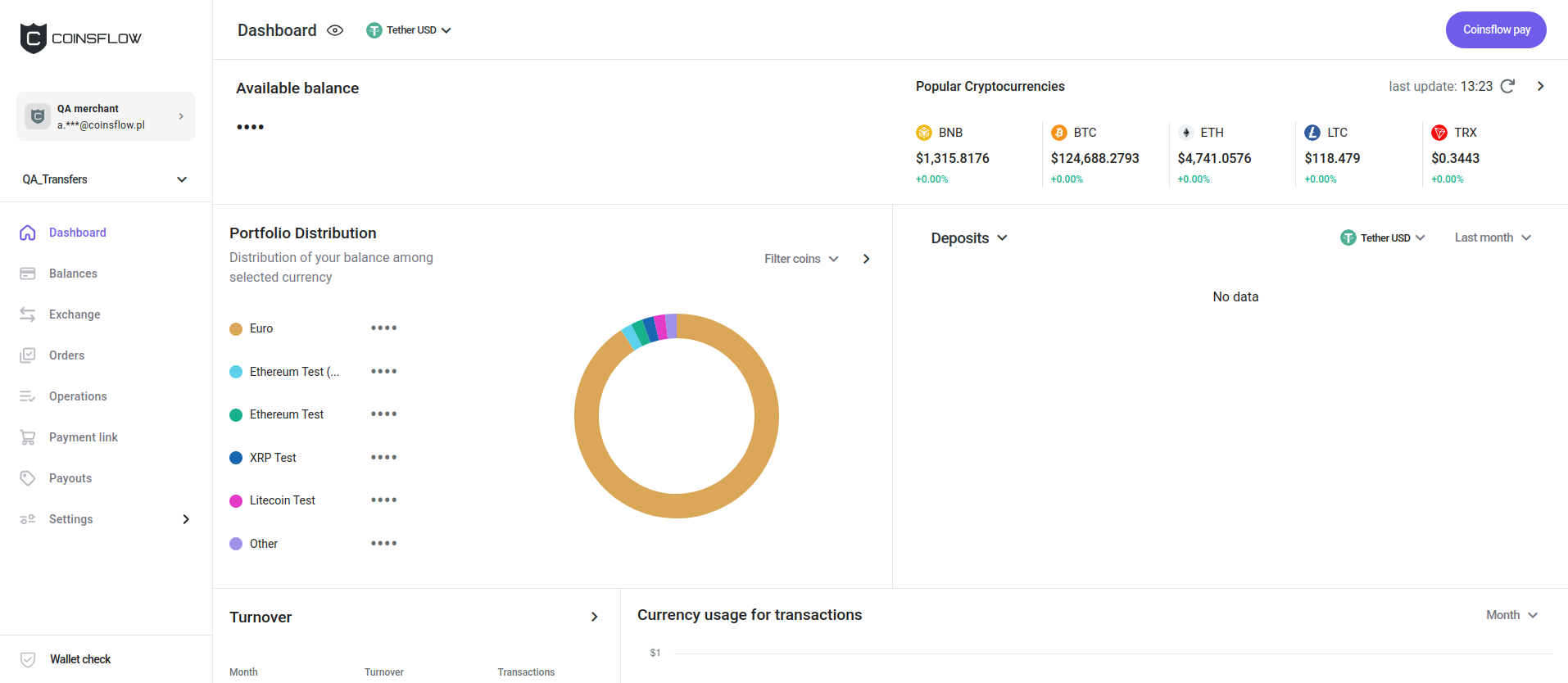
The current project name is displayed in the top-left corner of the screen (if you have more than 1 project):
-
Click on the project name.
-
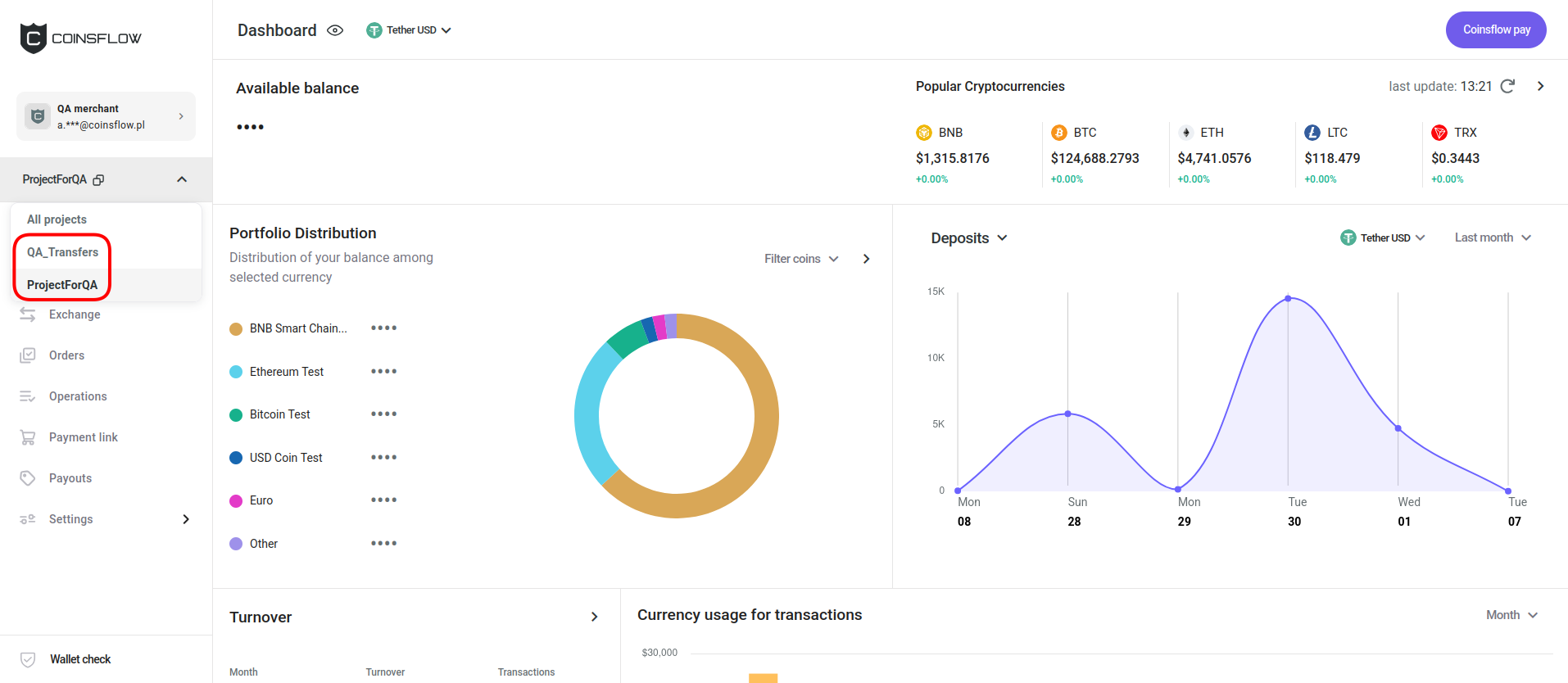
Select the desired project from the drop-down menu:
-
The selected project is displayed:
Switch to Aggregated View
-
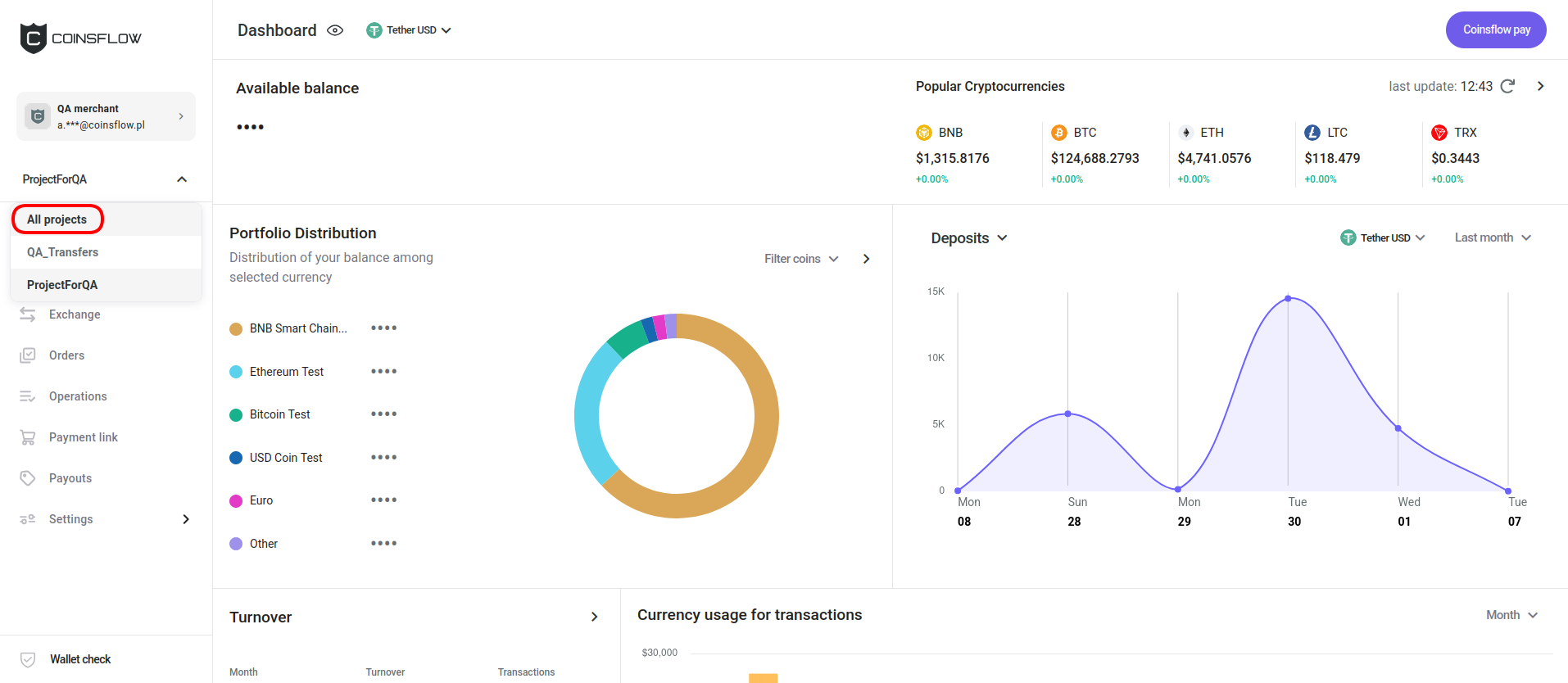
The current project name is displayed in the top-left corner of the screen (if you have more than 1 project):
-
Click on the project name.
-
Click on "All projects" (instead of selecting a specific project), from the drop-down menu:
-
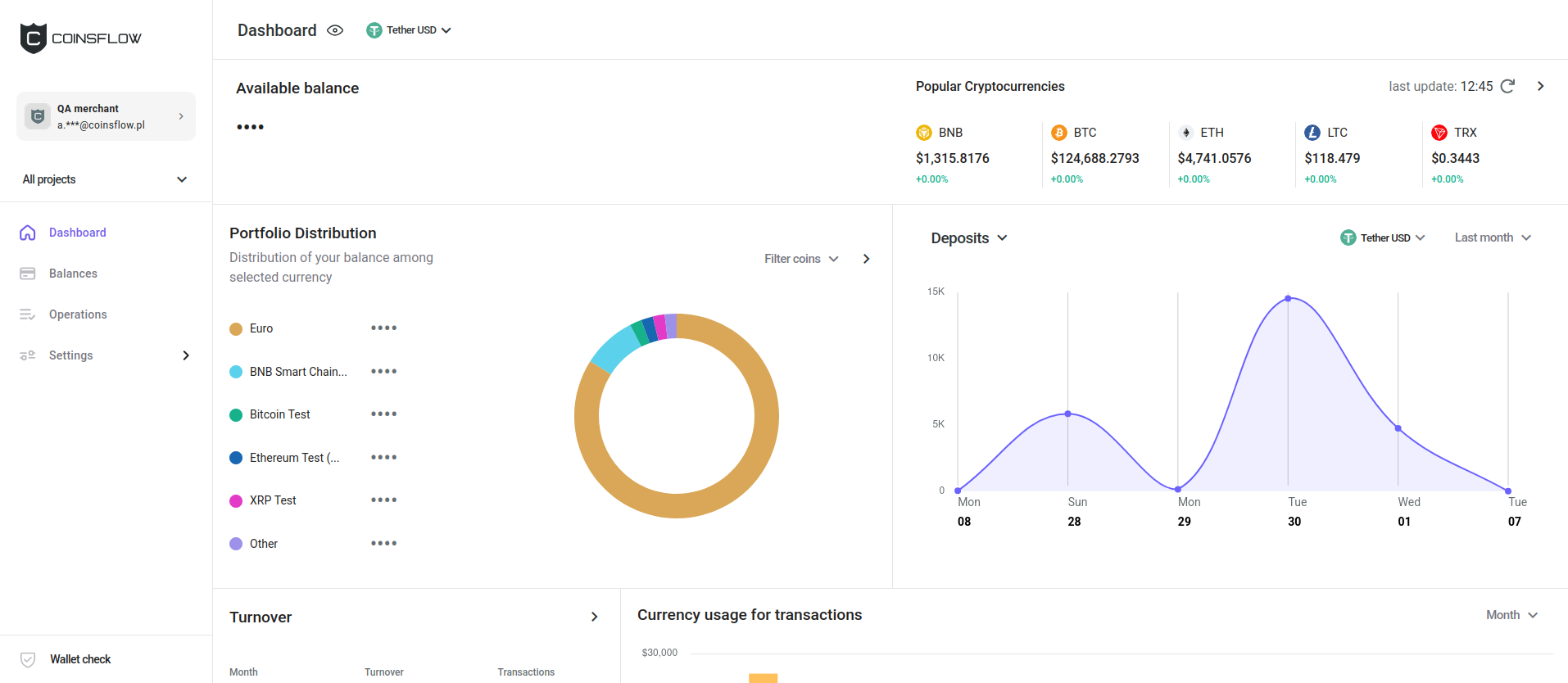
The aggregated page with information from all projects is displayed:
To learn more about the actions available in Aggregated view, click here.