Settings Tab
Settings allow you to customize your portal experience and manage the security protocols.
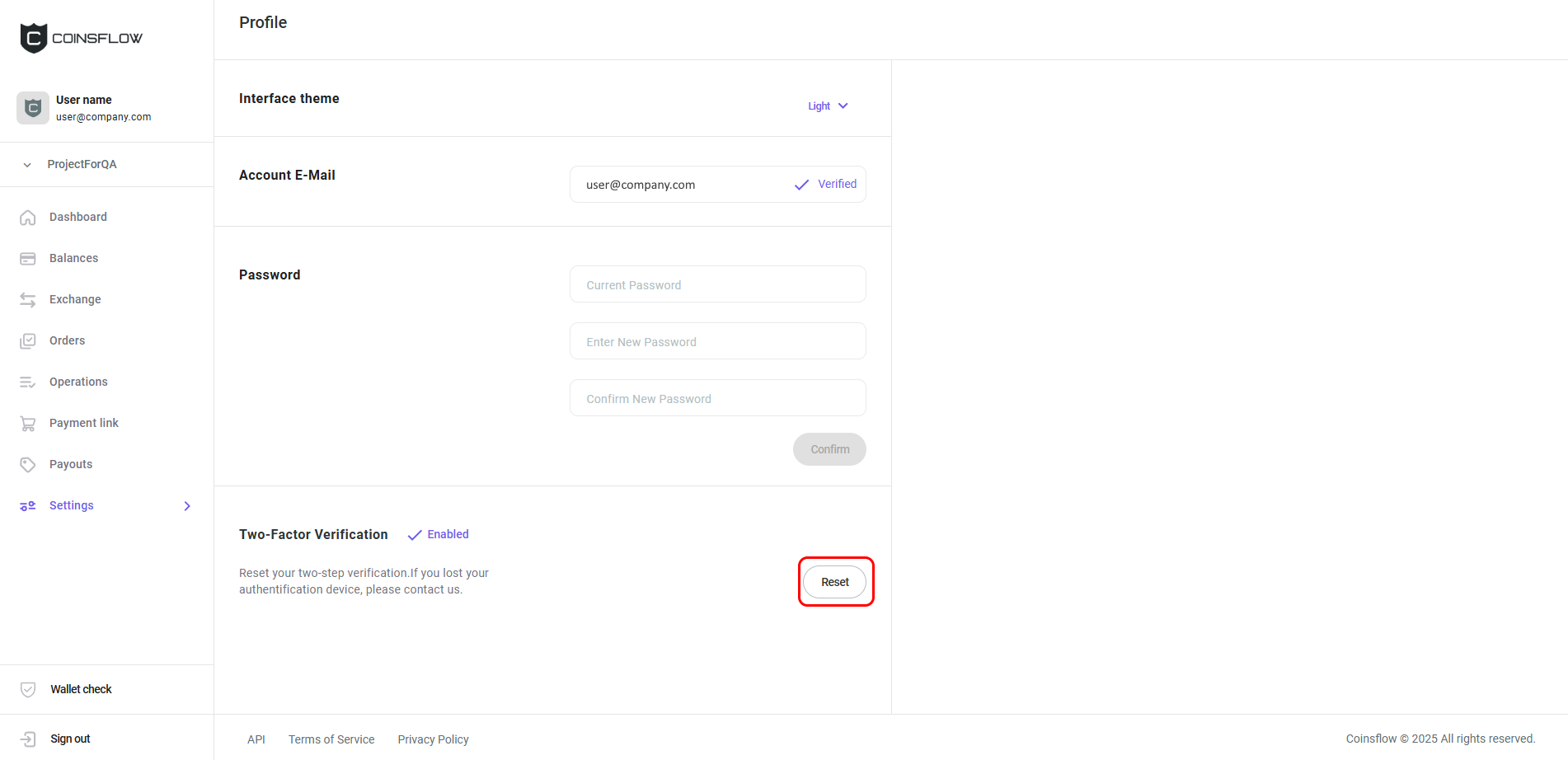
The Profile tab is displayed by default when you open the Settings Section:
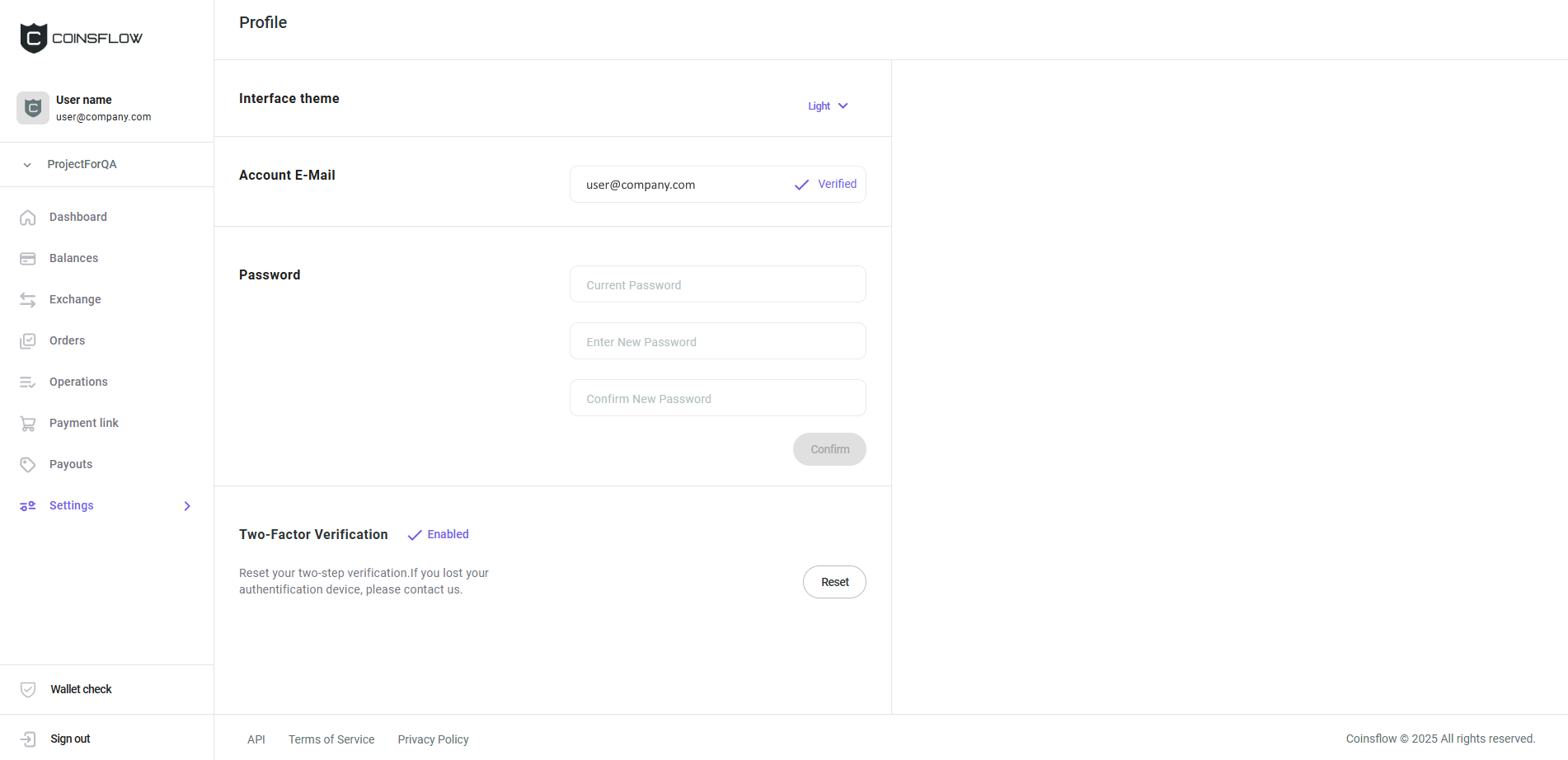
On the Profile tab you can:
Change to Dark Mode:
-
In the Interface theme, click on light:
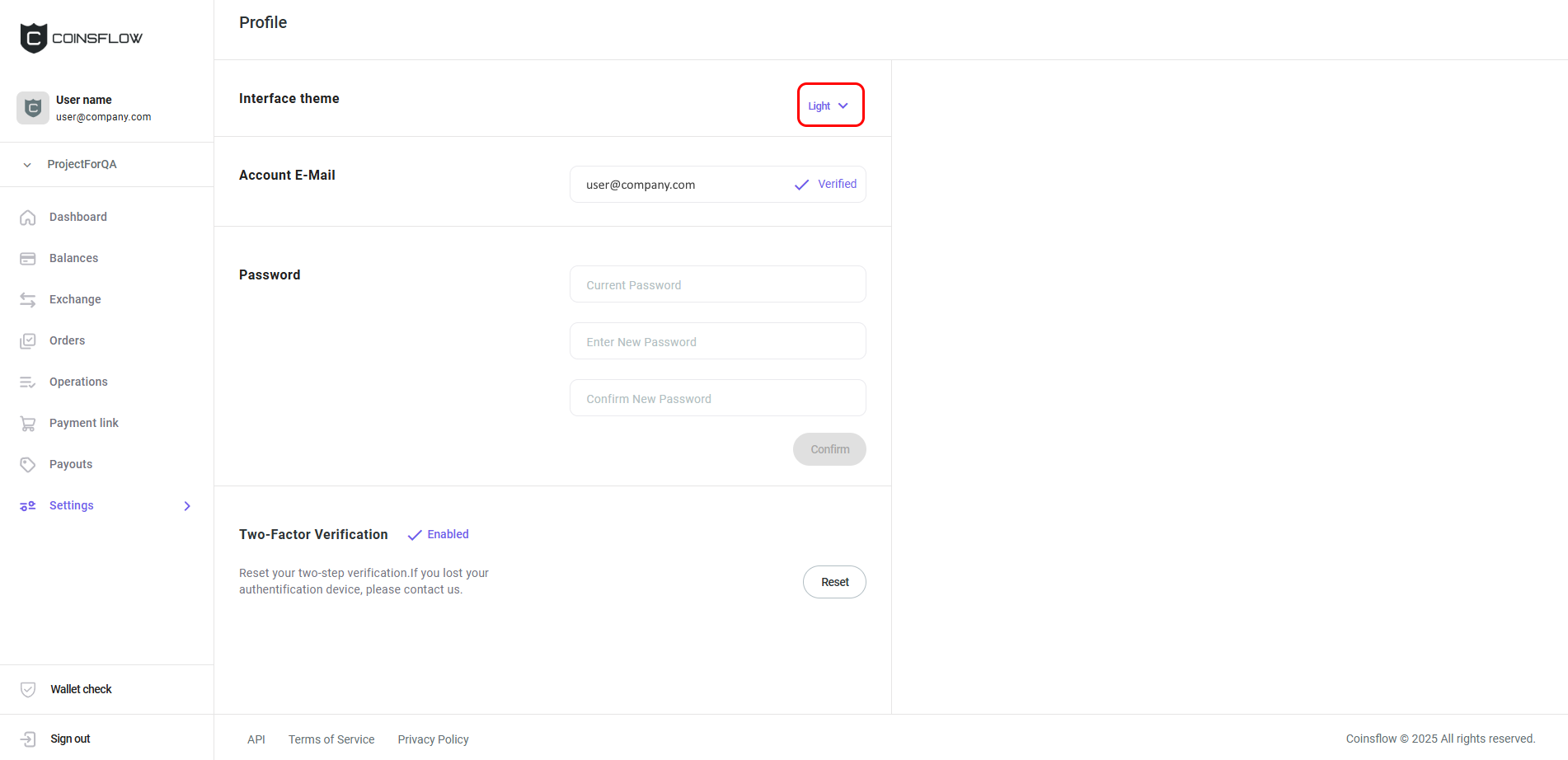
-
Select Dark from the drop-down menu:
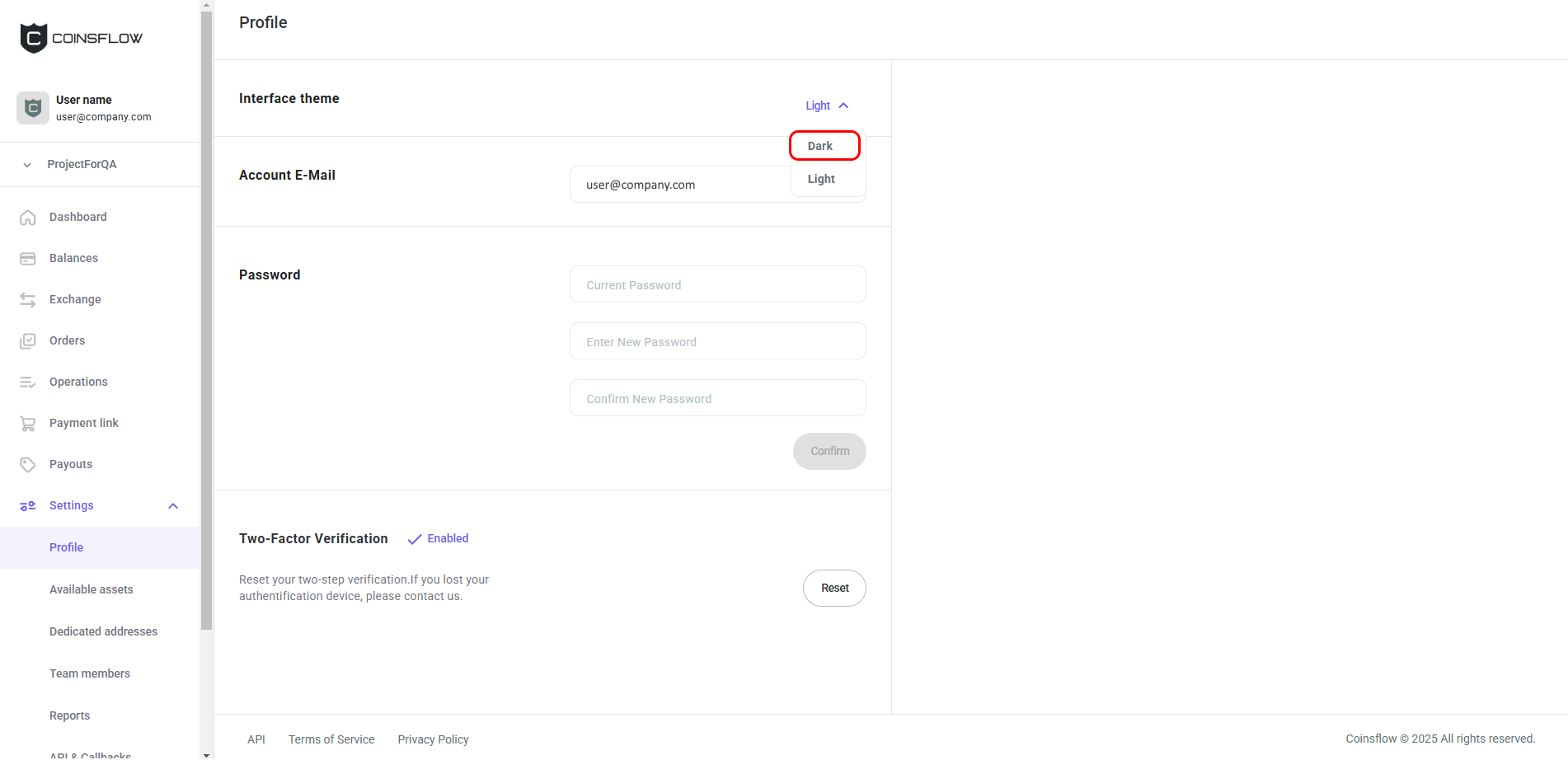
-
The portal is displayed in the dark theme:
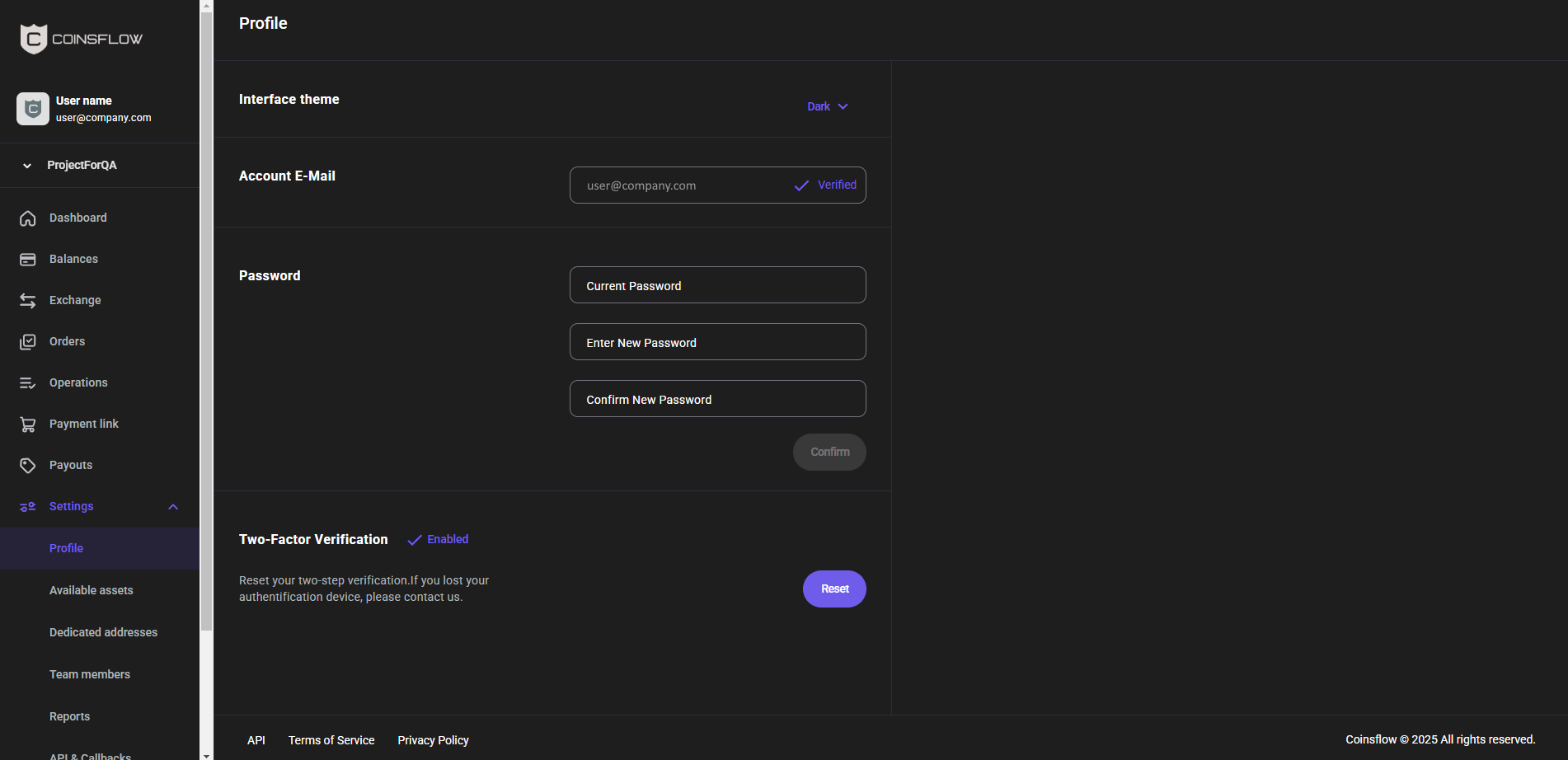
Change your Password
- Insert your current password, in "Current password".
- Insert the desired password, in "New password".
- Re-Insert the new password, in "Confirm new password".
- Click on the "Confirm" button to proceed.
- The password is changed and the new password is associated with your email.
Reset the Two-Factor Verification
-
Click on the The "Reset" button:
-
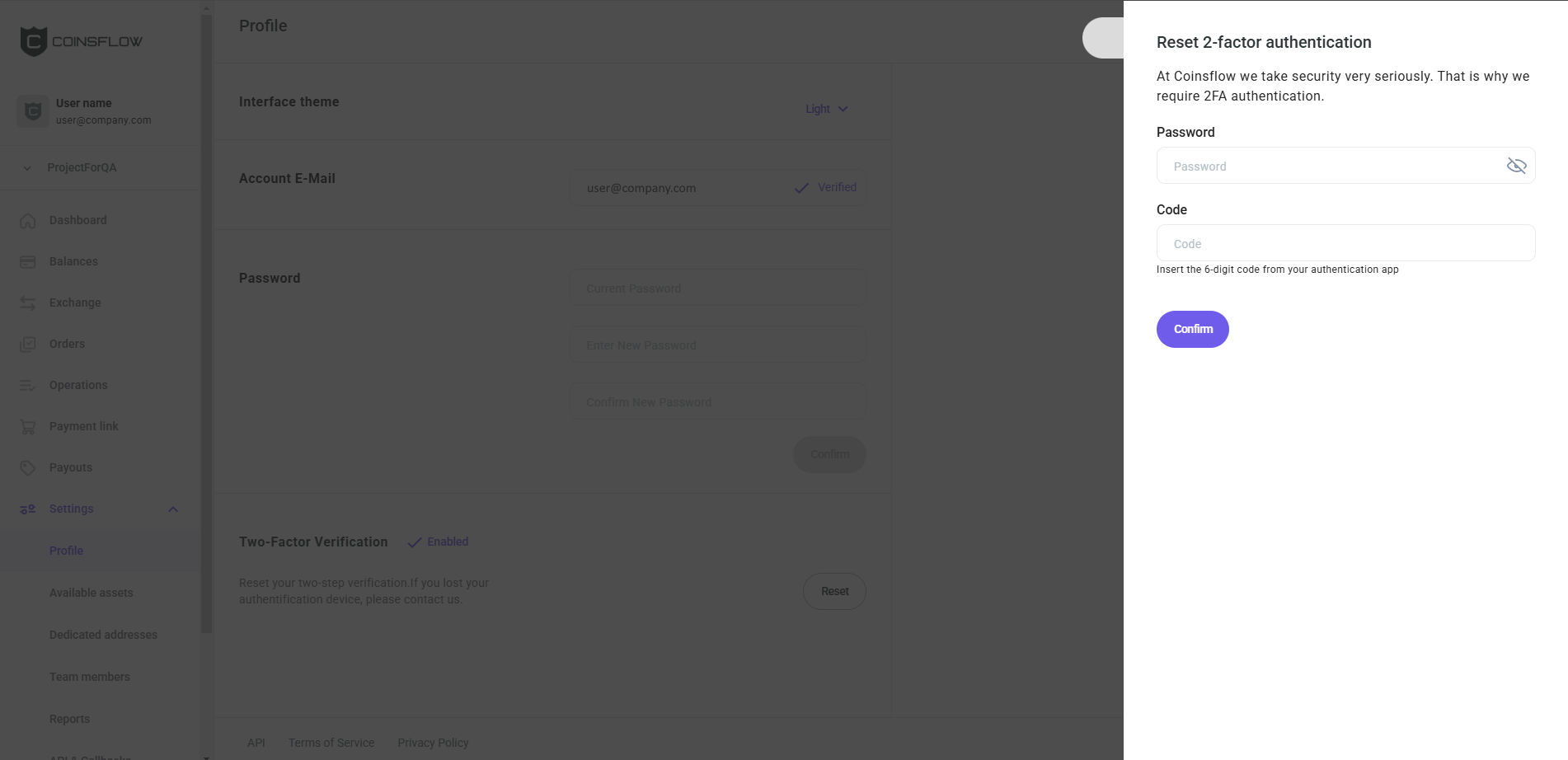
The Reset 2-factor authentication card is displayed:
-
Insert the password associated with the account and insert the code provided by the Authenticator app.
-
Click on the confirm button to proceed.