Team Tab
Team management means you can add users to your team and configure their role (different roles have different permissions on the portal) and deactivate users as well.

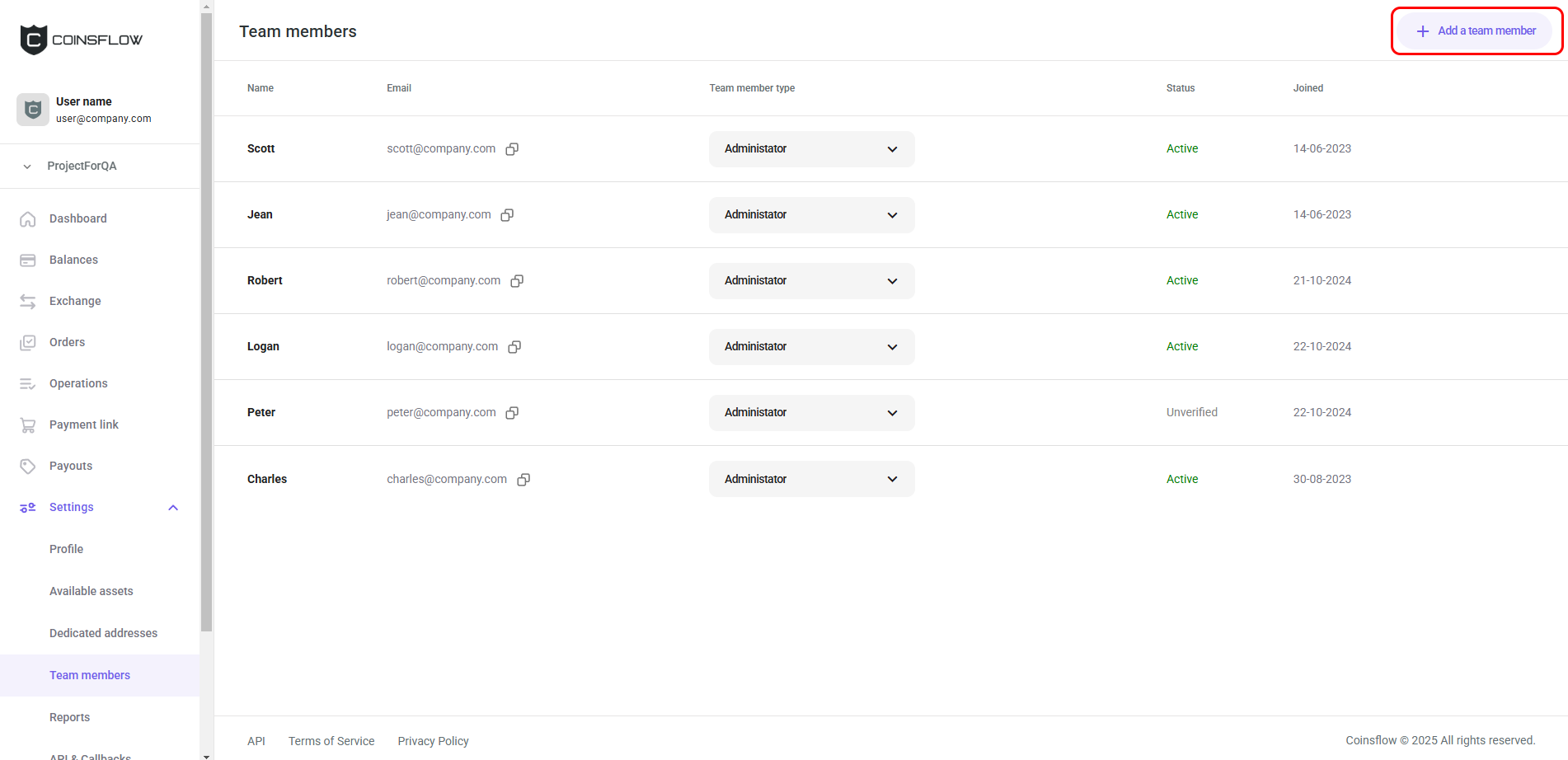
The "Team members" table displays the following columns:
| Name | Description |
|---|---|
| Name | Displays the name that identifies the member on the platform. |
| Displays the email address associated with the member. | |
| Team member type | Displays the role assigned to the member. |
| Status | Displays the current status of the member from Active, Deactivated, and Unverified. |
| Joined | Displays the date the member was created. |
Add a User
-
Click on the "Add a team member" button:
-
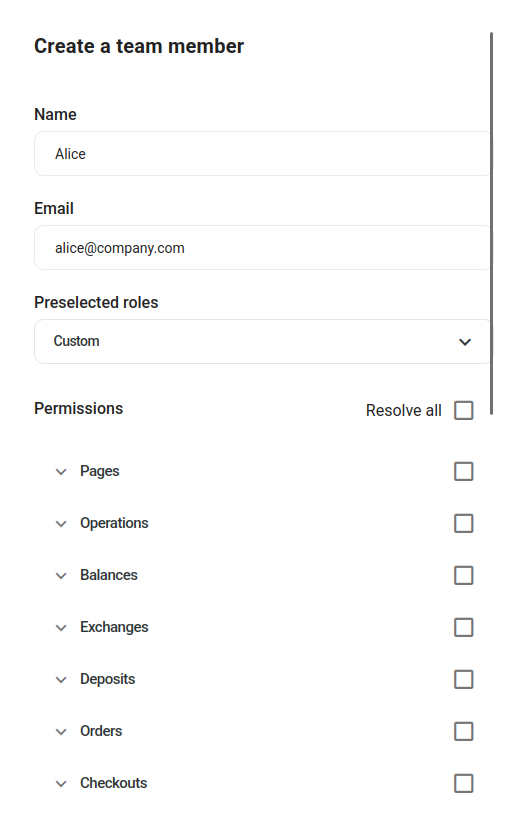
The "Create a team member" card is displayed:
-
In "Name", insert the desired name to identify the new team member.
-
In "Email", insert the desired email to associate with the new team member.
-
In "Role", select the desired role to assign to the new team member or select individual permissions in the "Permissions" list.
-
Click on the "Done" button to confirm.
-
Confirm the action with your one-time (2FA) password.
-
The new member is created and displayed on the "Team members" table.
Change a User's Role
-
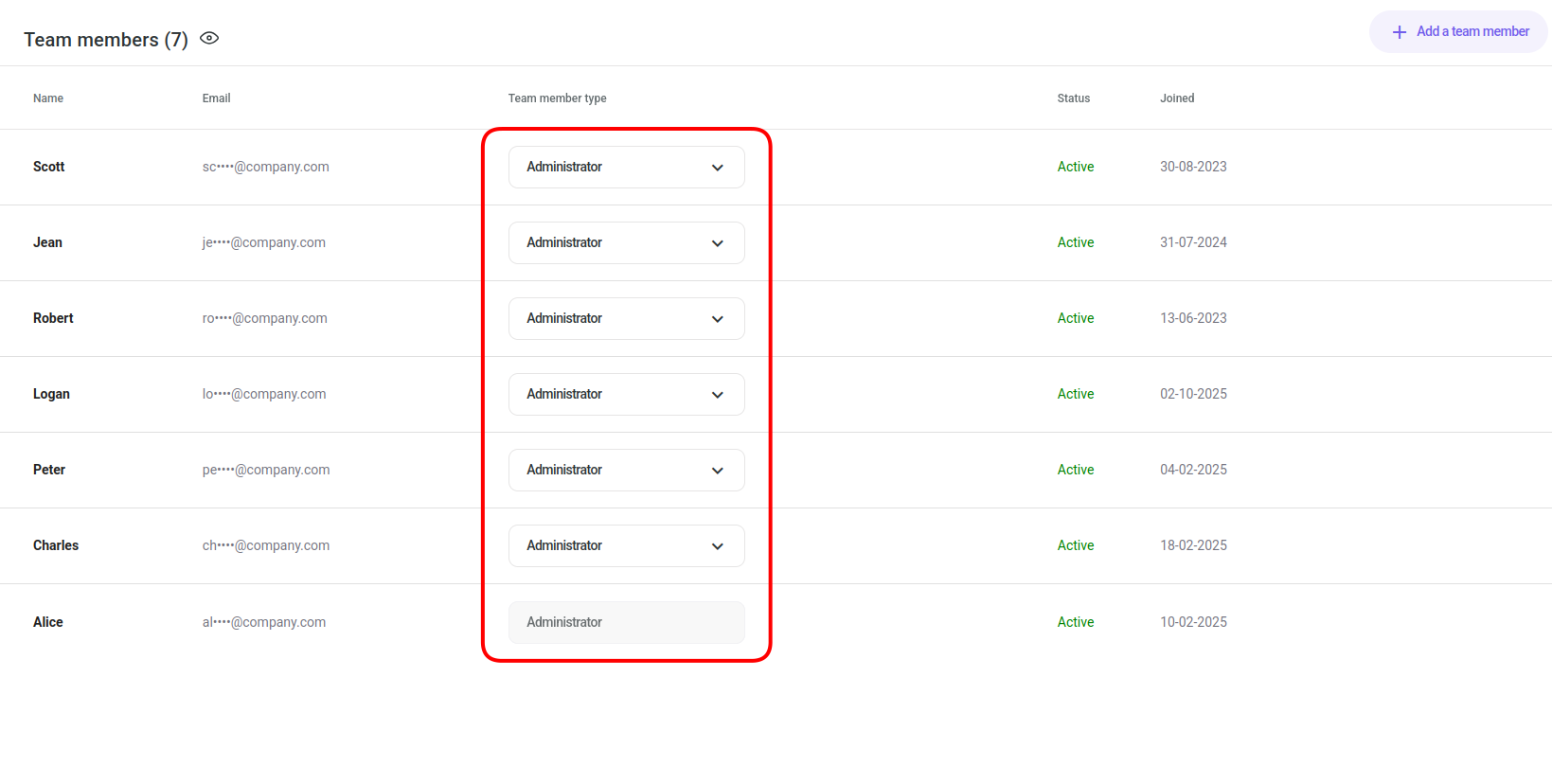
Click on the "Role" drop-down menu of the desired user:
-
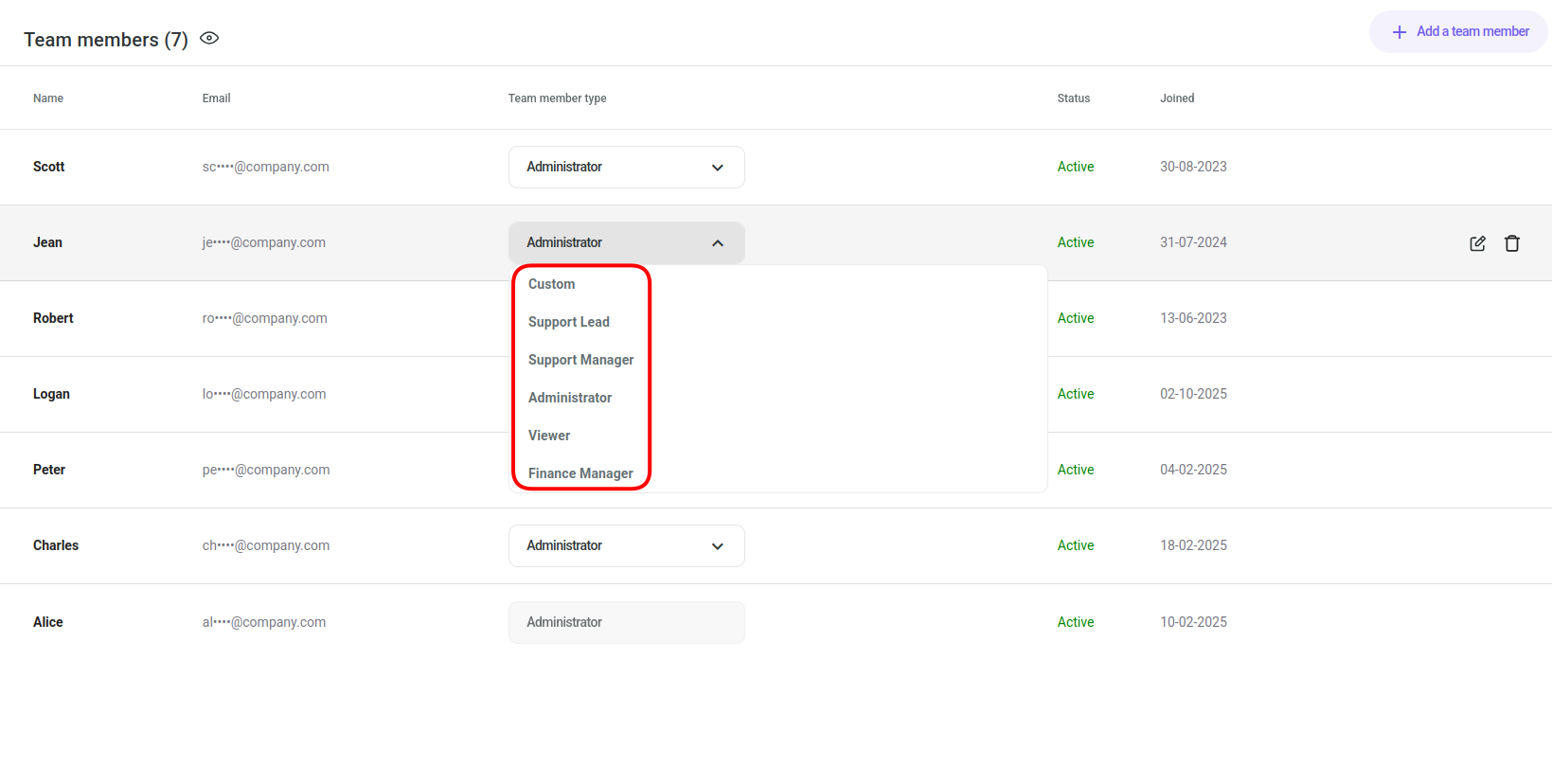
Select the desired role to assign to the member, from the drop-down menu or click "Custom" and adjust individual permissions:
-
Confirm the action with your one-time (2FA) password.
-
The role is assigned to the member and displayed on the "Team members" table.
Delete a User
-
Hover over the desired member row:
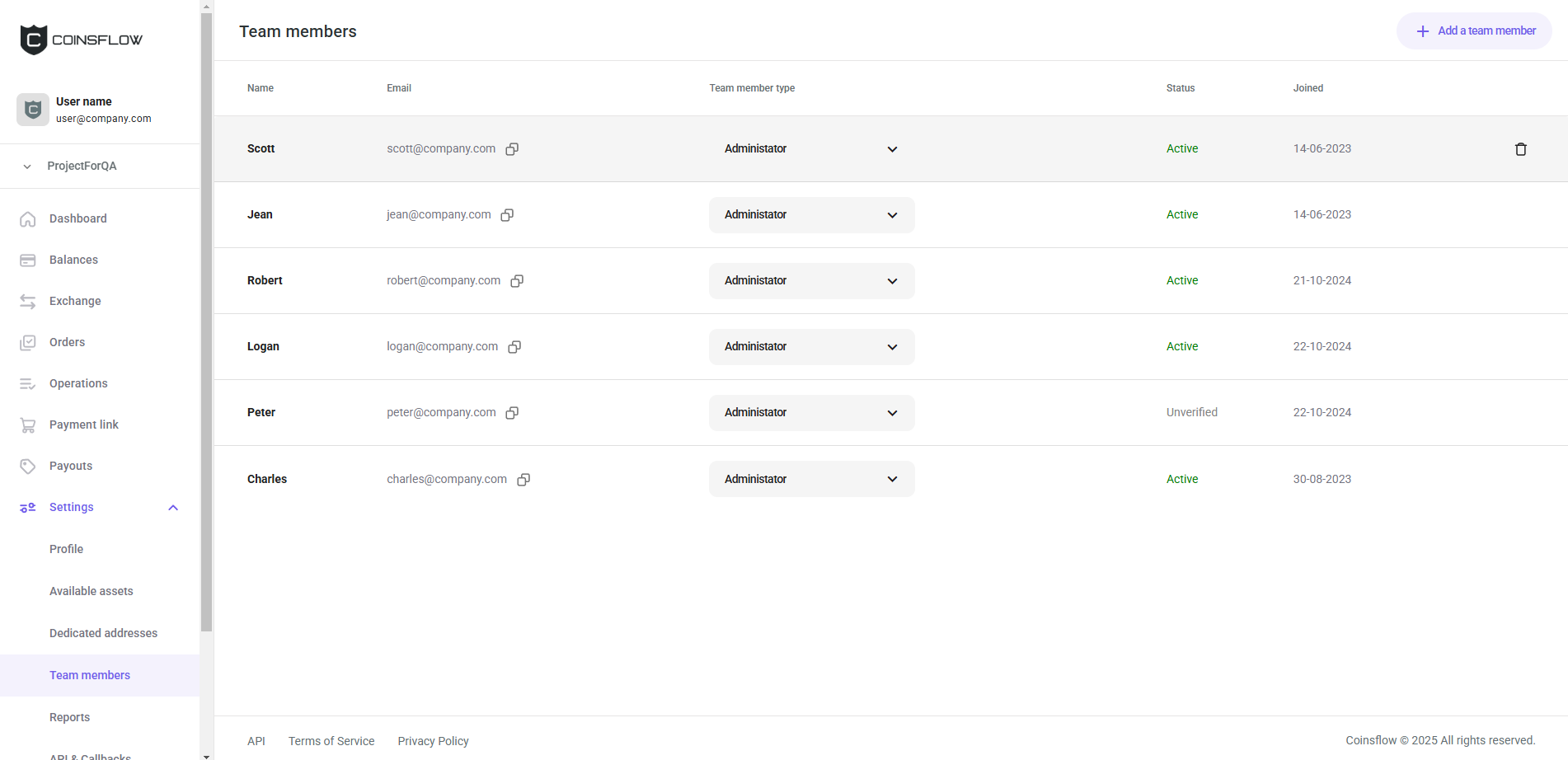
-
Click on the "delete" icon:

-
Confirm the action with your one-time (2FA) password.
-
The member is deleted and removed from the Team members table.